View Resource Calendar
The resource calendar is also available to assist with managing bookings.
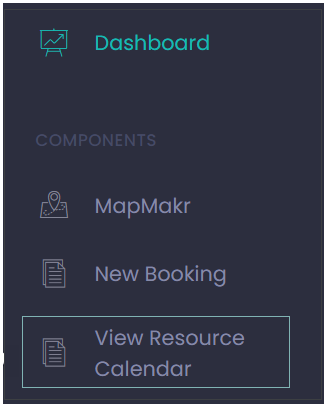
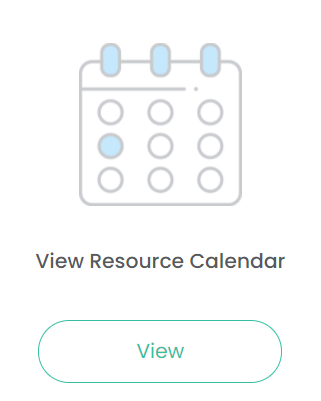
From the side menu choose View Resource Calendar or from the dashboard choose the View under Resource Calendar icon.
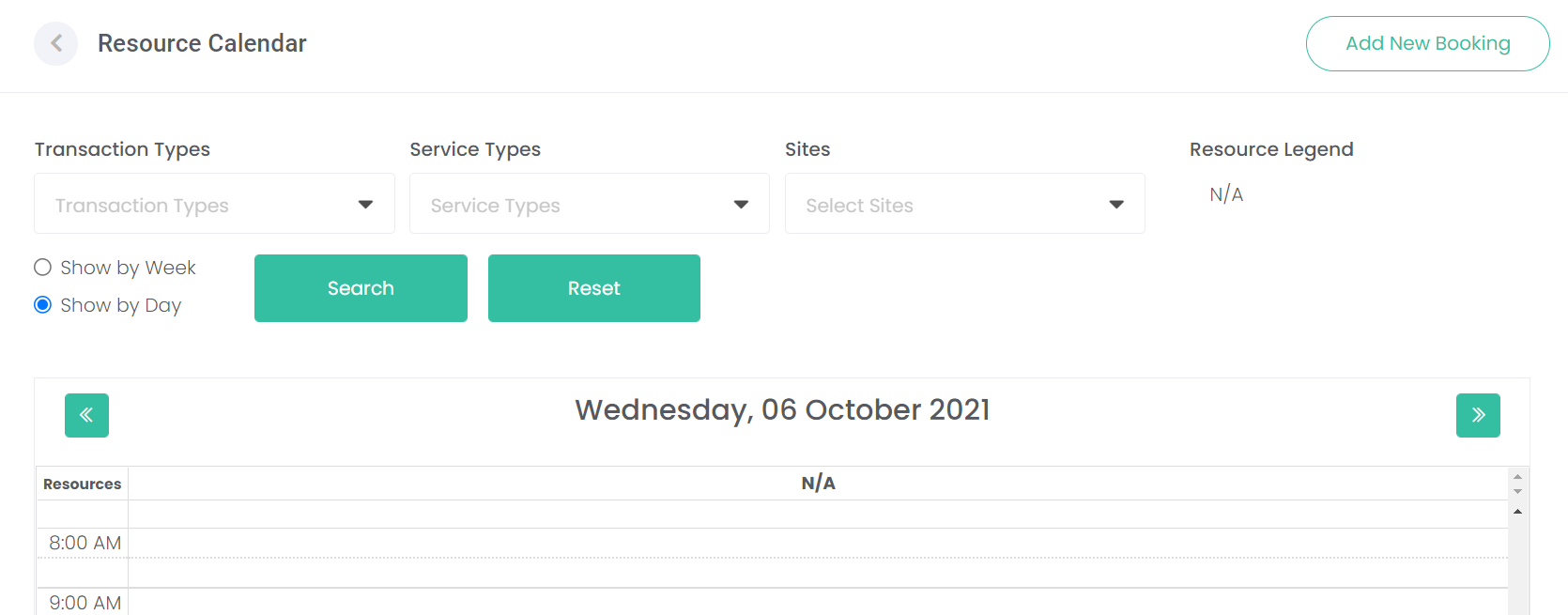
To view resources, the calendar can be filtered by:
-
Transaction types
-
Service types: you can choose multiple types if required
-
Sites: where there are multiple sites linked in byondcloud you can narrow down the search by site /s.
Note if the service type naming convention is quite long, the drop-down selection arrow may overlap with the display. Users may need to amend the zoom on their browser to get the best display for this field.
Choose the appropriate filter /s and select the Search button to display the results.
For our example, we have filtered by the Transaction Type ‘Cremation Service.’
Each resource associated to the cremation service transaction type are displayed, e.g., Crematorium One and Crematorium West Yorks.
Users can also display the calendar by day or by work week.
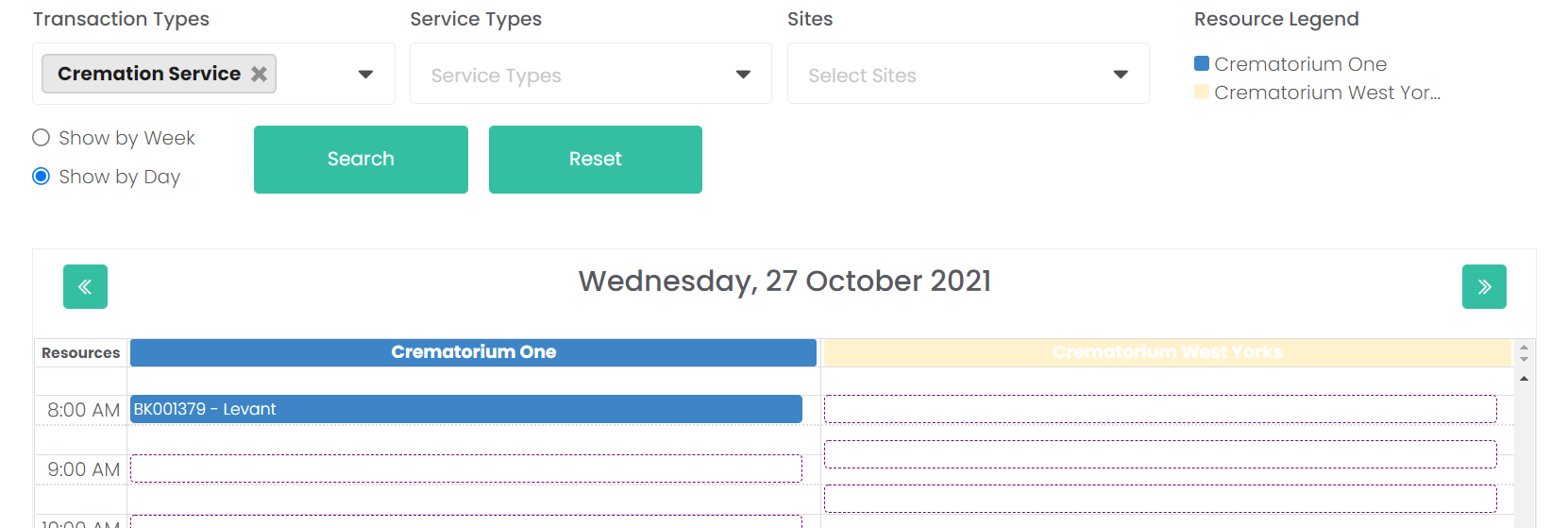
The dotted line shows available time slots whereas the colour block shows a booking has been made at this time.
Users can click on the coloured block to view the booking summary and if they have the appropriate rights they could also view and edit this booking.
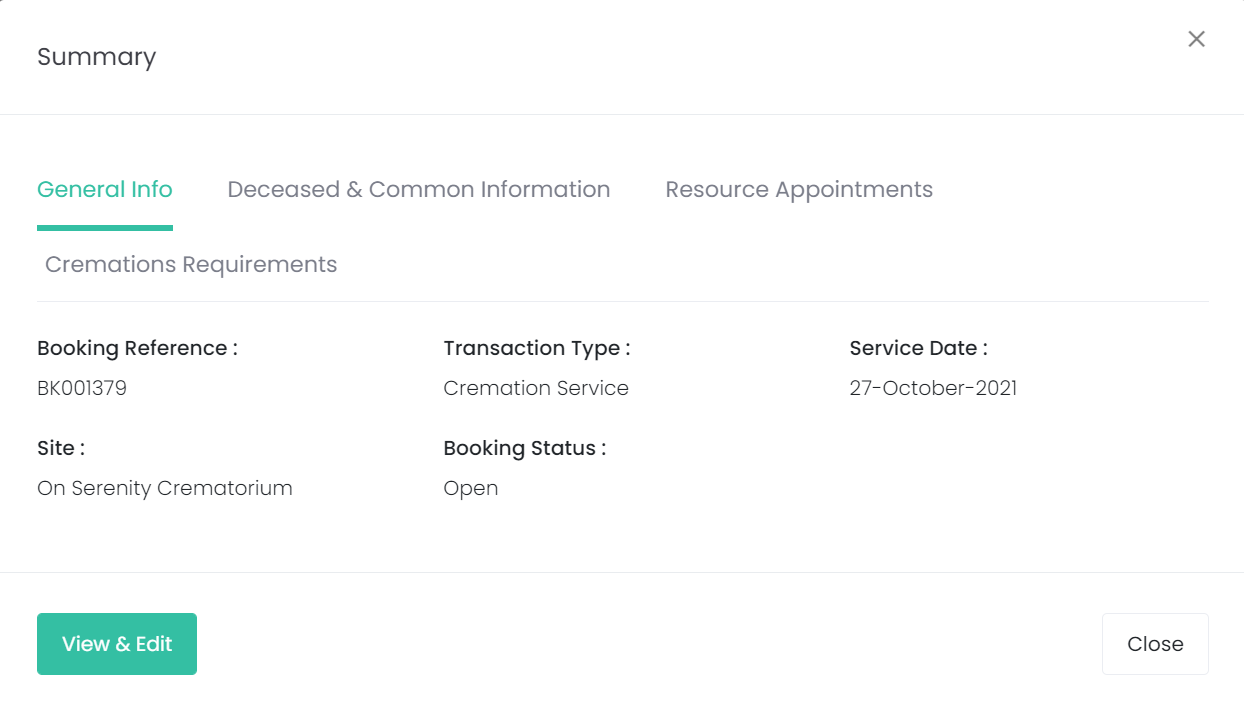
Choose Close to return to the Resource Calendar.
To move between calendar days, use the forward and back arrows.

You can always reset your selections by choosing the reset button on the top right of the screen.