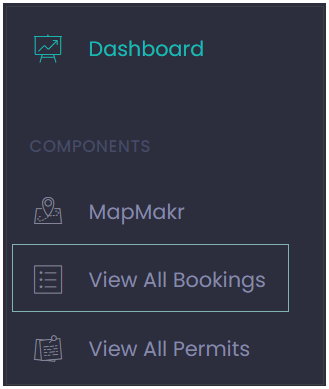
The View All Bookings function can be accessed from clicking View All Bookings on the dashboard view, or alternatively users can click directly on the View All Bookings menu item on the side menu.
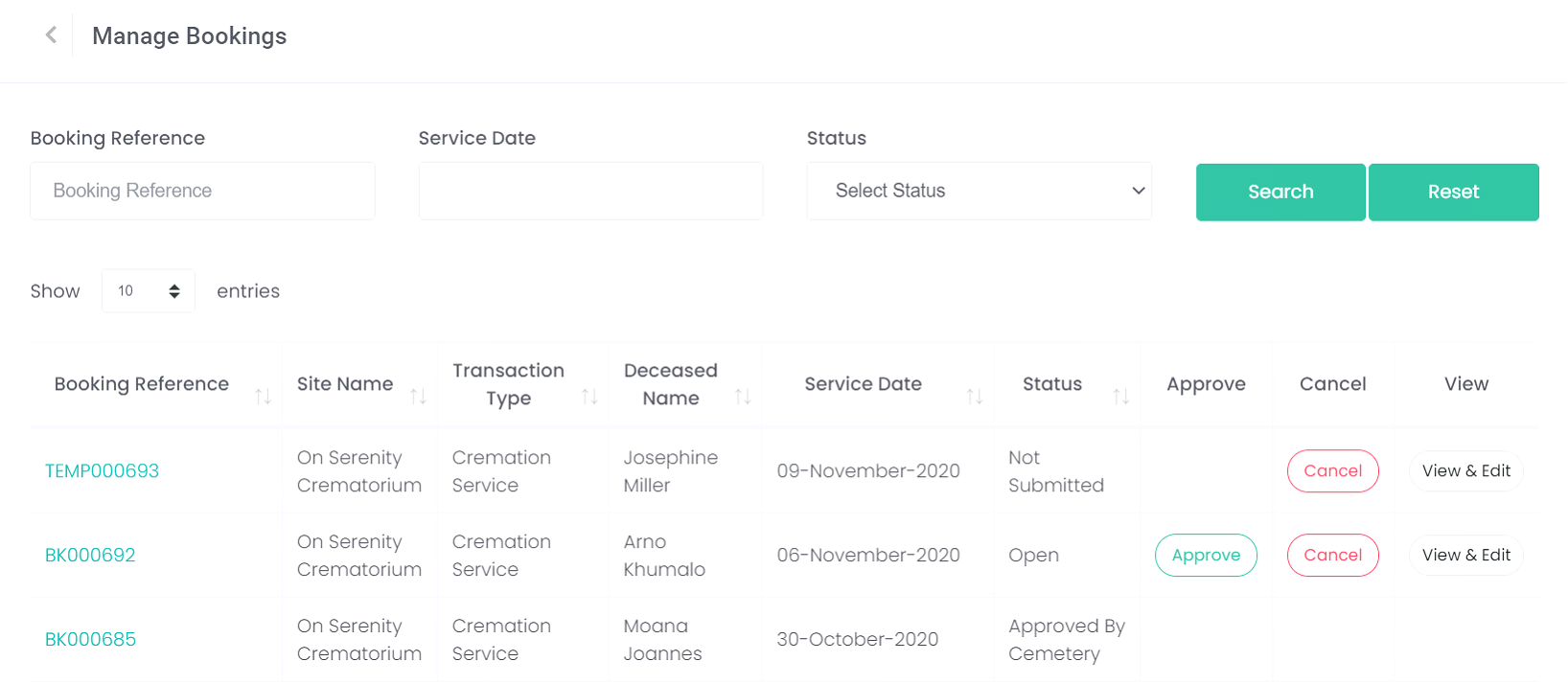
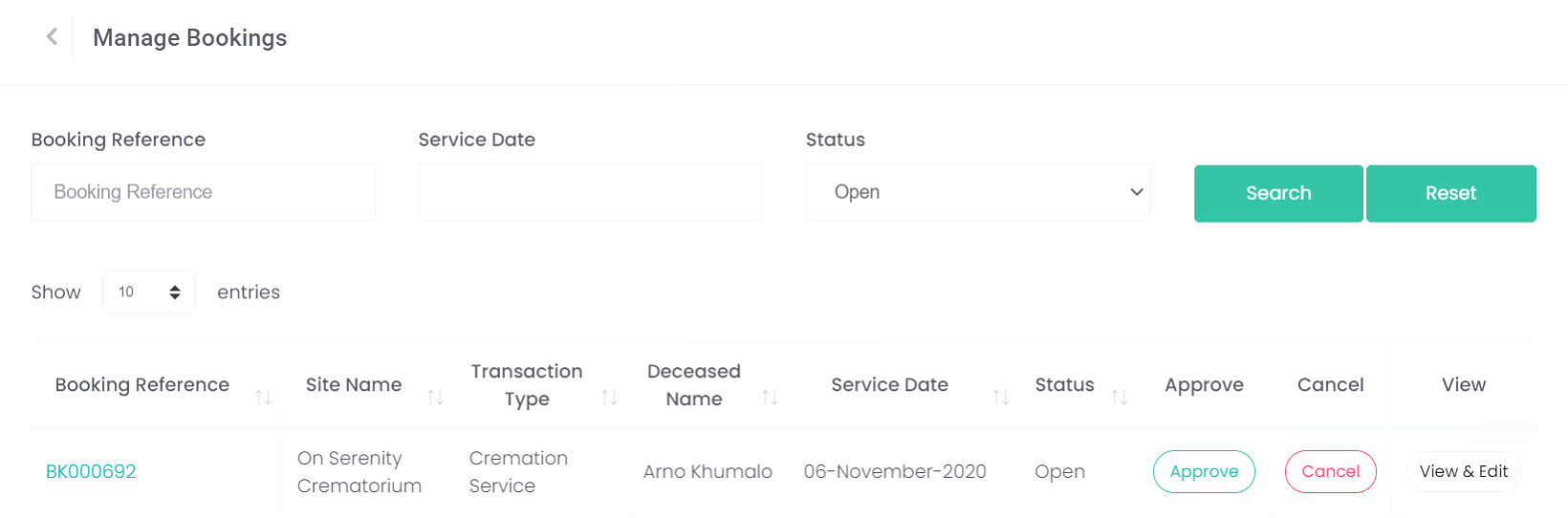
All bookings placed by funeral directors will display on the Manage Bookings screen.
Users can filter by Booking Reference, Service Date and / or Status at the top of the Manage Bookings screen.
Once the filter option(s) are selected, choose the Search button to the right.
Transactions that fit the filter selection criteria will be displayed, narrowing down the list of transactions displayed.
To clear the filters, choose the Reset button.
Note, the Arrows next to each of the headers allows the user to sort from most recent booking to oldest booking or vice versa.
Click on either the header, or the arrows to set the direction the bookings display.
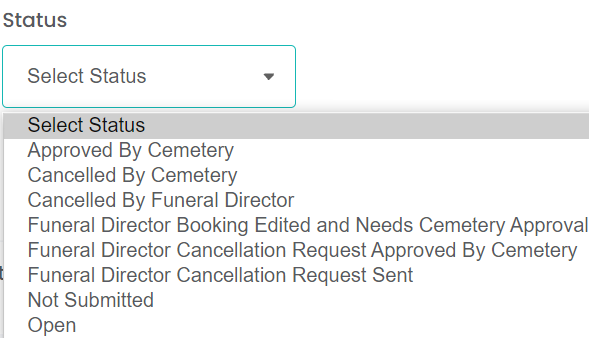
The Statuses of bookings as shown in the list below are mostly self-explanatory.
Three of the statuses, however, require some further explanation:
NOT SUBMITTED STATUS:
Booking process has commenced, but is not yet completed.
The funeral director may not have completed the booking within the allocated time, or the funeral director may still be working on this booking and is not quite ready to submit it to the cemetery.
Transactions that have not been submitted have a temporary reference number and can be cancelled by the cemetery if the original service date has not passed.
OPEN STATUS:
Booking made by funeral director, but not yet reviewed by the cemetery.
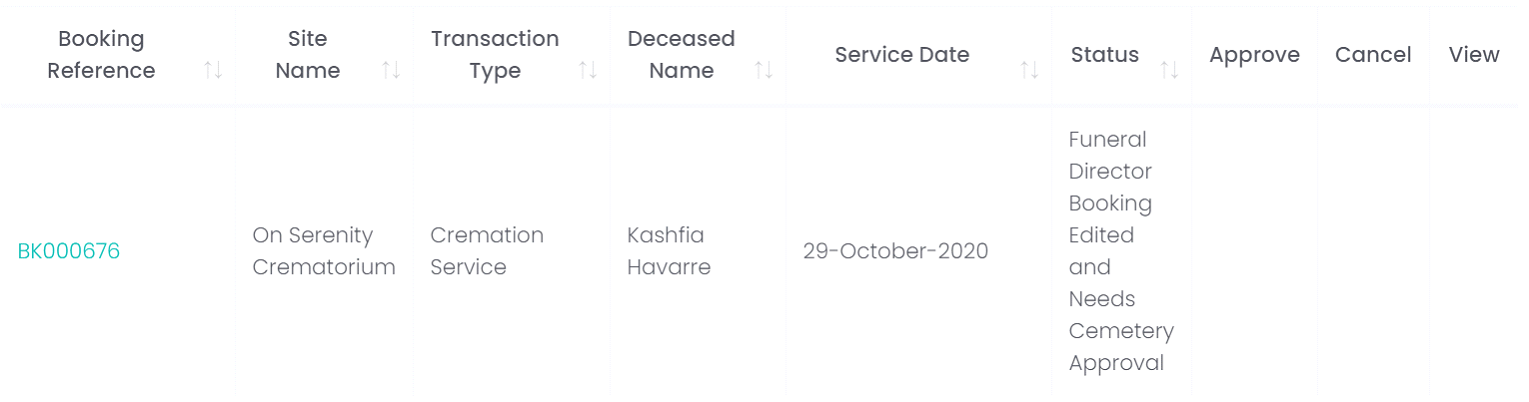
FUNERAL DIRECTOR EDITED AND NEEDS CEMETERY APPROVAL:
When filtering by status, it is important to remember that a Funeral Director may make changes to the booking and resubmit it for approval.
In these instances, users should look for bookings with this status also when reviewing bookings.
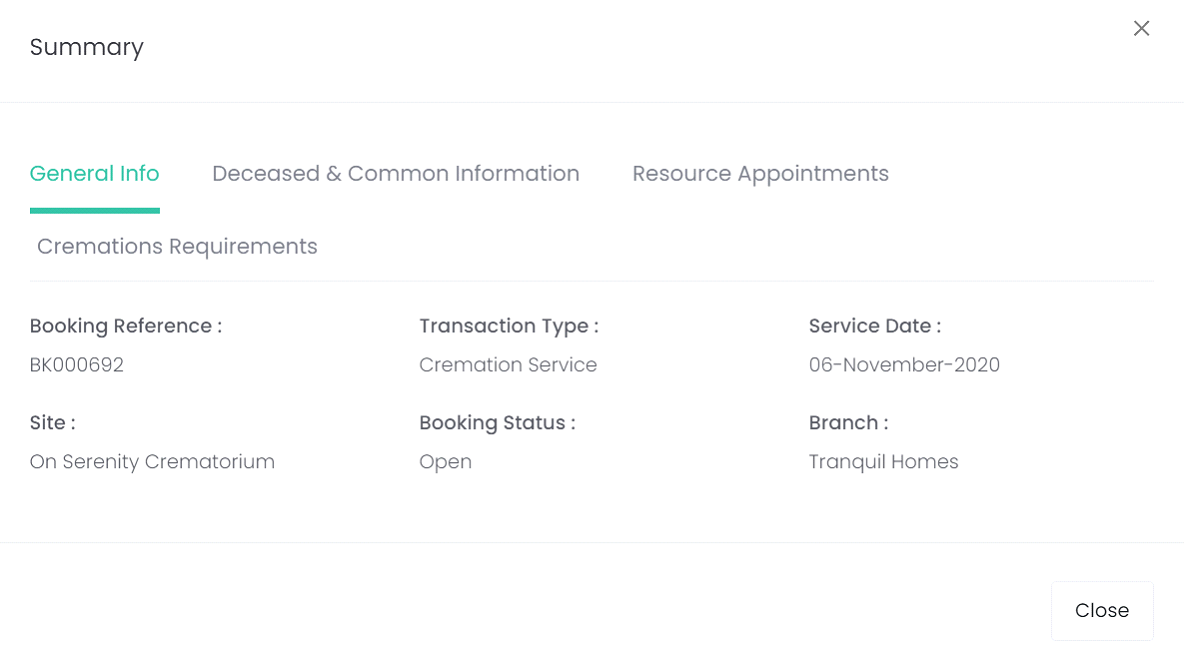
The Booking Reference number as shown below allows the user to click on the hyperlink and view the booking information in a summary view.
This provides a snapshot view of the booking, General Information, Deceased & Common Information and Resource Appointments.