View & Edit Arrangement
Clicking the View & Edit button in line with an arrangement on the Manage Arrangements page will open the Arrangement Details page.

This page displays all the details of the arrangement, separated into tabs that correspond to the matching screens in the arrangement creation process. Users can navigate through each tab to review the information.
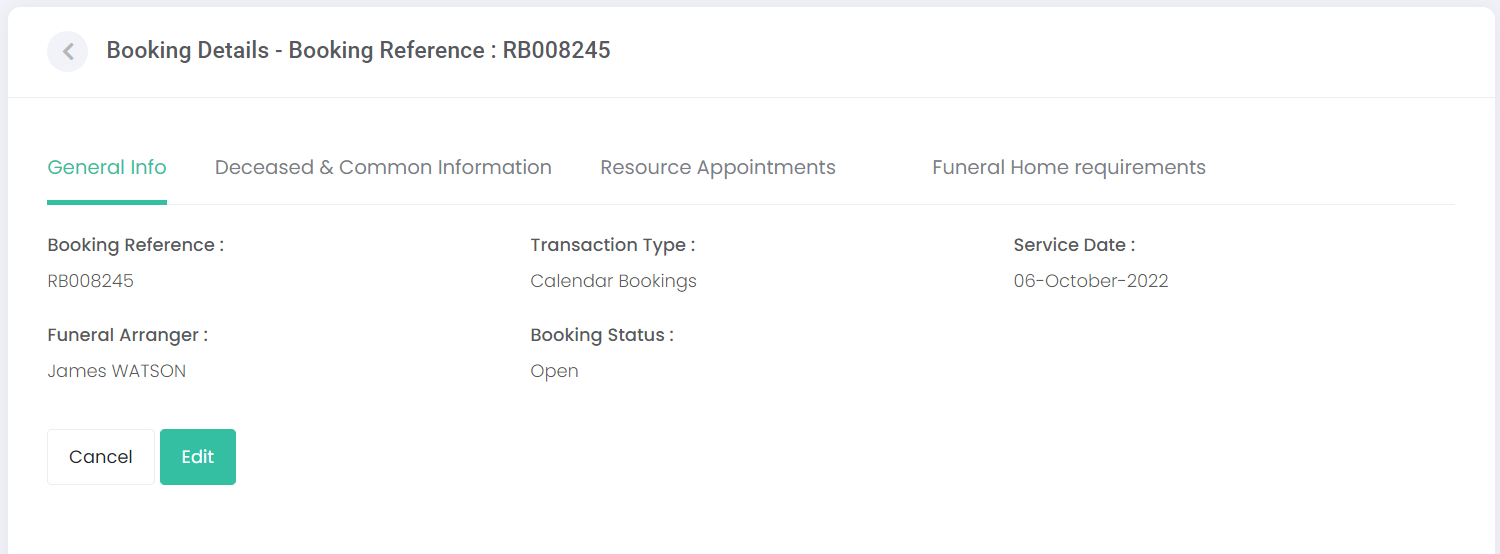
If any changes need to be made to the arrangement, click Edit. This will open the arrangement editor to the screen that matches the tab of information being viewed on the Arrangement Details page. For example, if the user is on the Resource Appointments tab, the Edit button will take them to this page:
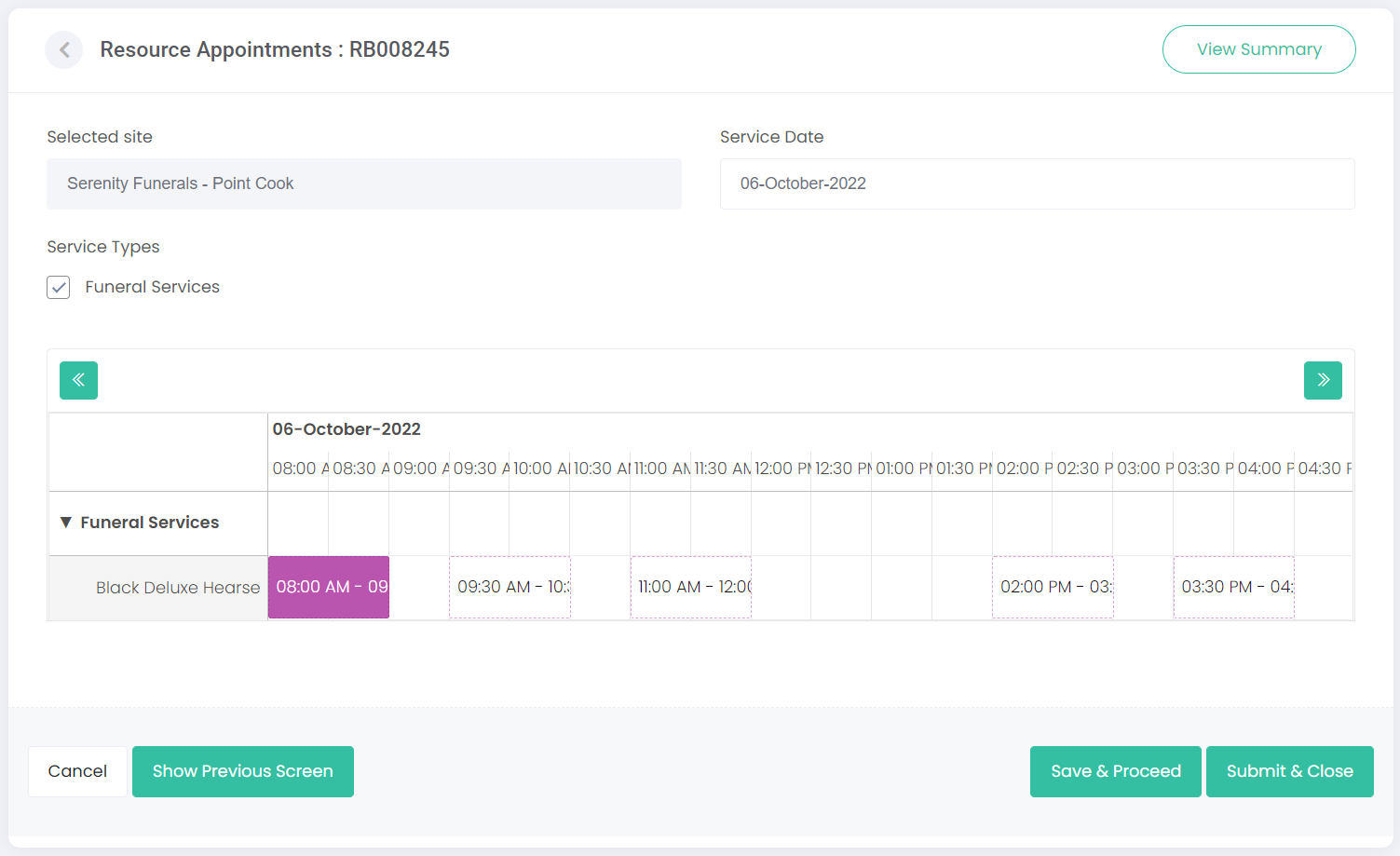
From here, the user can change the information on the screen as needed, then they can click Save & Proceed to go to the next page in edit mode; click Submit & Close to save the changes and navigate back to the Manage Arrangements page; or click Show Previous Screen to go back to the previous screen of information in edit mode.