Task Manager Dashboard & Side Menu Views
Side Menu
The Side Menu provides a way to navigate byondcloud, which can be locked open or closed depending on user preference.
The side menu is locked open when the three lines next to byondcloud are pointing left and the full menu will display.
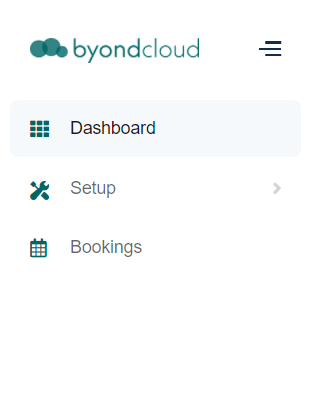
To unlock the side menu, simply press on the three lines and the side menu will then be activated.
When you hover over the headings, the three lines will indicate the screen is not locked open.

By clicking on a selection from the side menu, you will be able to access the relevant actions to the selection from the screen which displays.
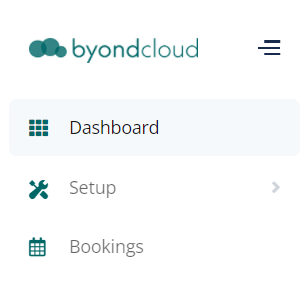
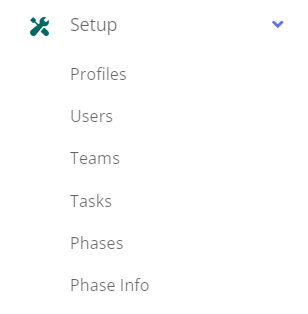
If the selection has an arrow on the side menu, clicking on the arrow will provide further selections which relate to the selection of your choosing.
Dashboard
The Task Manager Dashboard displays all jobs for the day at a glance, providing summary information on screen.
Job Records are displayed in order of the service date and time.
Selecting the View Details button will open the job for review.
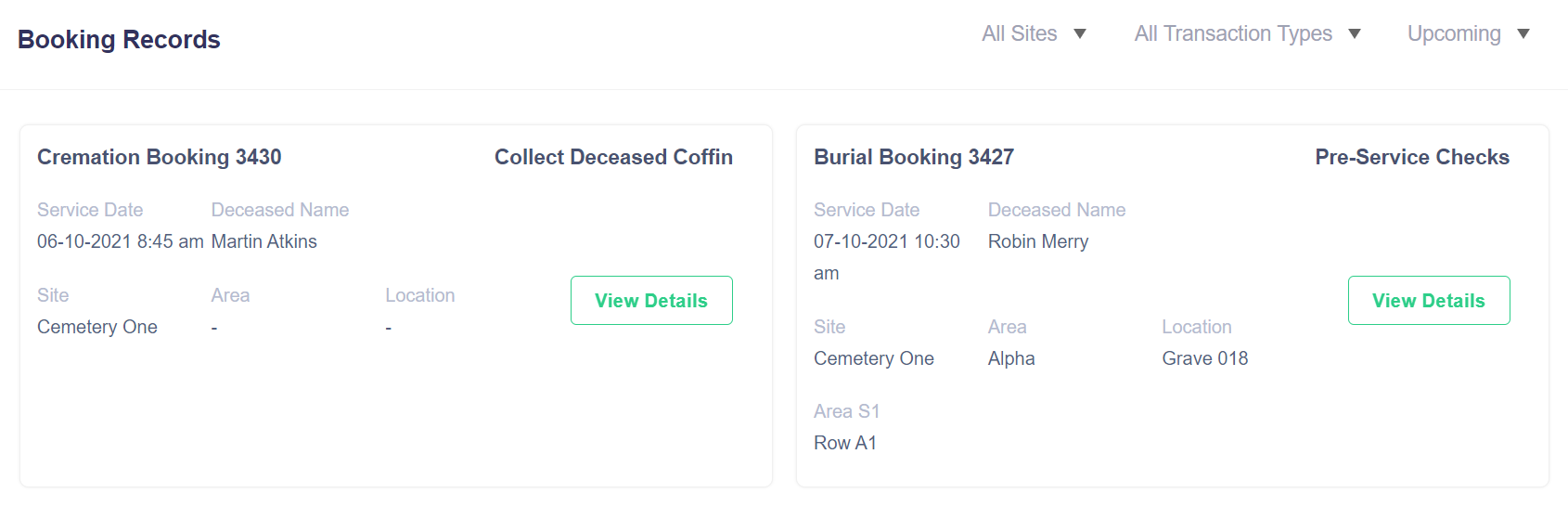
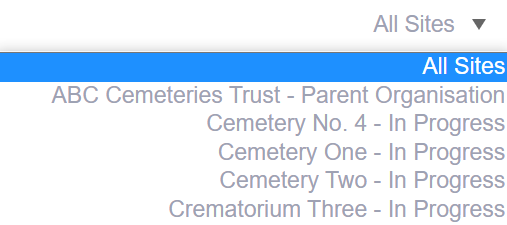
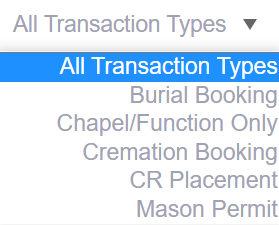
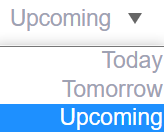
Dashboard information can be filtered by Sites, Transaction Types and when upcoming jobs are to occur.
Transaction Types mirror the Sales & Bookings types in byondpro.