Save as Quote
The user can choose to save the Contract as a quote before finalising the agreement with the customer.

The Contracts created using the Save as Quote button will generate an Invoice preview, however the Invoice Date and Number are marked as TBD (to-be-determined).
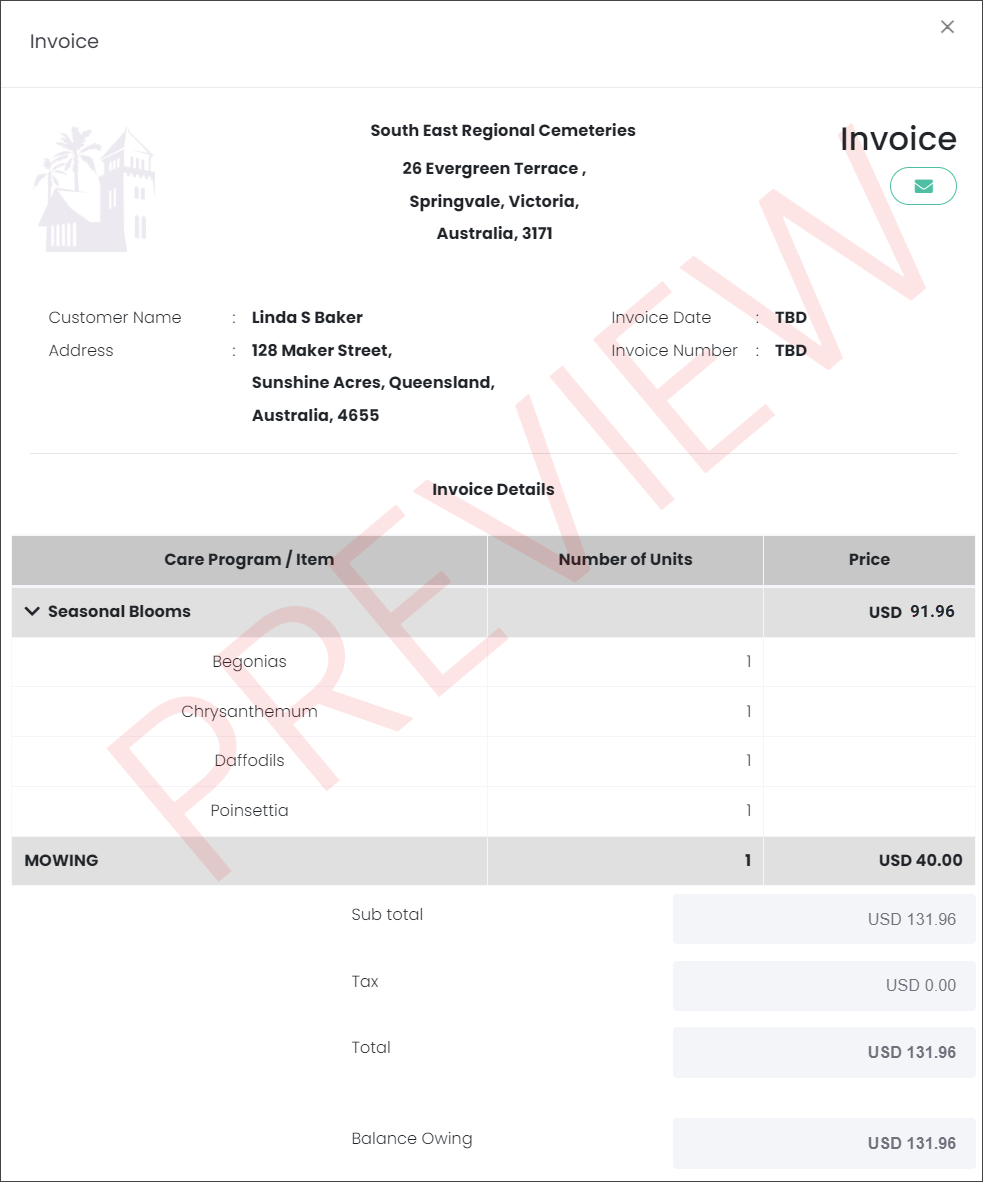
On the Contracts page, the Contracts saved as a quote will have the Quoted Status and the Amount Owing column filled with the Total Amount of the Contract.

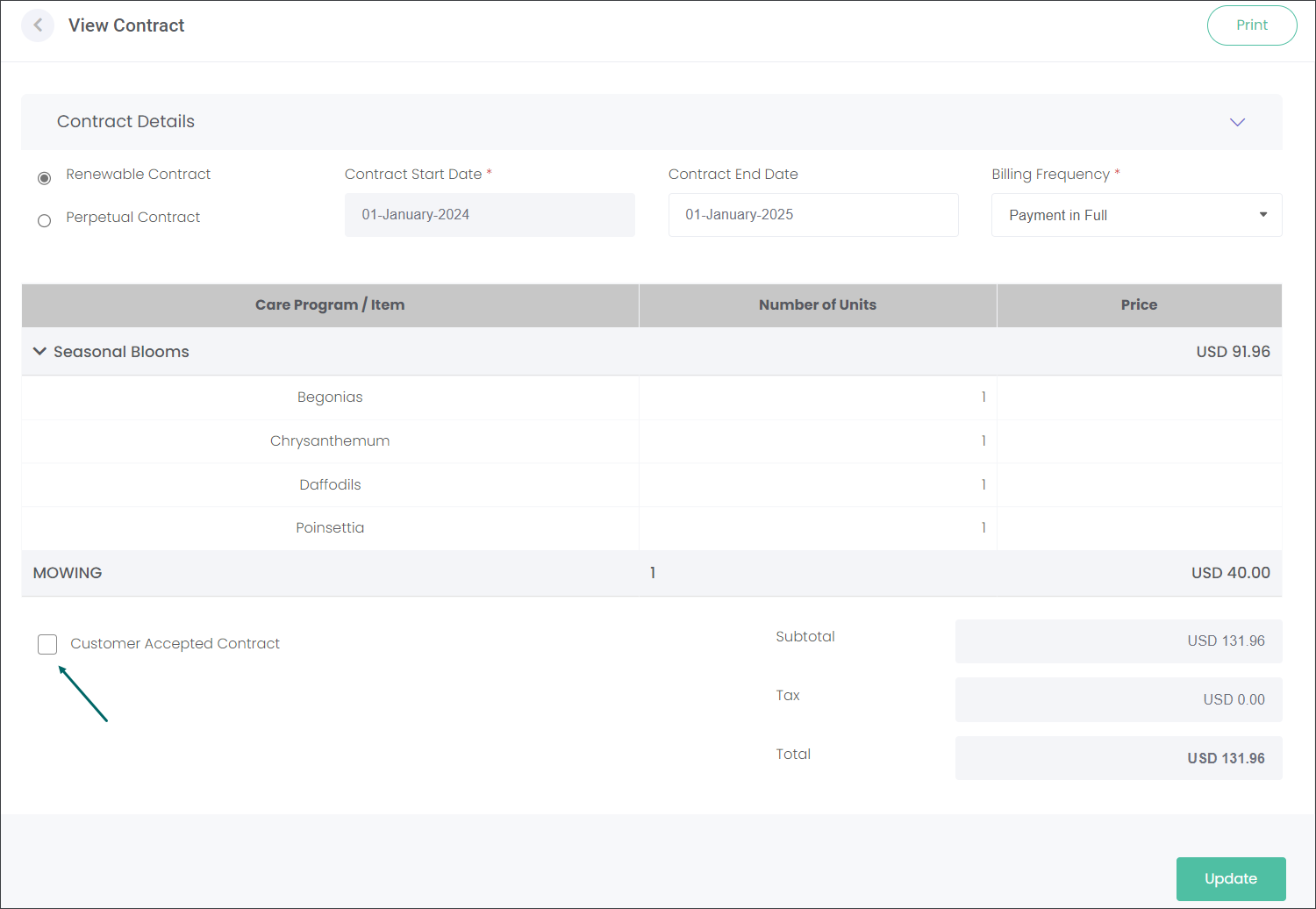
In our example the customer, Linda Baker, had the Quoted Contract sent to her email for approval. Linda contacted the cemetery with a positive response to the agreement. The user can now press the green Contract Number hyperlink and press the down arrow on the Contract Details tab.

The user can tick the box Customer Accepted Contract, then press the Update button to save the changes.
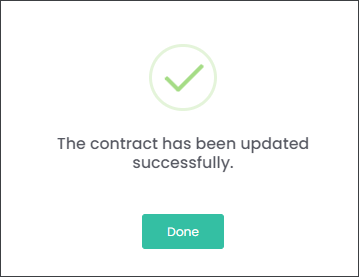
The Quoted Contract now has the Contracted Status.

byondcloud will generate an Invoice. The Invoice Date and Number have changed from TBD to their new values.
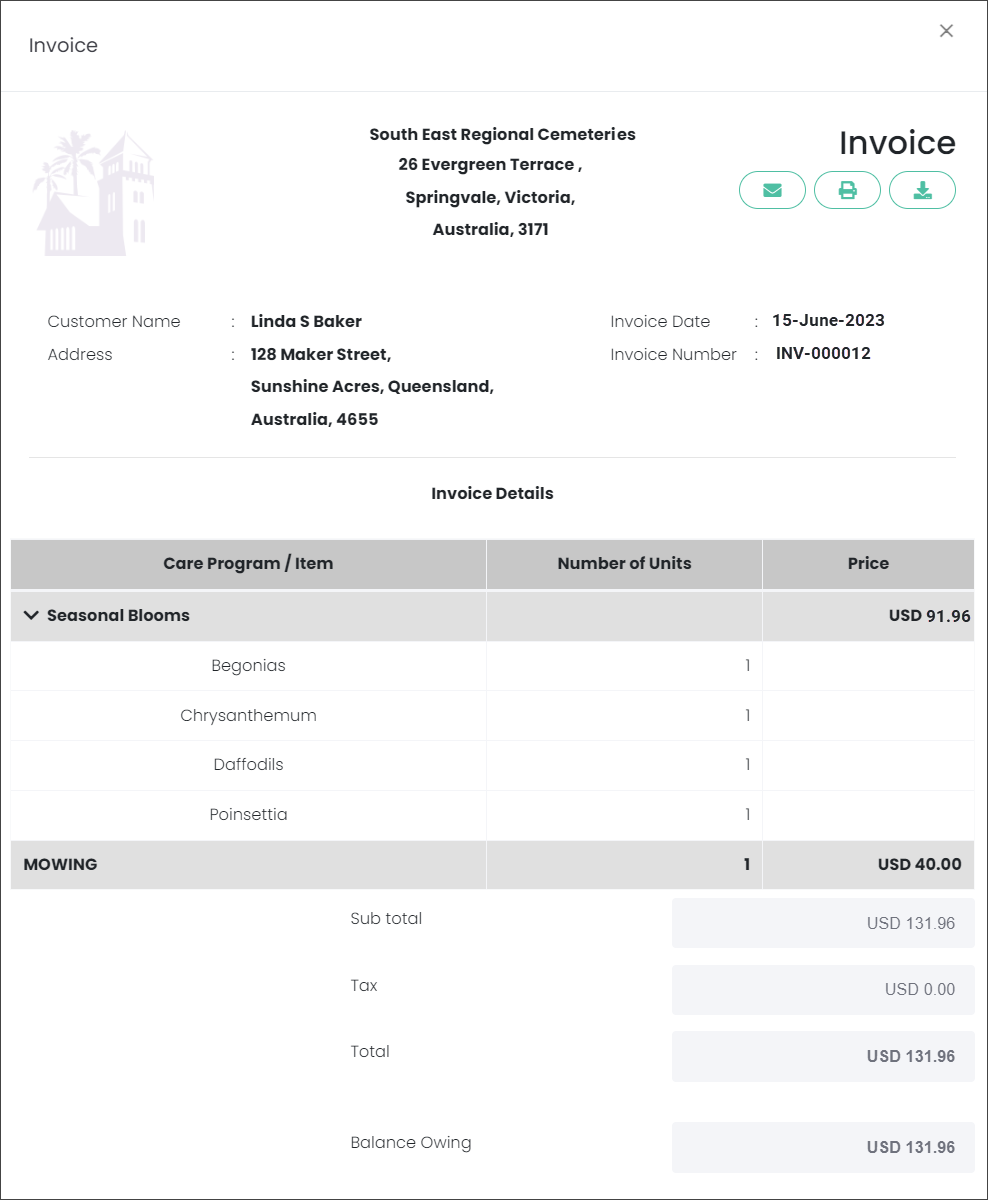
Press the envelope button to email the Contract Invoice to the customer.
Important *** If your byondcloud is integrated with opuspay, sending the invoice to the customer will also send the customer a payment link to pay for the contract online. Please, navigate to the Contracts & opuspay topic to find out more.
Navigate to the Add Payments section of this guide to find out how to take payments for the Contract.