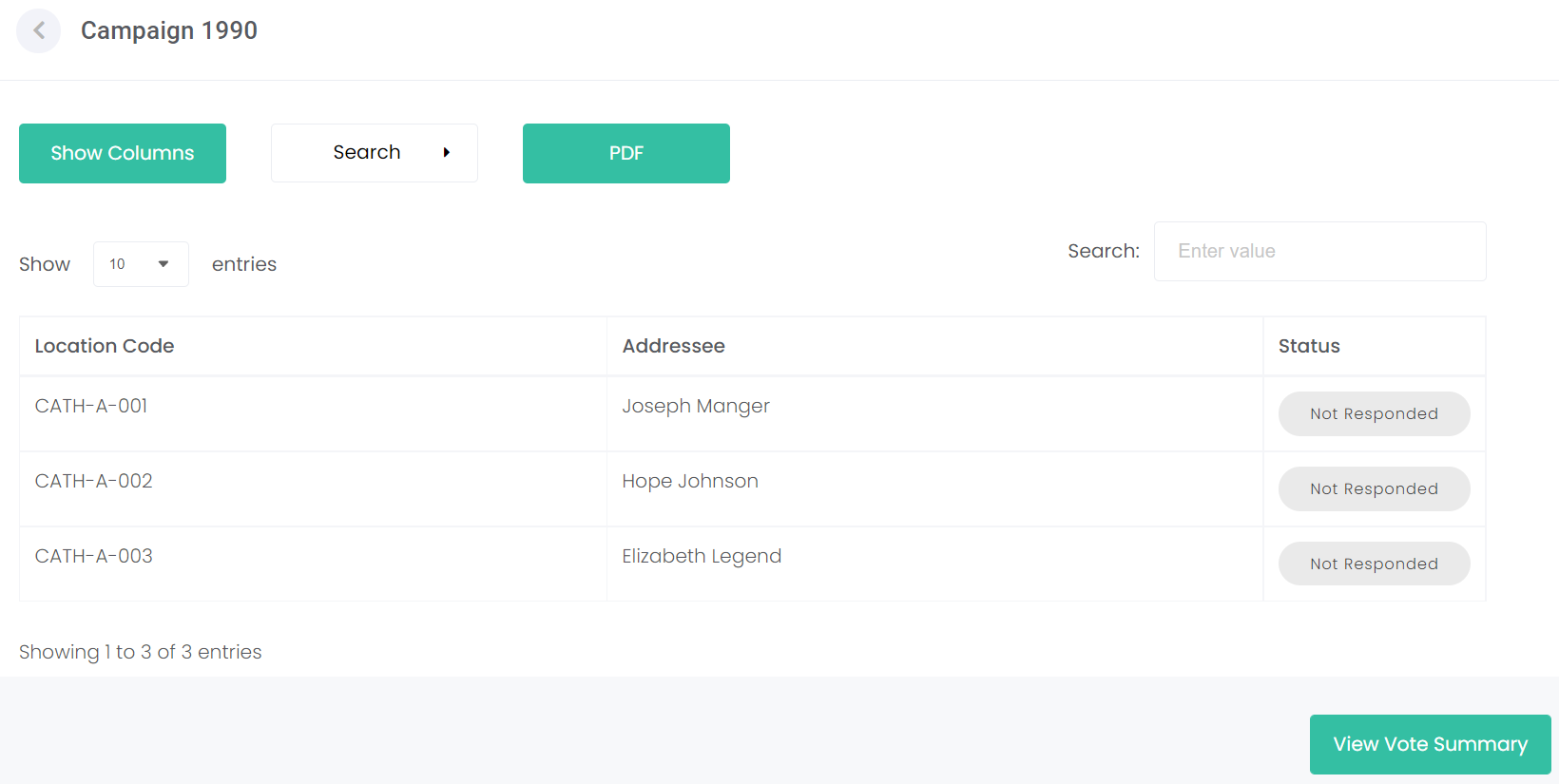
Print Address Labels
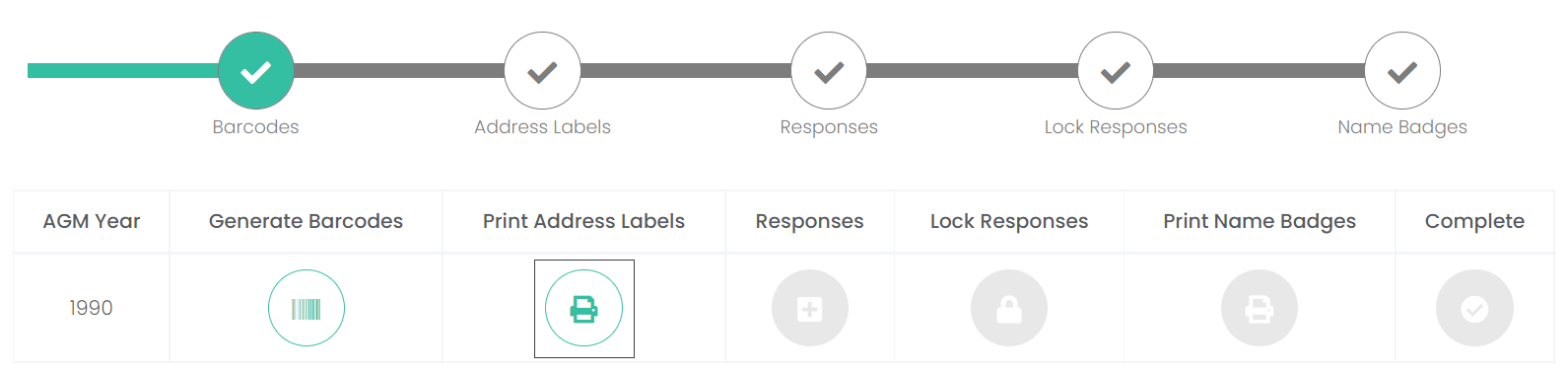
To start printing the address labels, click on the Print Address Labels icon.
The Print Address Labels section is divided among two sections: Print Pending and Printed.

All barcodes that have been generated and have not yet been printed will display in the Print Pending section.
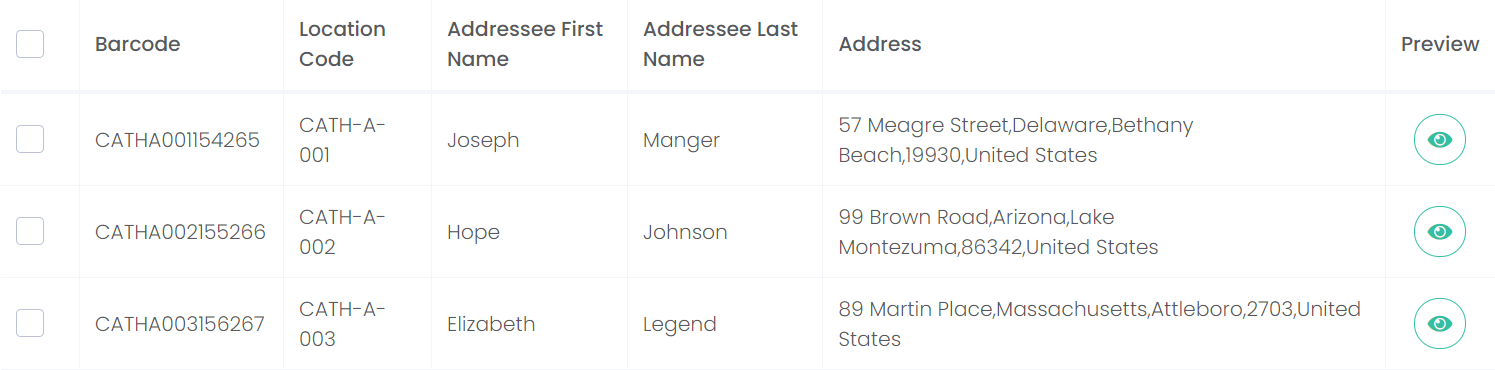
You can change the columns which display, by clicking on the Show Columns button.

From the pop-up window, choose from the following criteria to display:
-
Barcode
-
Location Code
-
Owner First Name
-
Owner Last Name
-
Addressee First Name
-
Addressee Last Name
-
Address
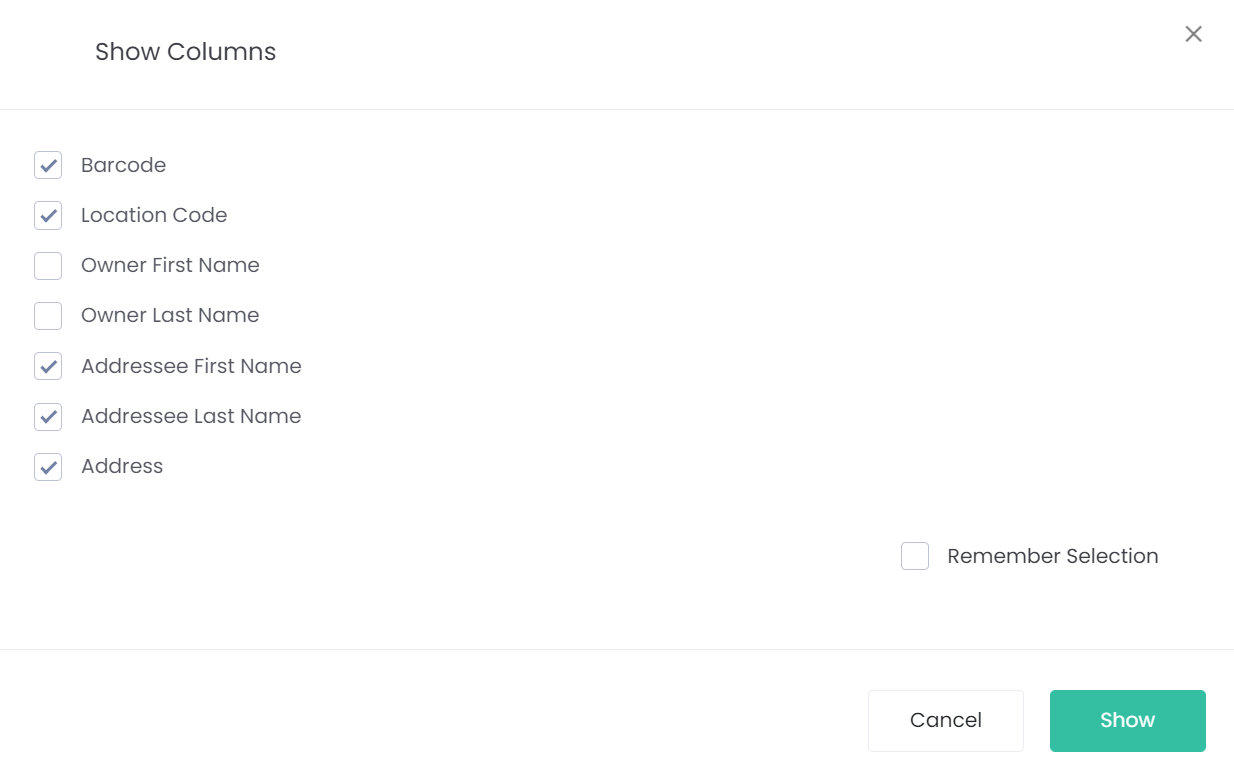
Tick the box next to Remember Selection if you want all the columns chosen to always display when you enter this screen.
To apply the changes, click the Show button.
To disregard the changes, click the Cancel button.
If you made any changes, the columns will have been updated to reflect these changes.
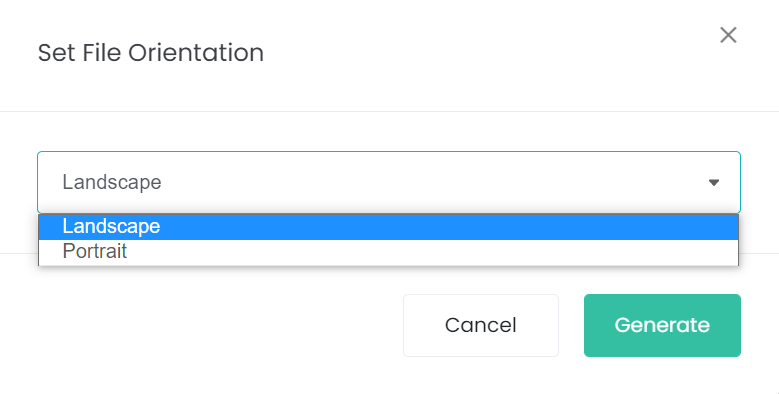
Clicking on the PDF button, will allow you to view the pdf document in either Landscape or Portrait format.

Choose the format from the pop-up window which displays and then click the Generate button.
A PDF will download to the device. Click into the PDF to view.
You will note that the PDF displays the columns that display on the Address Labels screen.

At this point, you may be wondering where are the barcodes?
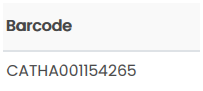
The barcode number is listed in the Barcode column, in line with the rights holders' details.
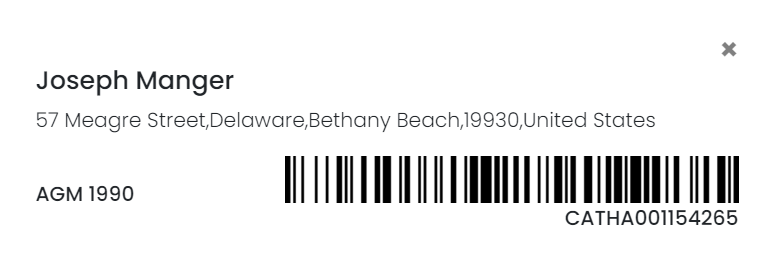
By clicking on the Preview icon next to your chosen record, a pop-up window will display the barcode.
The barcode will also display the rights holders' name, the address, and the AGM year.
Address labels can be printed individually, in batches or all at once.
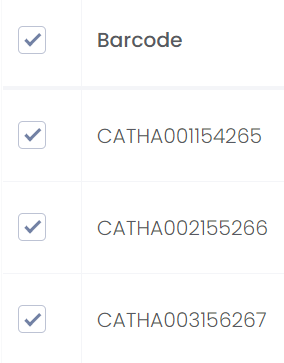
Choose the address labels to print by ticking the individual boxes in line with the barcode.
Should all address labels need printing, simply tick the box in line with the column headers, and all records will be ticked.
The Print button on the bottom right-hand side of the page will now display as green.
Click the button to Print the desired address labels.
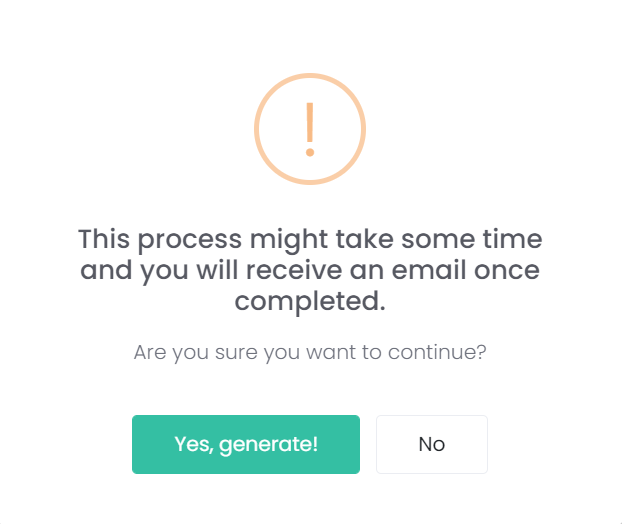
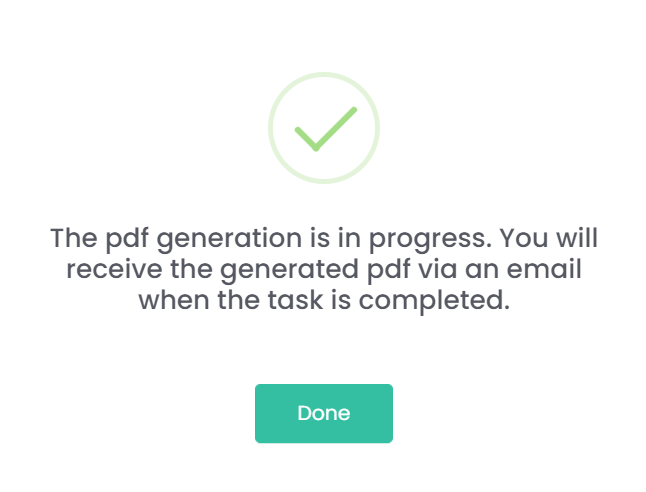
A pop-up window will display asking you to confirm if you want to generate the Address Labels and that you will receive an email once generated. If you want to continue, choose Yes, generate!
The below window will appear. Click Done.
The email will be sent to the logged-in user's email address on the account.
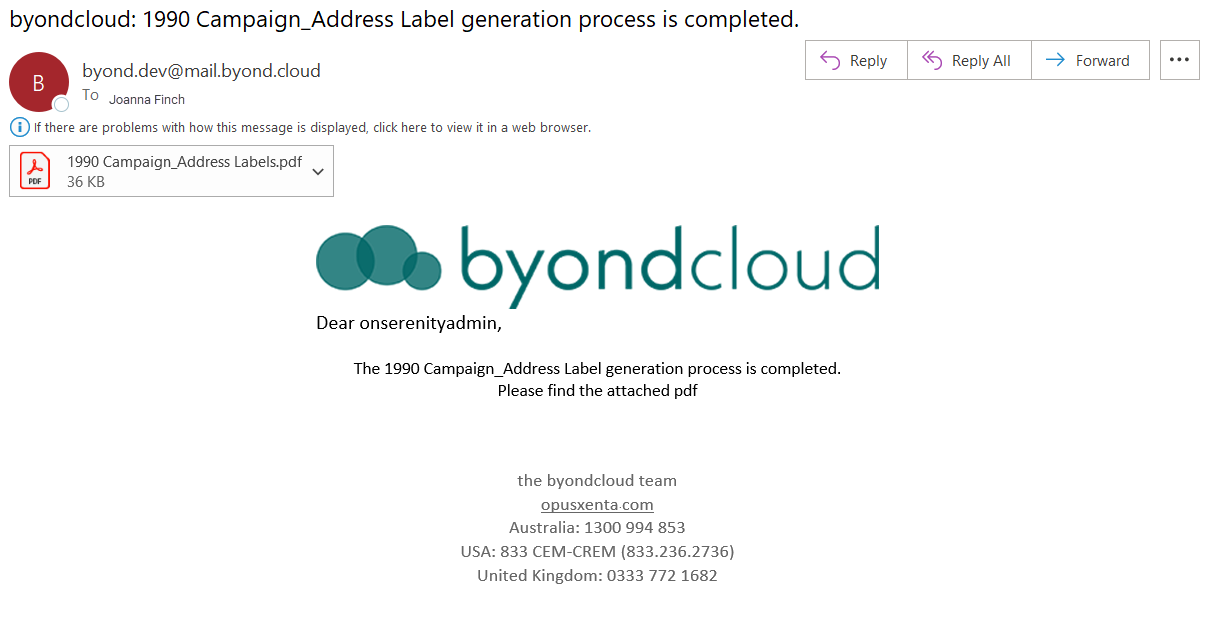
Click on the PDF in the email to access the address labels.
The PDF is designed to fit 30 labels per each 8.5" x 11.0" size page.
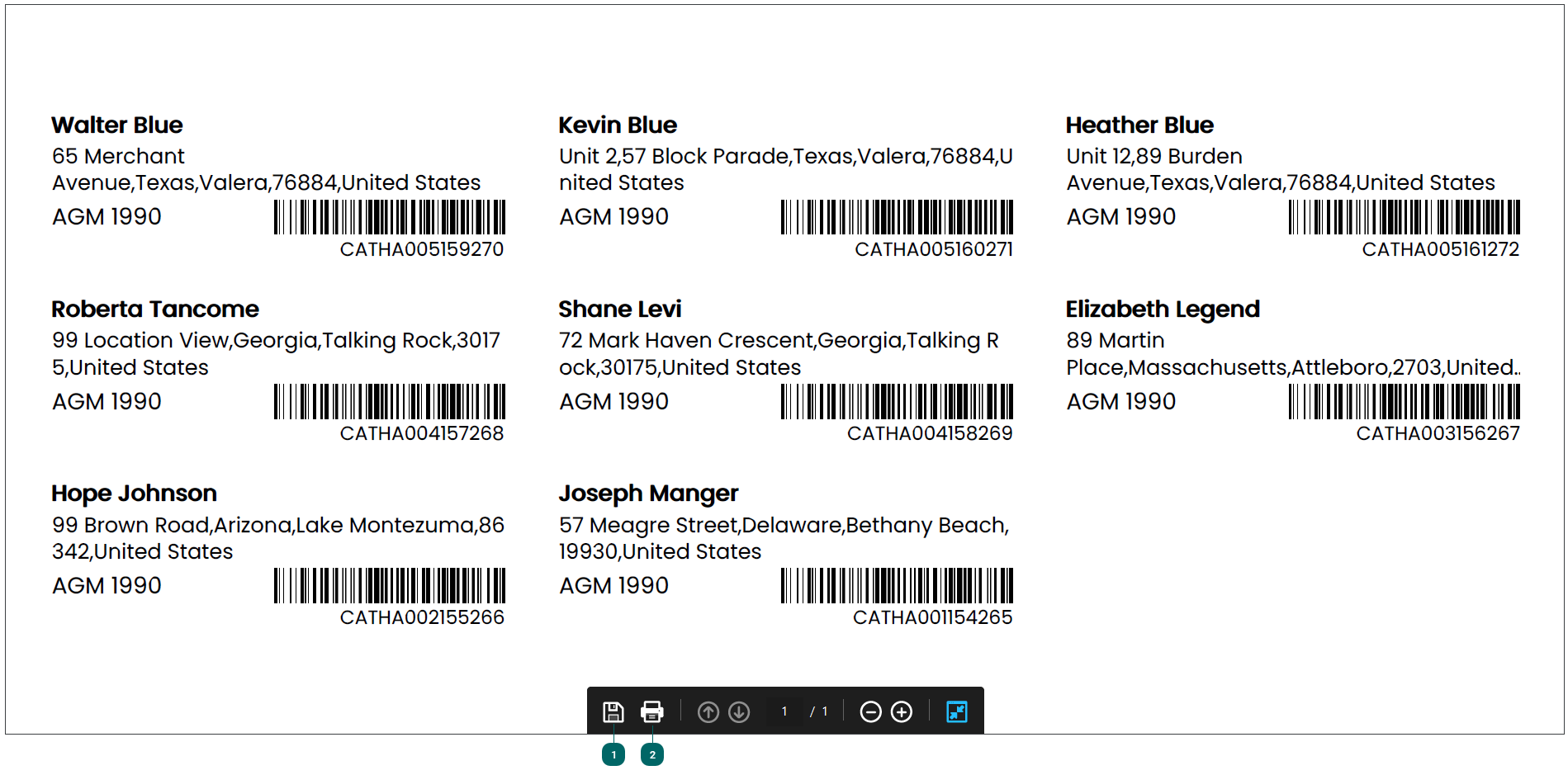


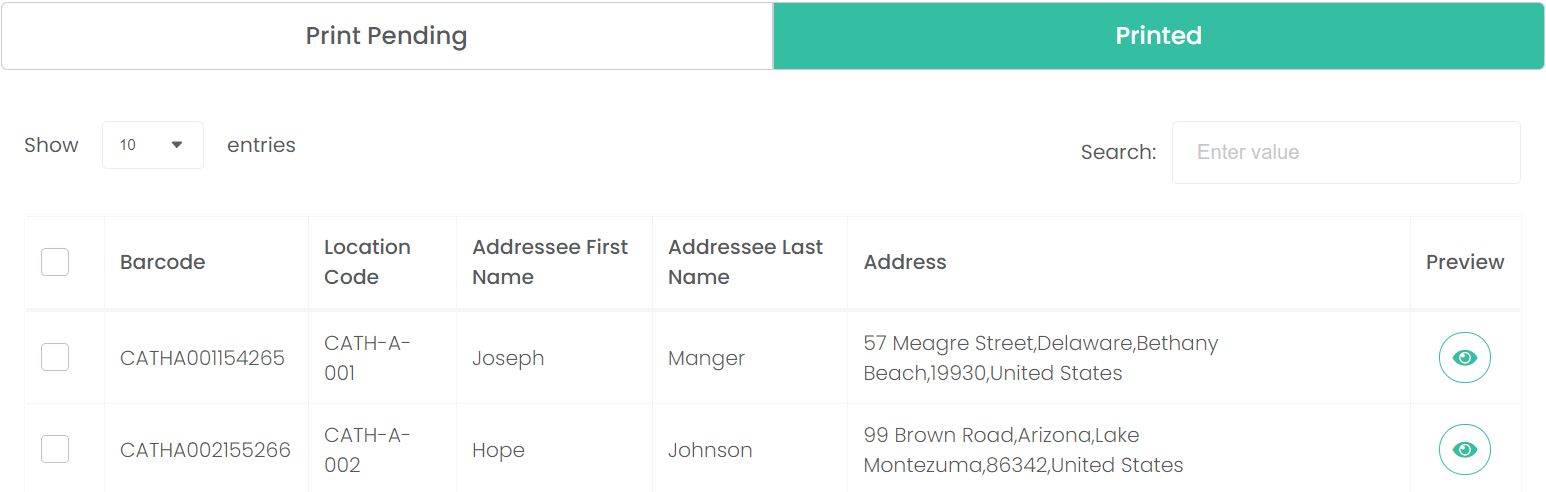
Once the address labels are printed, they will no longer display in the Print Pending section, and will now display in the Printed section.
Should you have chosen to print the address labels individually or in batches, the address labels not chosen will remain in the Print Pending section.
They can be printed again, if necessary, by ticking the relevant boxes and pressing print again.
To return back to the Manage Campaign area, click on the arrow next to Address Labels.
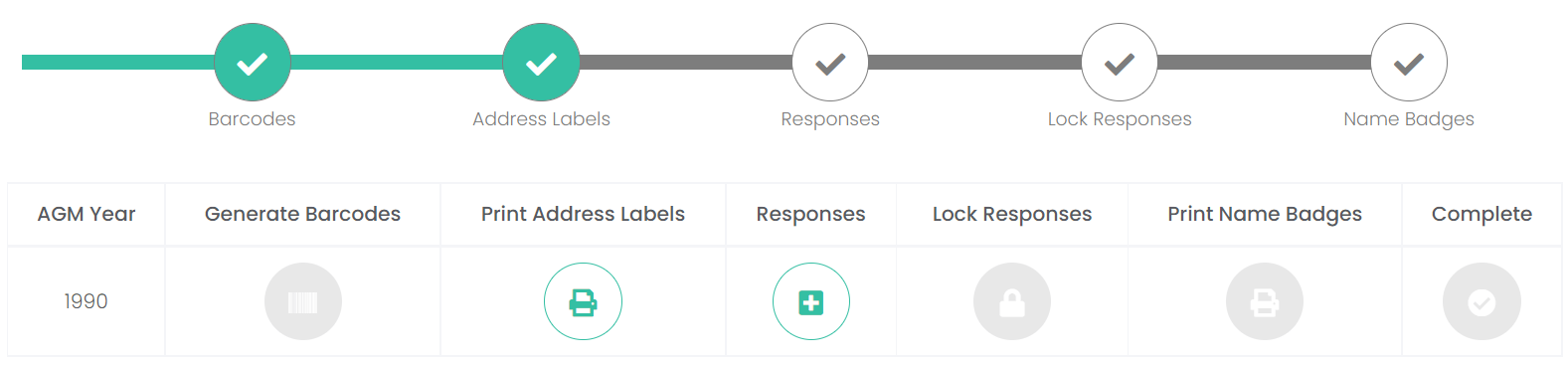
On the Manage Campaign screen, the Address Labels section has been marked as completed on the timeline.
Barcodes can no longer be generated, however, Responses can now be managed.
You might note that the Inactive button can now be used to change the status of the campaign.
To mark the campaign as inactive, click on the Inactive button.
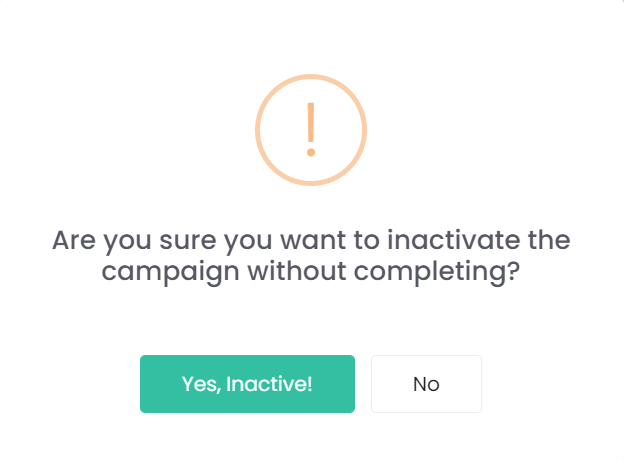
The status of the campaign will now have changed from active to inactive

No further actions will be able to be taken on the campaign and a new campaign can now be commenced.