Preview, Export, and Update Page Settings
On the Update Email Template screen, there are three buttons in the top-right of the screen: Preview, Update Page Settings, and Export.

Preview
The Preview button will open the Template Preview window.
This window shows what the template will look like when it is emailed to customers.
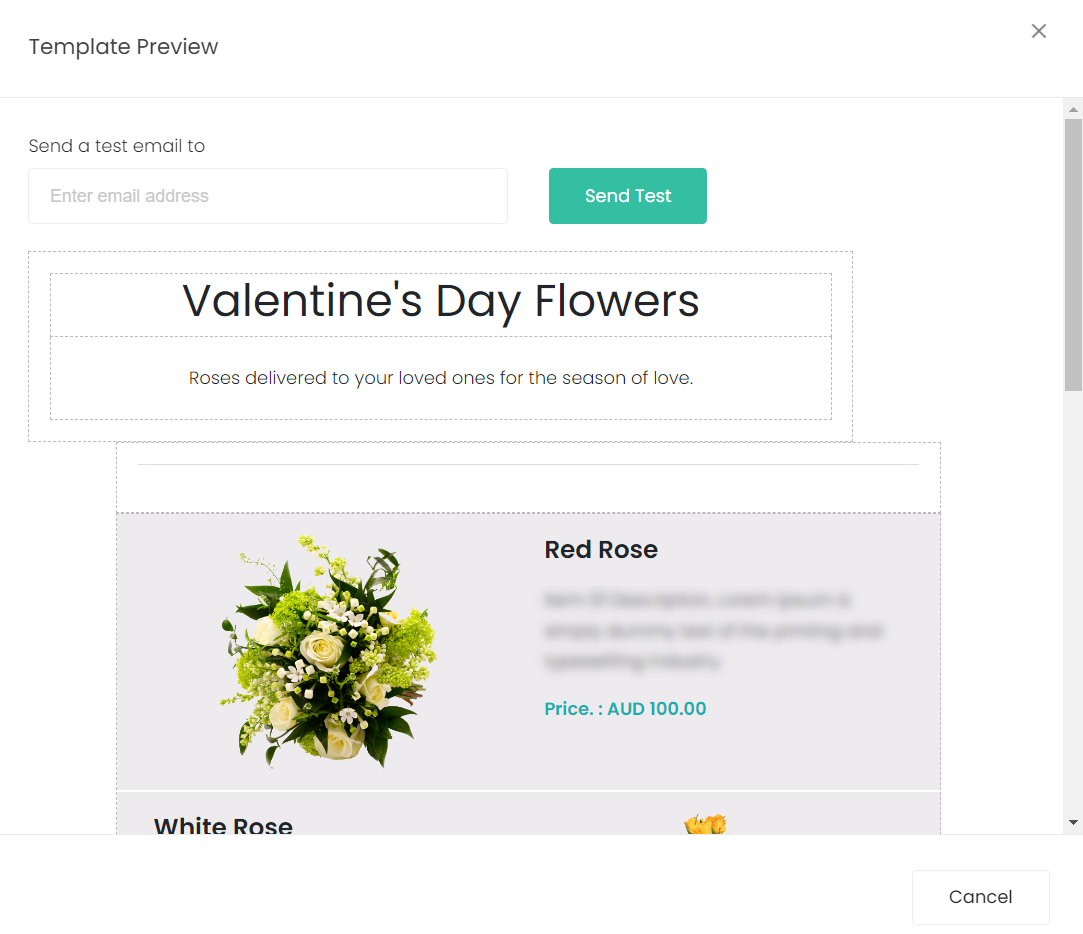
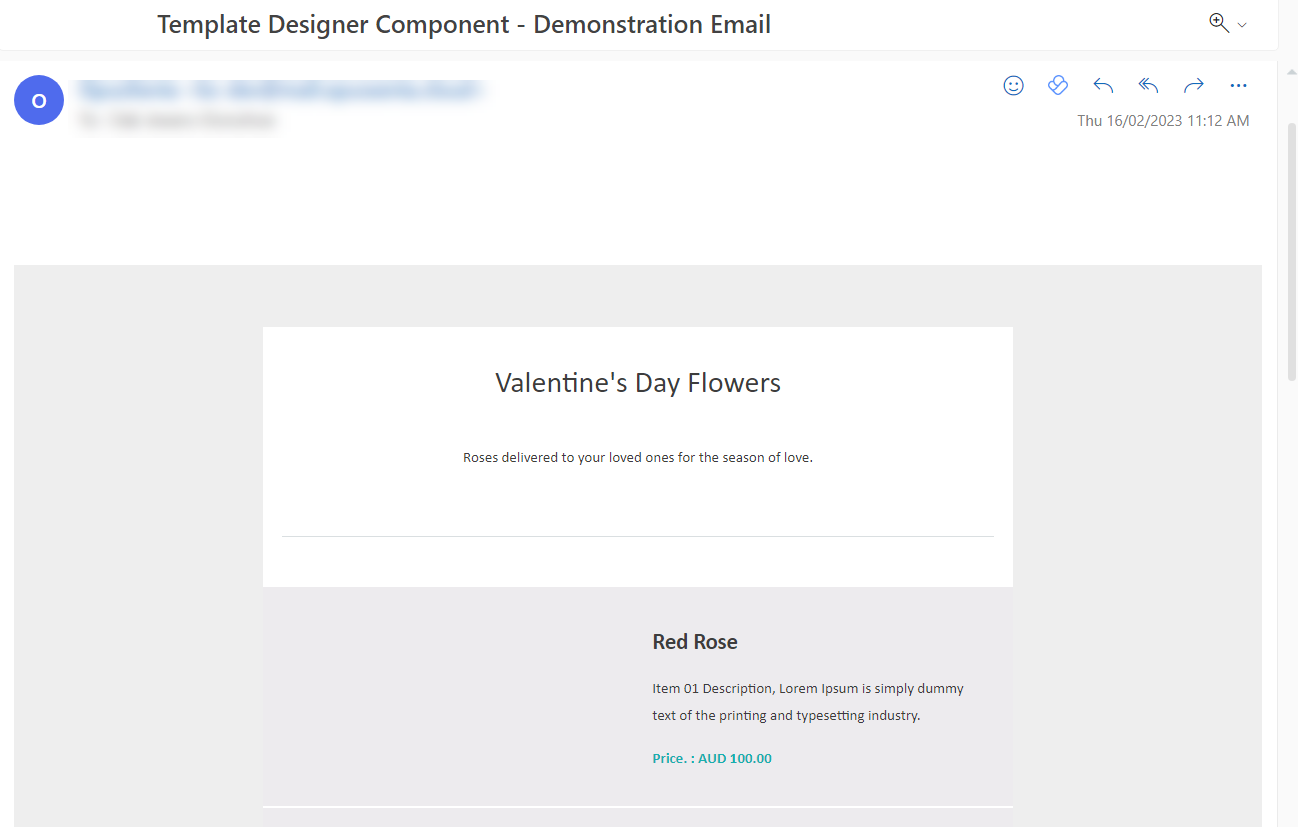
At the top of the preview, there is the Send a test email to option. Enter an email address here, and click Send Test to receive an email that shows exactly how the template will appear to customers.

See the example email below:
Update Page Settings
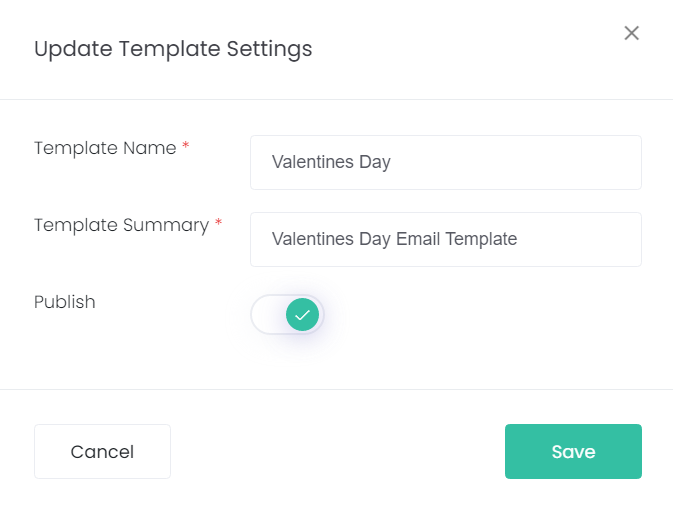
The Update Page Settings button opens the Upload Template Settings pop-up.
This window lets you change the Template Name, and Template Summary. You can also Publish or unpublish from here. Once changes are made, click Save.
Export
The Export button downloads the template as a .json file. Other byondcloud accounts can then import your template file into their template editor back on the Email Templates page.