Placing a Booking on behalf of a Funeral Director
If your user profile has appropriate rights, you can place a booking in byondcloud on the Funeral Directors' behalf.
Circumstances where this may be necessary is where a funeral director has not yet registered their organisation with byondcloud, or is unable to access their byondcloud application on a given day.
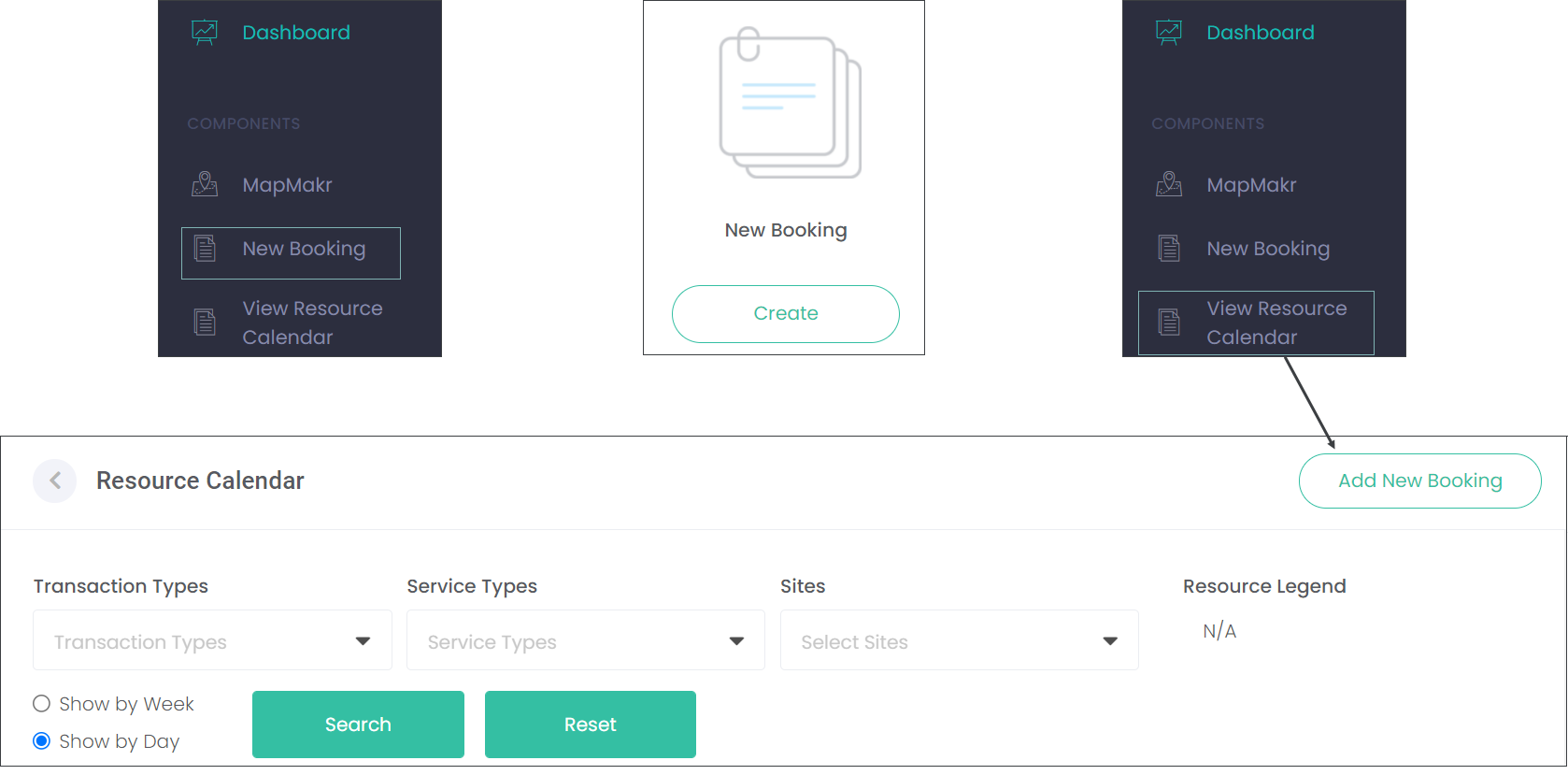
To commence a new booking on the funeral directors’ behalf, choose either:
-
New Booking from the side menu.
-
Create New Booking icon from the dashboard.
-
Choose the Add New Booking button from the top right corner of the View Resource Calendar screen.
New Booking
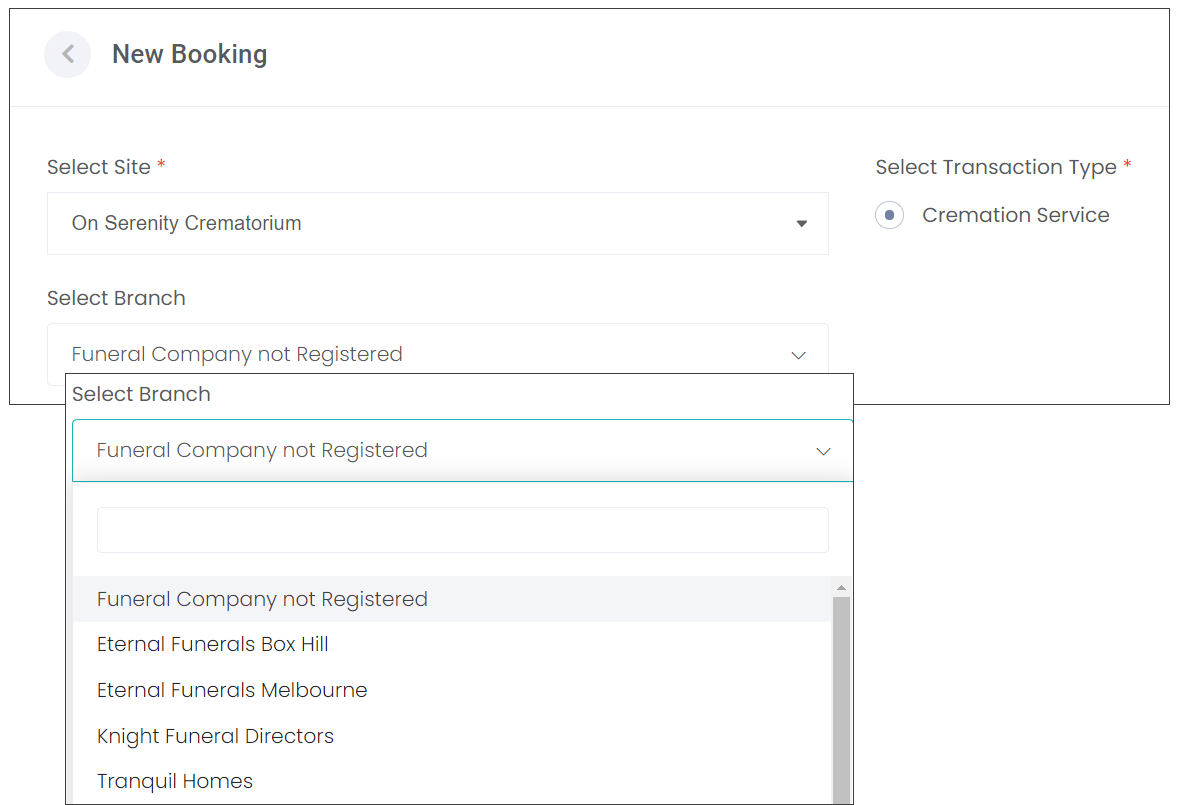
Select the Site the booking relates to, and choose the Transaction Type. In our example, we are choosing ‘Cremation Service’.
For the funeral director branch, you can choose from the drop-down list that displays registered funeral directors, or alternatively select Funeral Company not Registered.
Once the selections are made, choose Proceed.
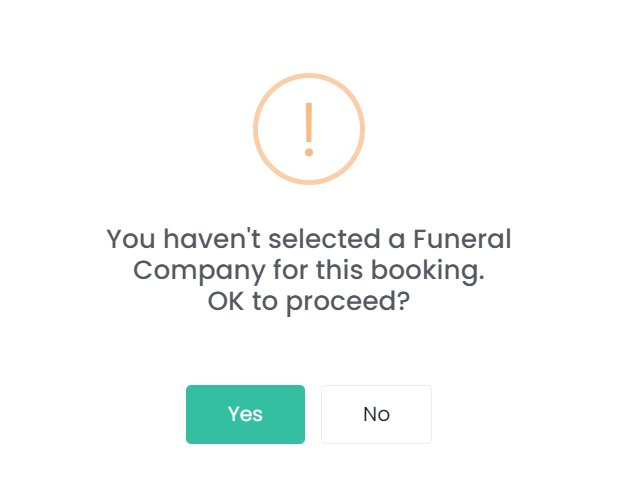
Where the selection for Funeral Company not Registered is chosen a warning message will display indicating so.
If this was the required selection choose Yes to proceed. Otherwise choose No and select a registered funeral company from the drop-down list.
Deceased & Common Information Screen
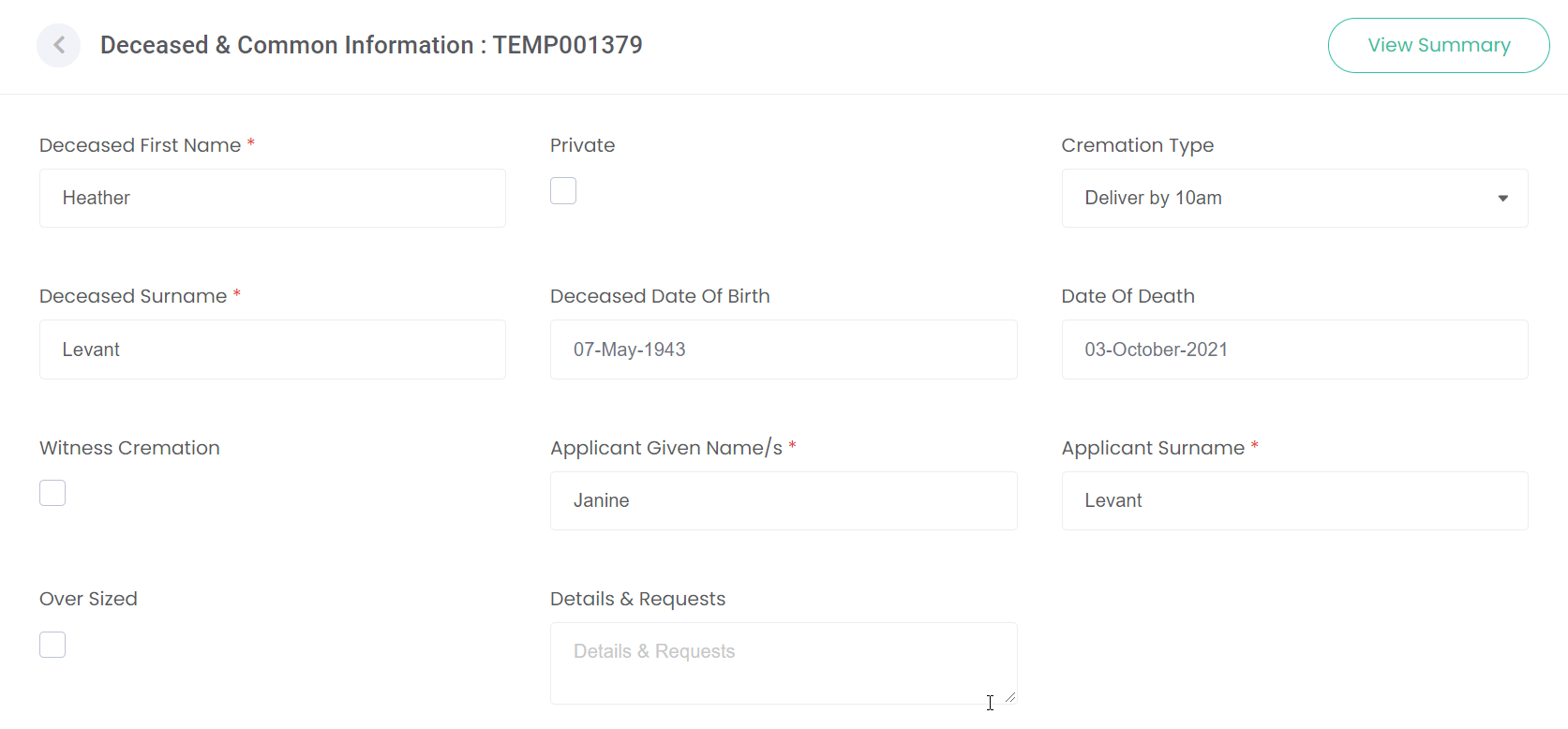
Populate the Deceased and Common Information screen.
Note items marked with an asterisk are mandatory fields.
When entering dates, click in the field.
Click on the month & year.
Click on the year again, which will allow you to arrow back through the decades until the relevant year is visible.
Select the year, the month and the date.
If at any point you would like to view a summary of the information entered, choose the View Summary button at the top right of the screen.
Once details are all entered, choose Save & Proceed.
Resource Appointments
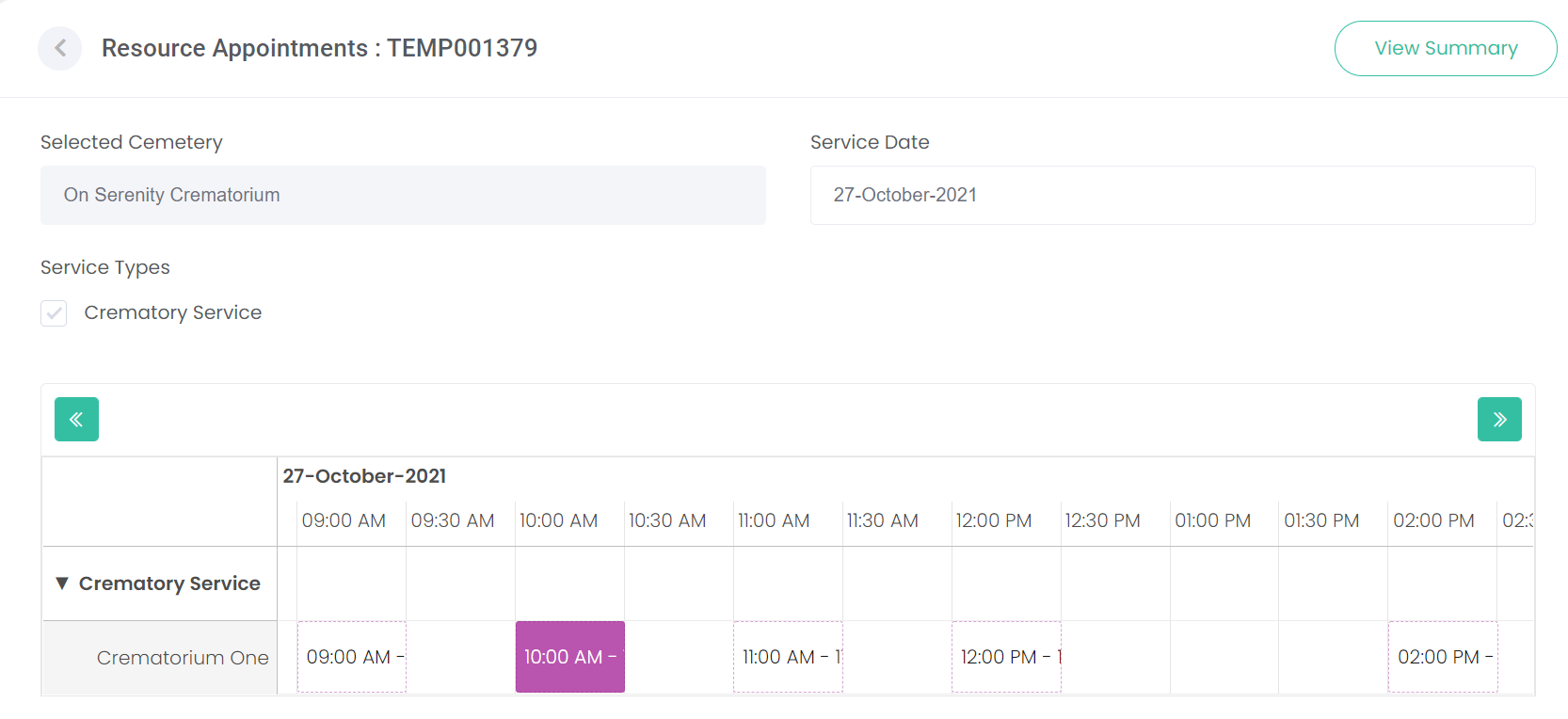
The next screen to display is the Resource Appointments screen.
The resources relevant to the transaction and service types chosen will be displayed.
If there are also Chapel Resources associated to the booking type, these will also be displayed with available booking times.
Choose the Service Date on the top right of the screen. The resources will then display available times for the chosen day.
Blocks displaying with a dotted line are available booking times. Blank blocks are times that have already been booked or are not available.
Select the required timeslot by clicking in the time slot and the block will turn purple to indicate your selection.
If a timeslot is chosen in error, simply click on the correct time and the selected time will transfer to the new selection.
Once selections are made, choose Save & Proceed.
These are all of the screens we have configured in our demonstration database to capture information.
You may have configured additional screens, if so, complete these and then submit the booking.
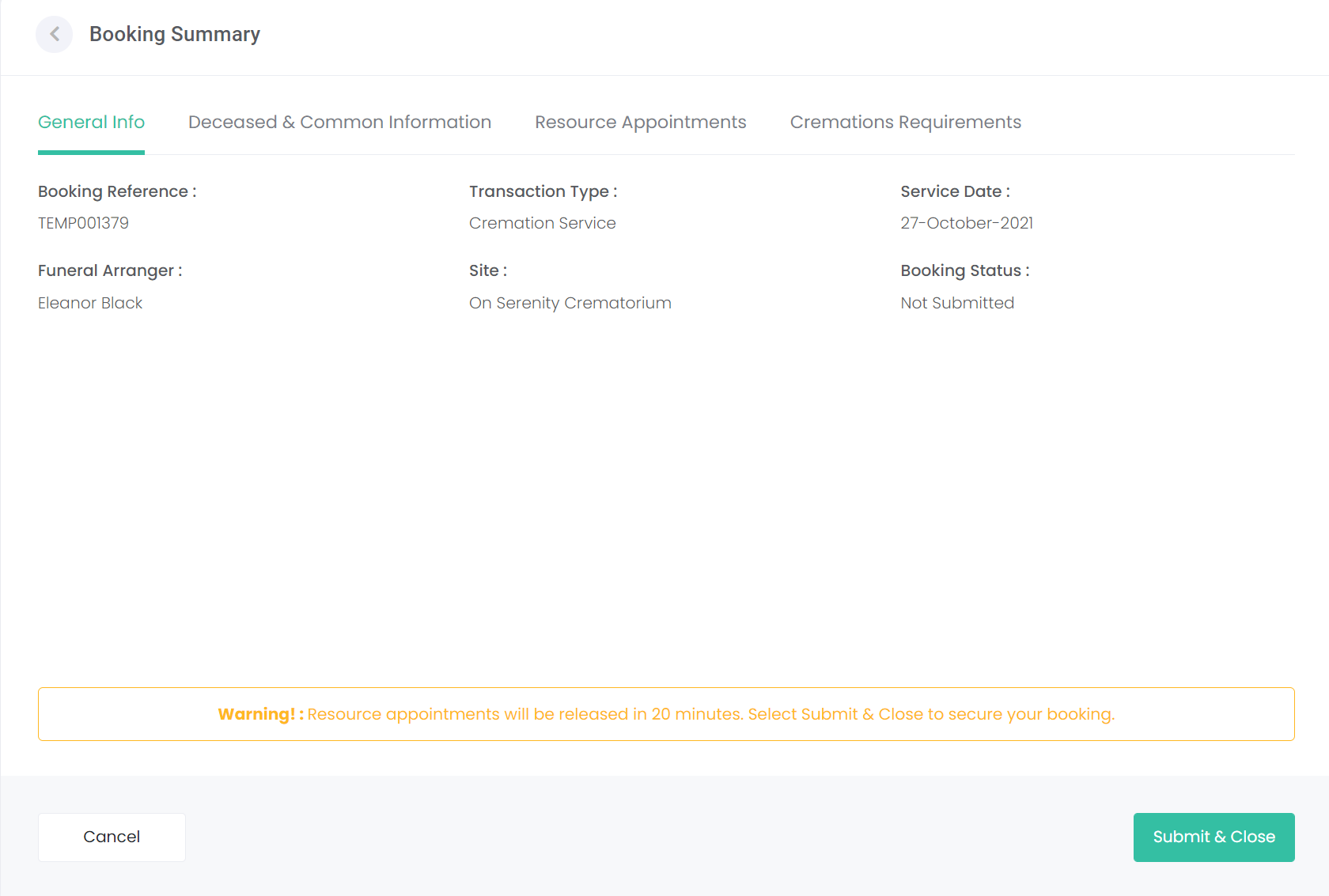
Summary
Note you have 20 minutes to secure the booking otherwise the time selected will be released.
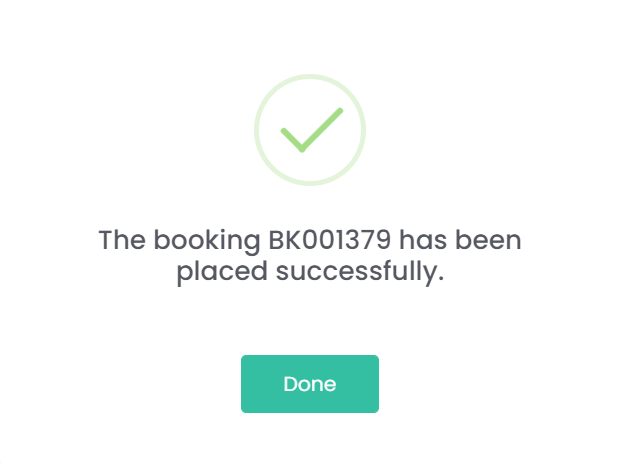
Notification that the booking has been placed successfully will be displayed.
Once completed choose Done, you will be returned to the Manage Bookings Screen as shown earlier.
Manage Bookings
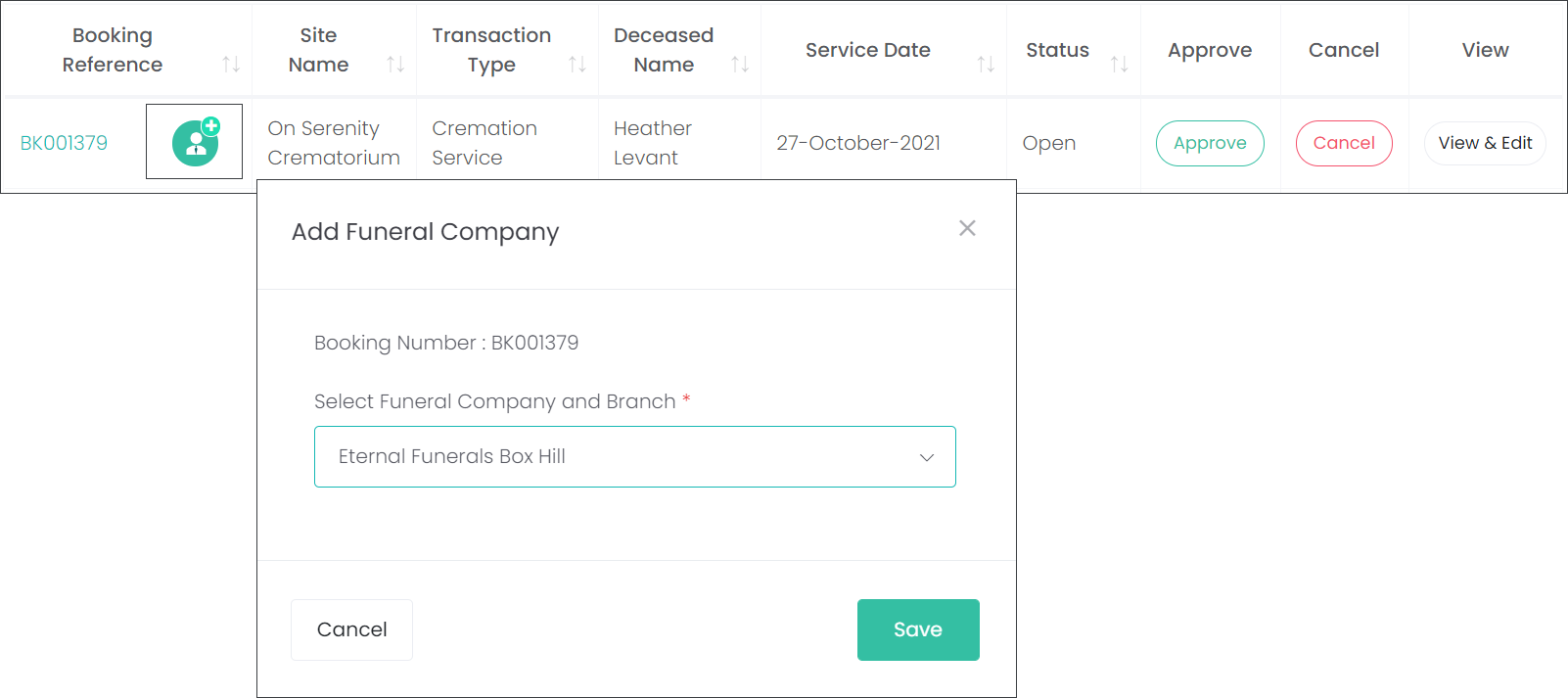
As this example was created for a funeral company not registered with byondcloud, the icon, as indicated below, is displayed next to the booking reference.
Should the Funeral Company register in the meantime, you can click on this icon and add them here.
Even though you have created the booking, the process to approve or cancel will still need to take place.