It’s important to gather information about the deceased and cemetery location (grave, crypt or cremation memorial) before you start entering the permit application.
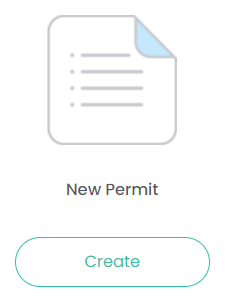
The screen to create a new permit can be accessed by clicking either the Create button under New Permit on the dashboard:
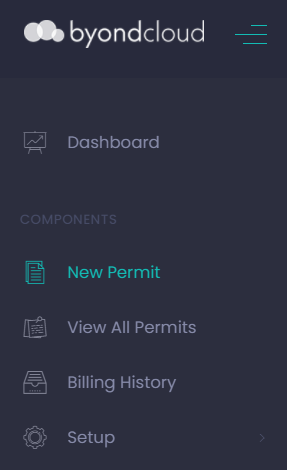
Or, by clicking the New Permit option on the side menu.
Alternatively, there is an Add New Permit button on the top right-hand side of the Manage Permits screen:
Selecting the Cemetery
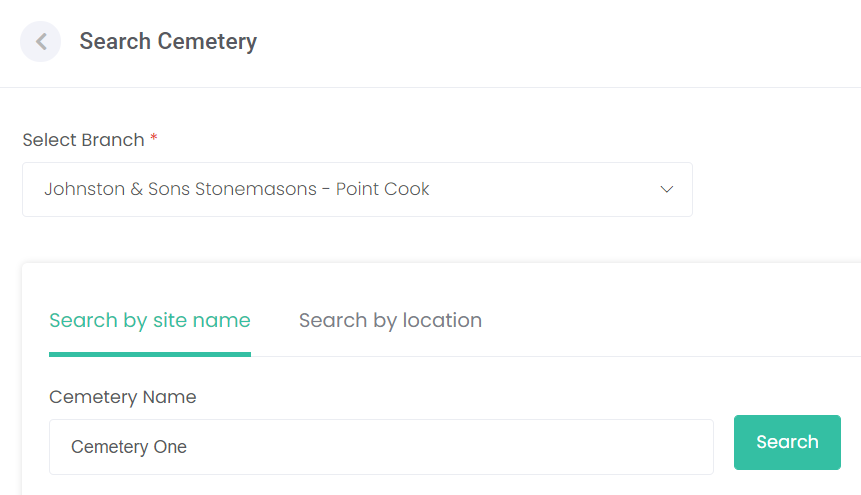
After selecting New Permit, you will be directed to the cemetery selection screen.
1. Select the Branch of your business that you are lodging this permit for, from the drop-down list.
There are multiple ways to search for the cemetery site, each are outlined below.
2a. Select Search by site name and enter all or part of the cemetery name and Search.
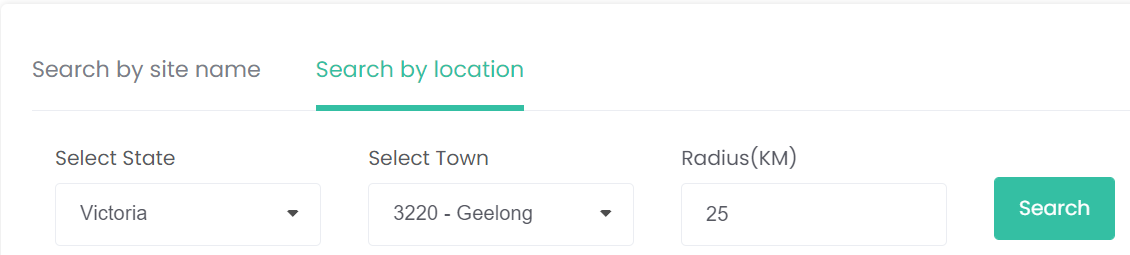
2b. Select Search by location and filter by State and Town, and by a Radius(KM) around the selected town and Search.
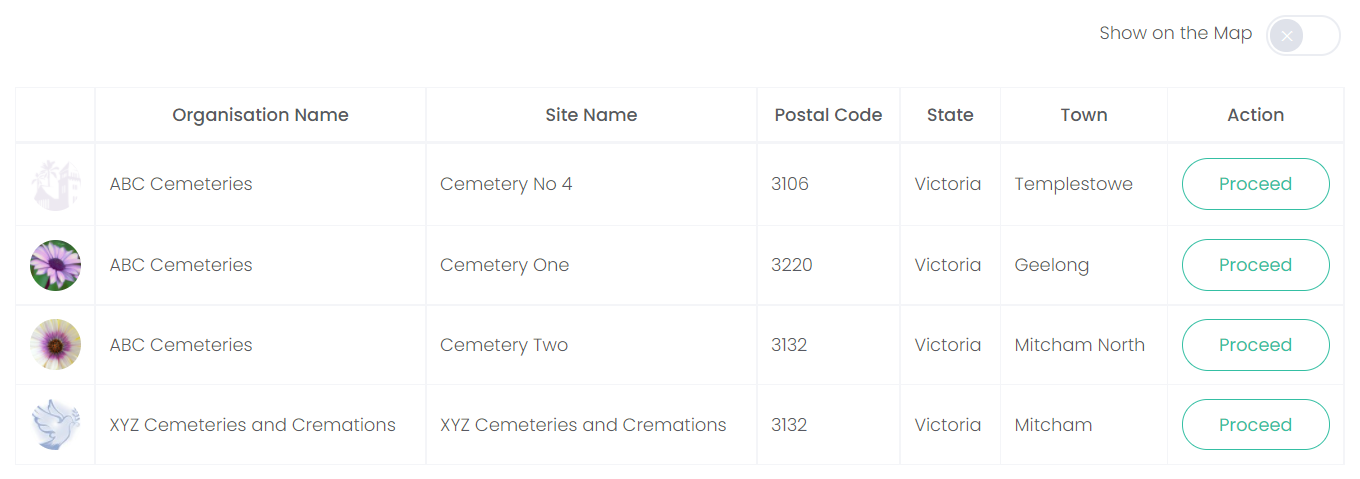
2c. Click the search button with all fields clear to show a complete list of all partnered cemeteries.
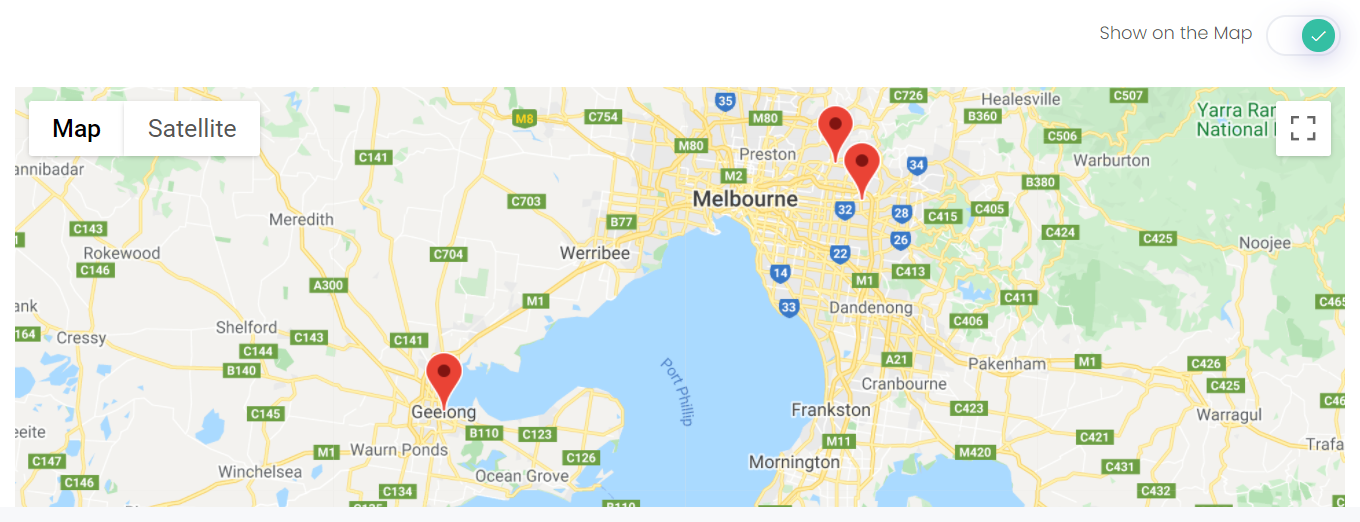
2d. After searching and displaying a list of cemeteries, click on the Show on the Map slider.
This will open a map that shows the locations of all the cemeteries you have searched.
3. Select Proceed for the applicable cemetery in the list.
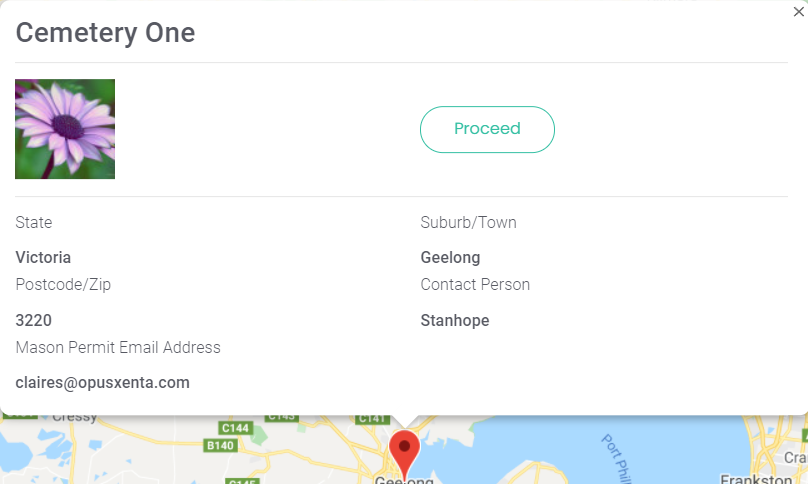
Alternatively, you can click on a pin on the map and select the Proceed button on the pop-up screen.
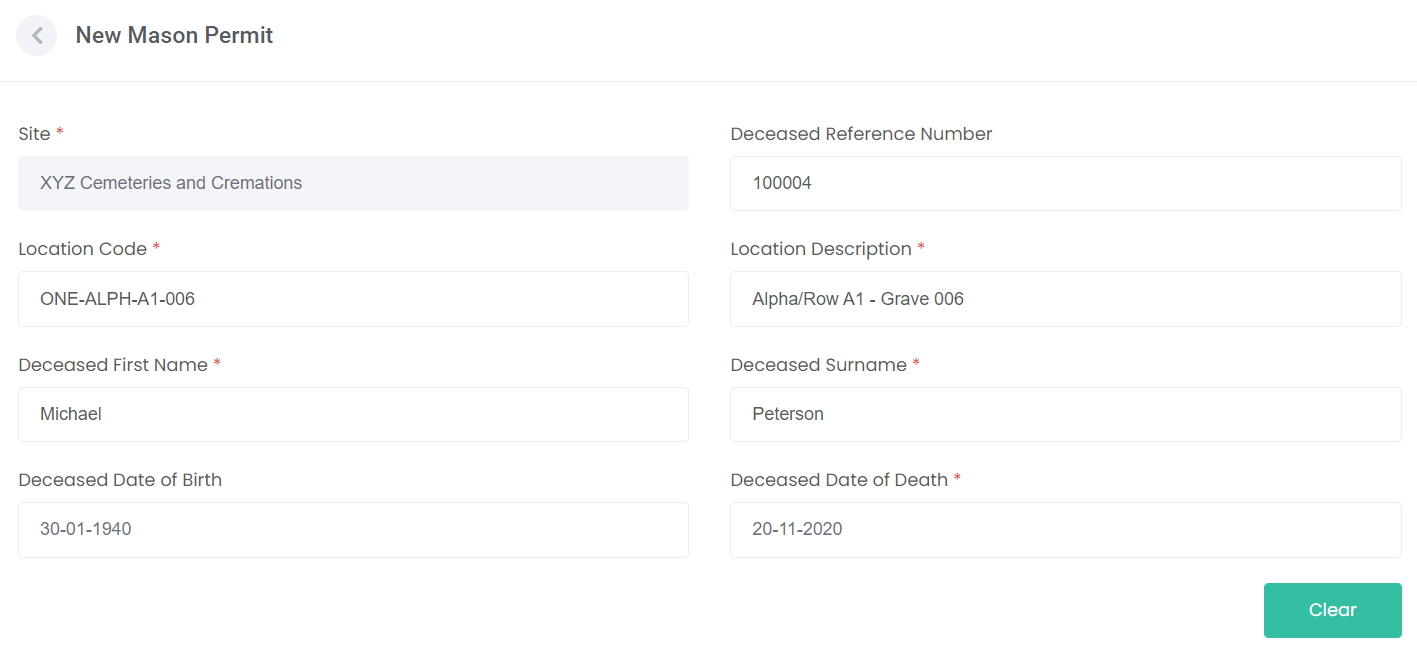
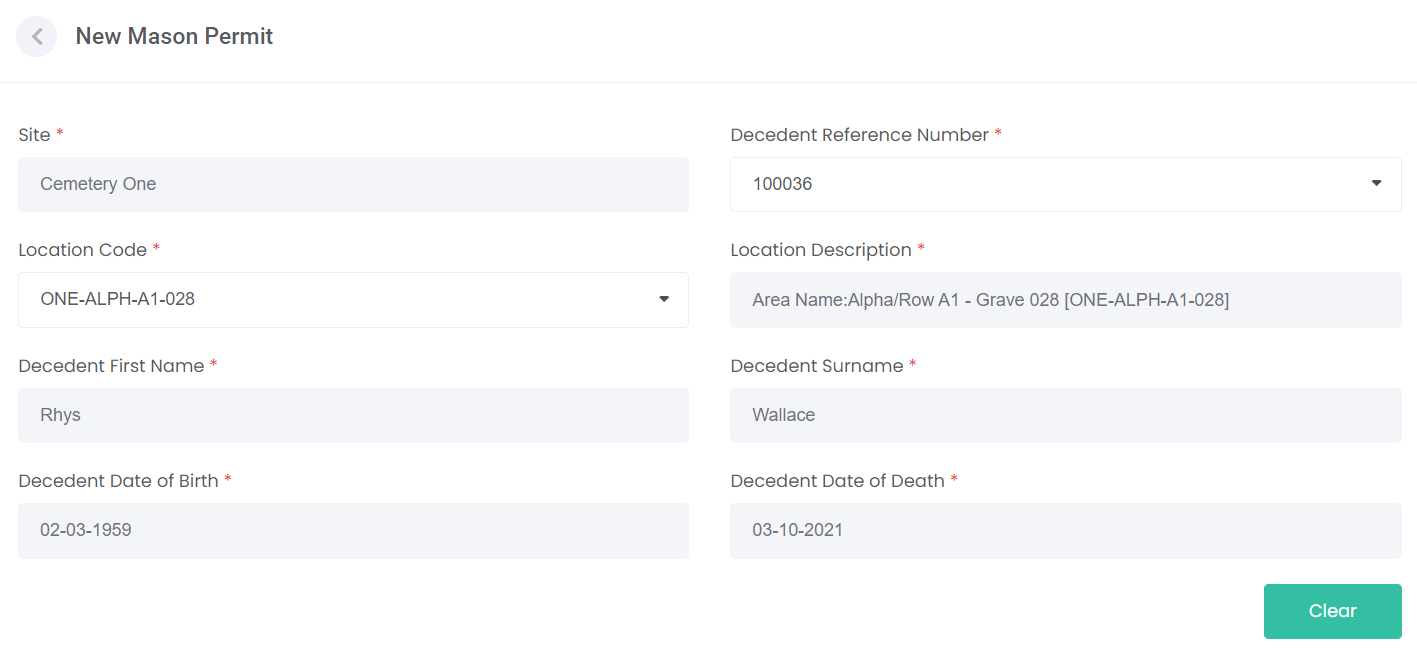
The New Mason Permit screen opens, showing the site you selected.
Note: only cemeteries that have allowed trading with your business and nominated branch will be displayed in the list.
If you are unable to see the cemetery for your permit application, contact them directly to be granted access.
Identifying Deceased and Location
If your cemetery partner is not integrated with byondpro, enter the following information directly in the fields provided.
-
Deceased Reference Number - Identifier for the deceased, also referred to as a register or interment number.
-
Location Code - Short-form reference for the grave, crypt or cremation memorial.
-
Location Description - Location name in words, e.g. area, section, row and plot number.
-
Deceased First and Last Name /s.
-
Deceased Date of Birth and Date of Death.
If your cemetery partner uses byondpro as its cemetery management system, you can use either the Deceased Reference Number or the Location Code to retrieve the remaining information from their database.
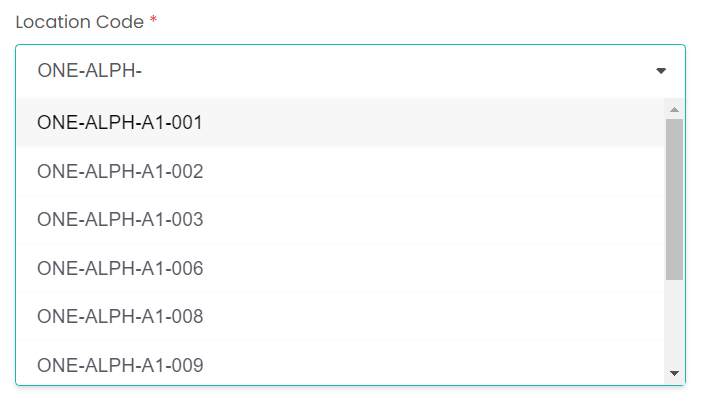
Location Code - Enter the first characters of the location code and matches are shown in the drop-down list.
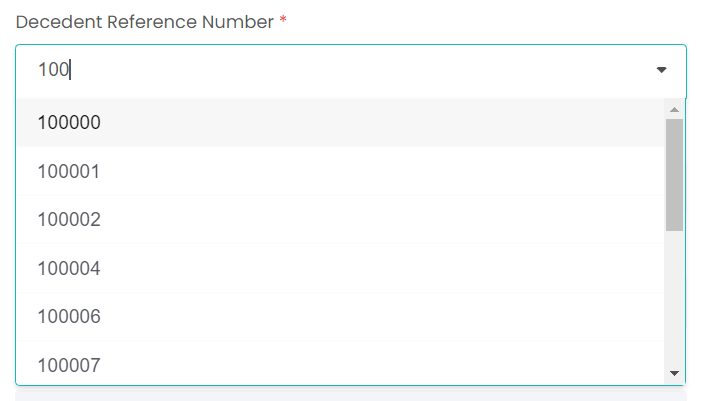
Deceased Reference Number - Enter the first characters of the reference number and matches are shown in the drop-down list.
The remaining data fields are completed for you.
If the selections are for the wrong location and / or deceased, select Clear to empty the form.
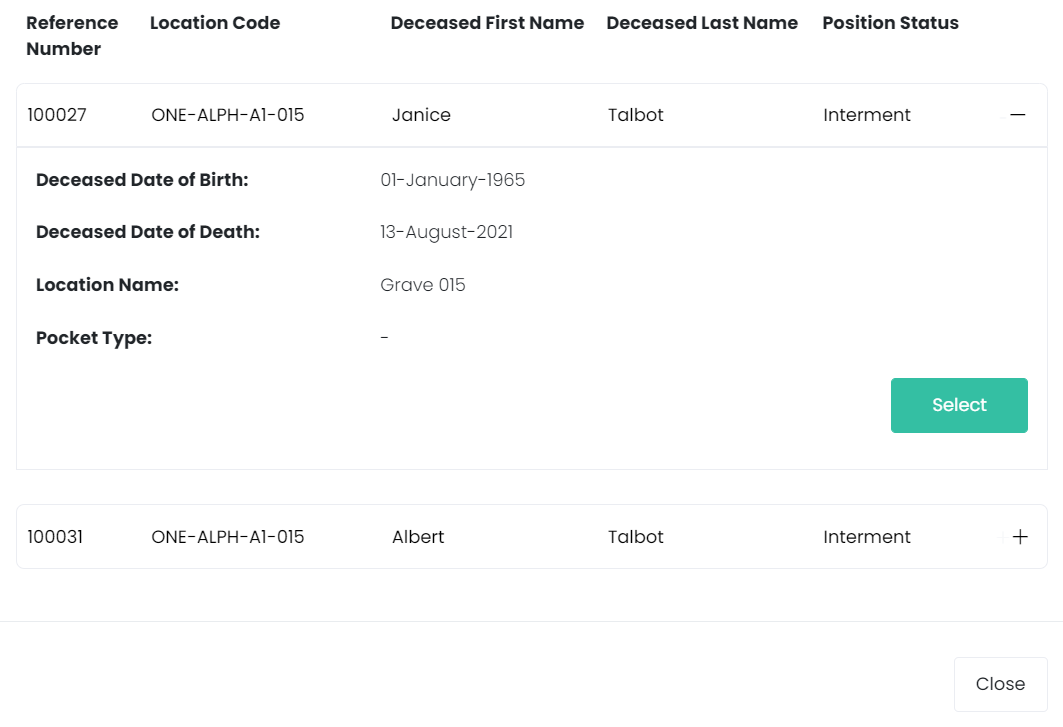
If there’s more than one possible match for the deceased’s location, as can be the case for cremated remains placements; or there is more than one interment at the selected location, you’ll be presented with a pop-up screen with the available records to choose from.
Click on the + (plus) and - (minus) buttons to the right-hand side of the record to view or hide additional details.
Click Select to make your choice, or Close the screen if the records shown don’t match your permit application.
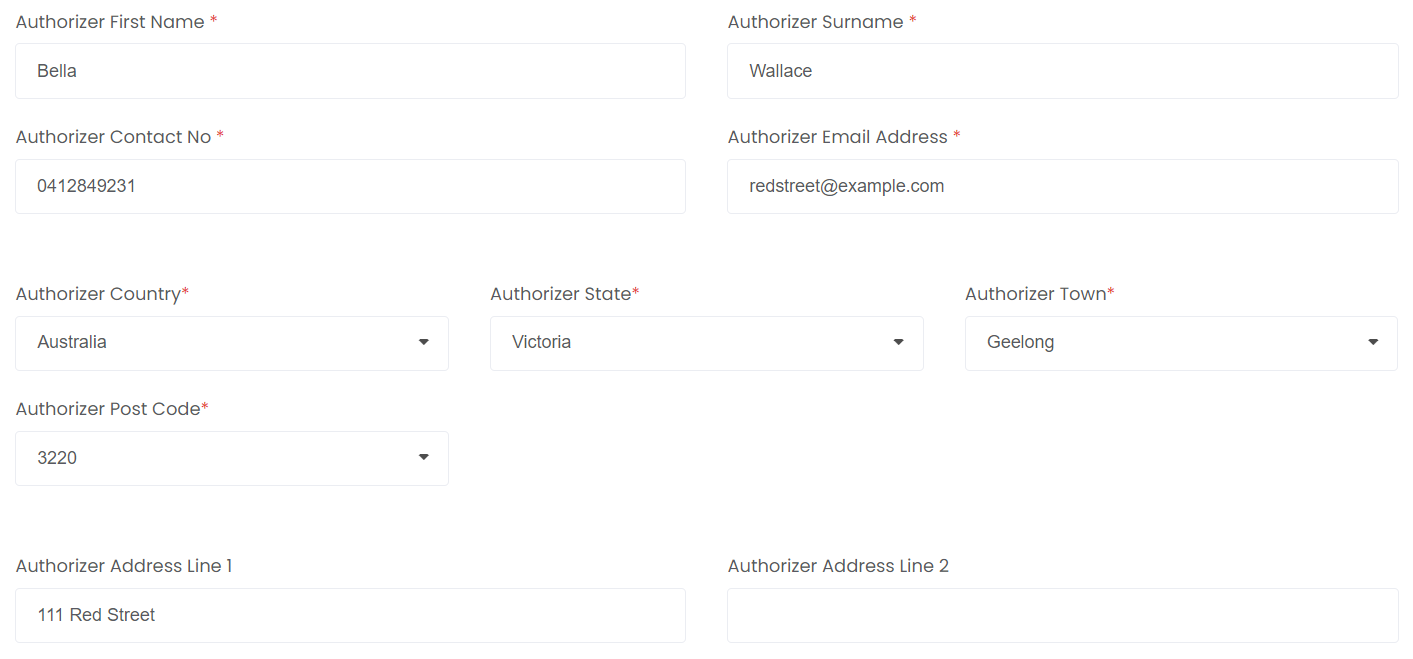
Providing Details of the Authorising Party
This section of the permit entry form requires the contact details of the person authorising the monument or memorial.
The cemetery will check this against their records to ensure the party named is the Holder of Right of Interment for that location or has the approval of the rights holder.
Enter the following information directly in the fields provided:
-
Authoriser's First and Last Name /s
-
Authoriser's Contact Number, Email, and Address details.
Entering Details about the Permit Application
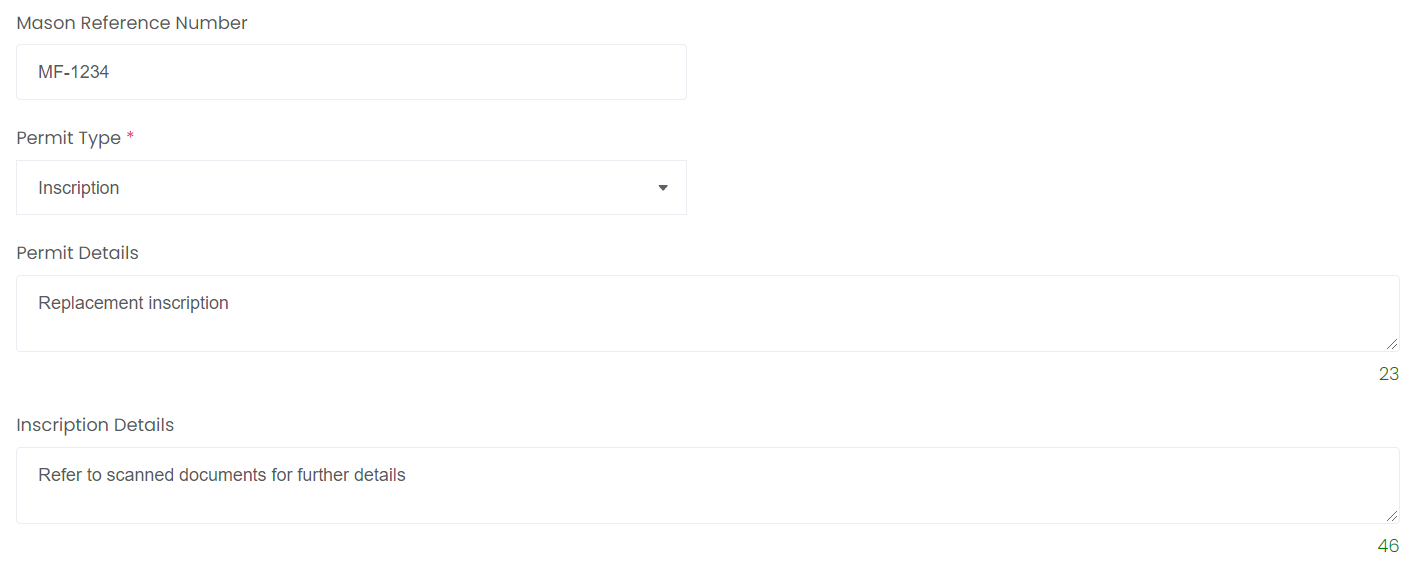
This section of the permit entry form requires you to select the permit type for which you’re applying and any supporting information.
-
Mason Reference Number - The mason's own job number.
-
Permit Type - A drop-down list of permit types provided by the cemetery.
-
Permit Details - General information about the application you are submitting.
-
Inscription Details - Specifics about the monument or memorial inscription.
Upload Documents to Support your Application
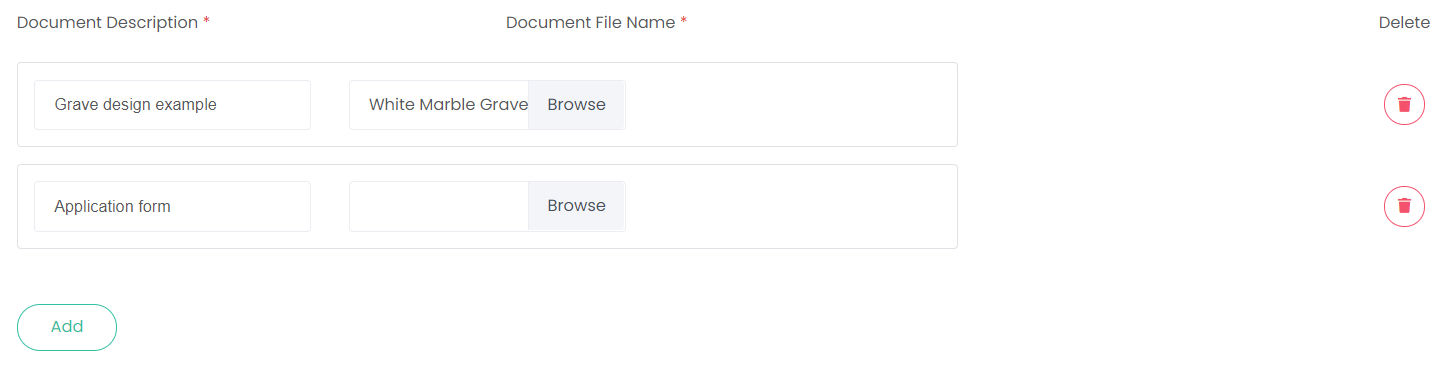
This section allows you to include any number of scanned documents, drawings or photos in support of your permit application.
Select Add to create a new row and to display the document selection fields:
· Document Description - Description of the file.
· Document File Name - Select Browse to find the source document on your device.
Multiple documents can be added
If you've added too many document fields, added the wrong document, or decided a document is no longer required, click on the red Delete  button to remove it.
Submit the Permit Application
To submit your application to the cemetery, select Submit in the bottom right of the screen.
You can click Cancel at any time if you don't want to proceed.
After submitting a new permit application, you are taken to the Manage Permits screen and your application will display in the list, showing a status of Submitted.
byondcloud will issue an email to the account nominated for this mason branch, confirming that your application has been lodged with the cemetery.
The cemetery receives similar notification that a new permit application has been submitted and is awaiting their review.
Your cemetery partner will review the application and update the status accordingly.