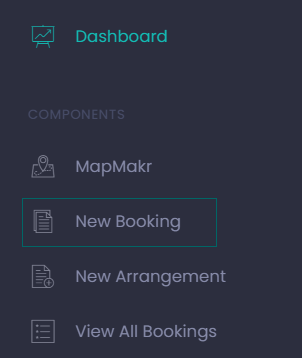
From the Dashboard choose the Create button under New Booking or from the side menu, choose New Booking.
New Booking
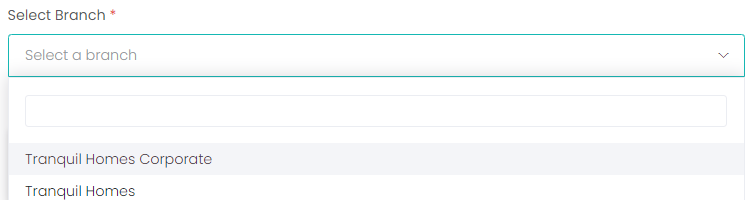
The first step is to choose the Branch you are making the booking on behalf of from the drop-down list.
If your user profile is linked to multiple branches, they will display in the list.
Choose the one you want to make the booking for.
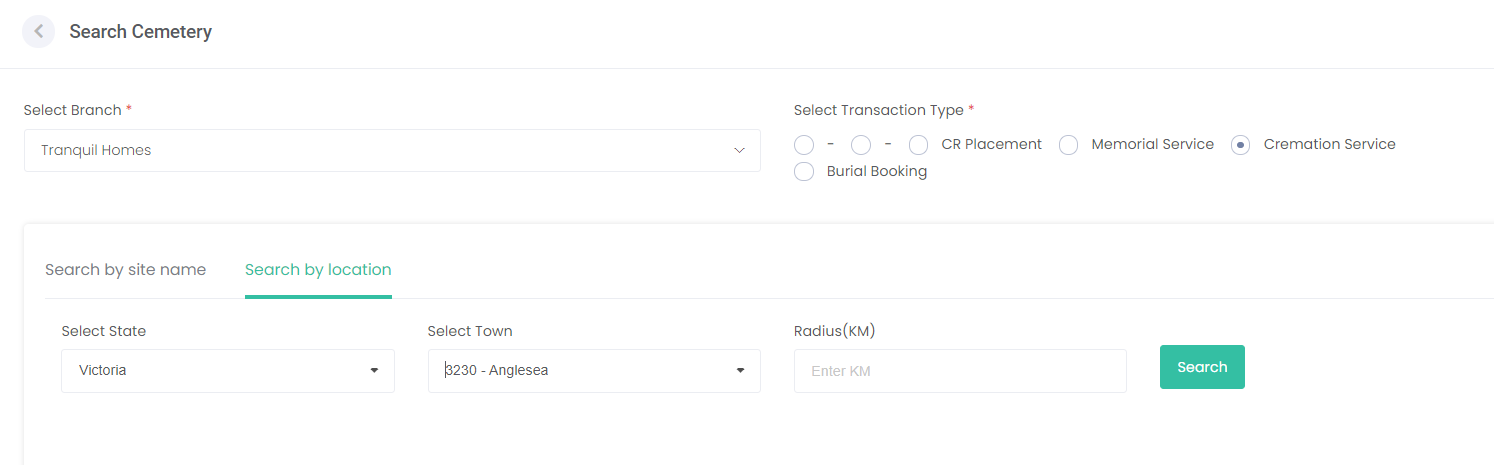
Select the Transaction Type. For our example, we will choose ‘Cremation Service.’
Search for the cemetery or crematorium you wish to make the booking with.
You can Search by location (State, Town) or Search by site name if you know it.
Then, select the Search button.
Each Cemetery or Crematorium site that fits the criteria will display.
In our example, On Serenity Crematorium displays.
You can also use the Show on the Map feature by switching the cross to a tick.
Once reviewed on the map (if required), switch the map option back off to continue the process.
Availability can be checked prior to commencing the booking process by choosing the Availability button.
This will allow you to check if the service date and time you would like to book are available prior to proceeding.
Select the service date and the available time slots for the chosen date will be displayed with the dotted line around them. Times that are not available will appear blank.
Click on the cross on the top right of the screen to close out of the availability view.
If you are ready to proceed with placing the booking choose Proceed against the chosen cemetery / crematorium.
Deceased & Common Information Screen
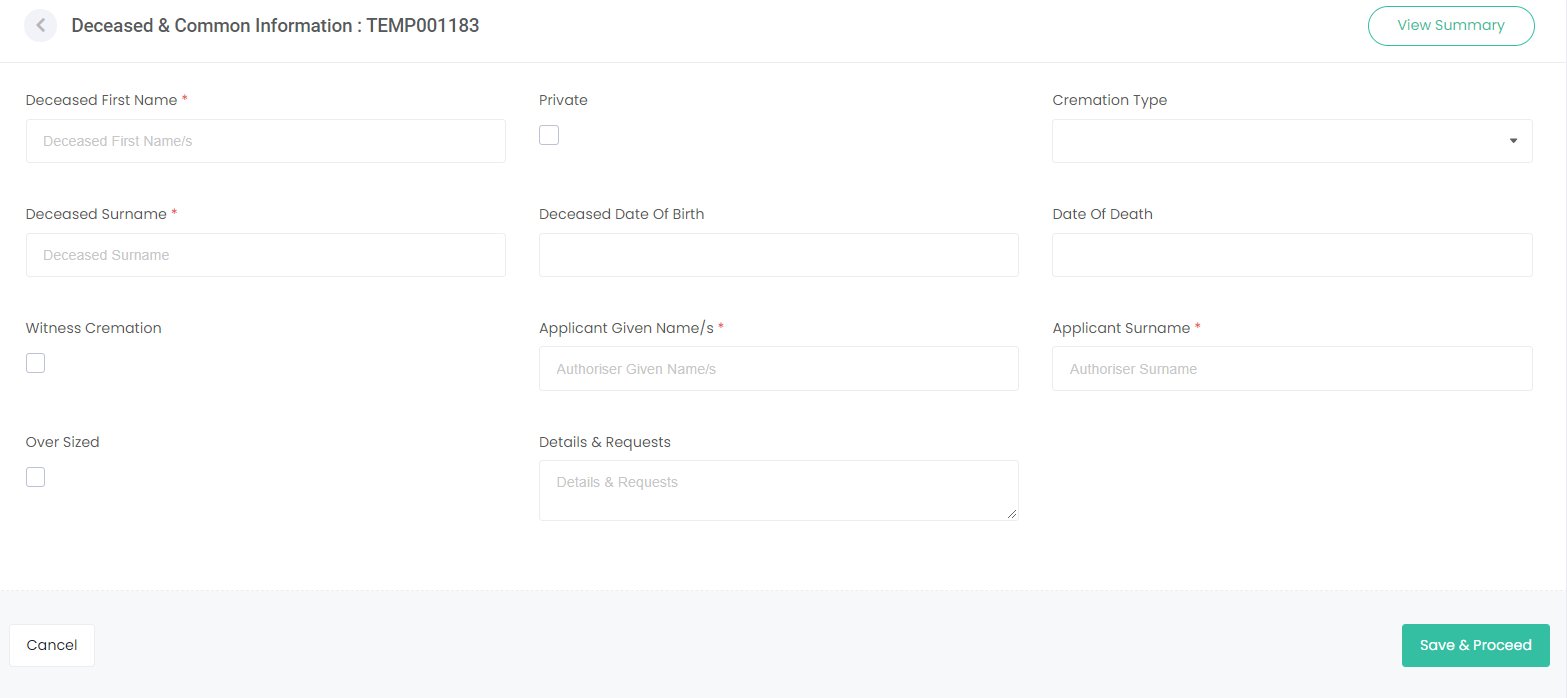
The first screen to display is the Deceased & Common Information.
Enter the information in each of the fields on this screen (note these screens may vary from cemetery to cemetery based on their chosen set of fields).
Any field marked with an asterisk * is a mandatory field and must be populated.
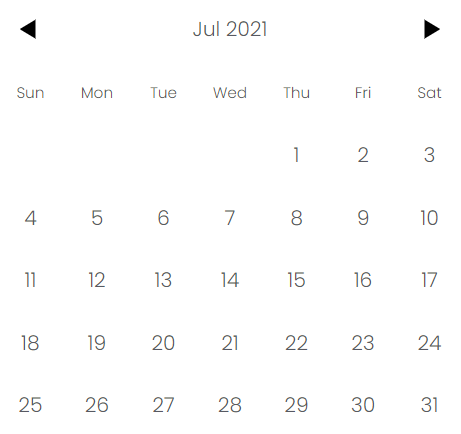
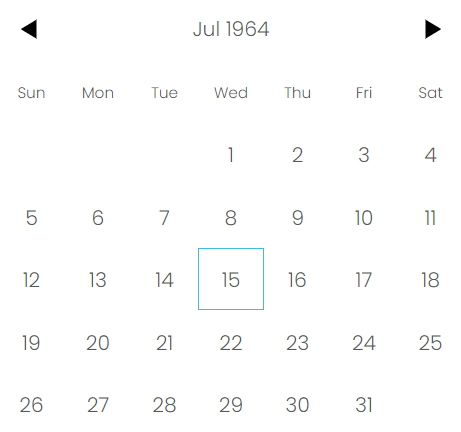
To enter a date in the Date of Birth and Date of Death field, click in the field, and then choose the Month & Year.
For example, in the screen below you would click on Jul 2021.
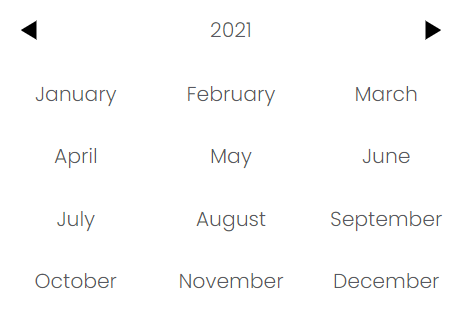
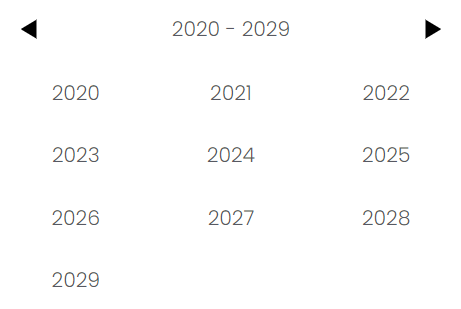
Then click on the year. In this example, click on 2021.
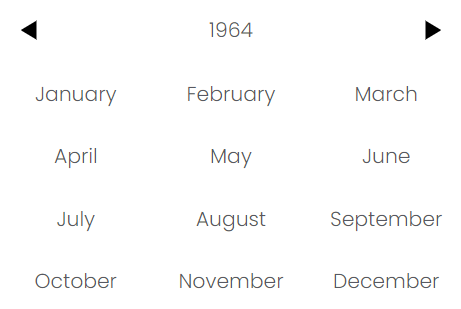
Then click on the back arrows and you will be taken back through the decades.
Choose the year, then choose the month.
And then the date. The selected date will then display in the field.
Choose Save & Proceed once the information has been entered.
Resource Appointments
Screen
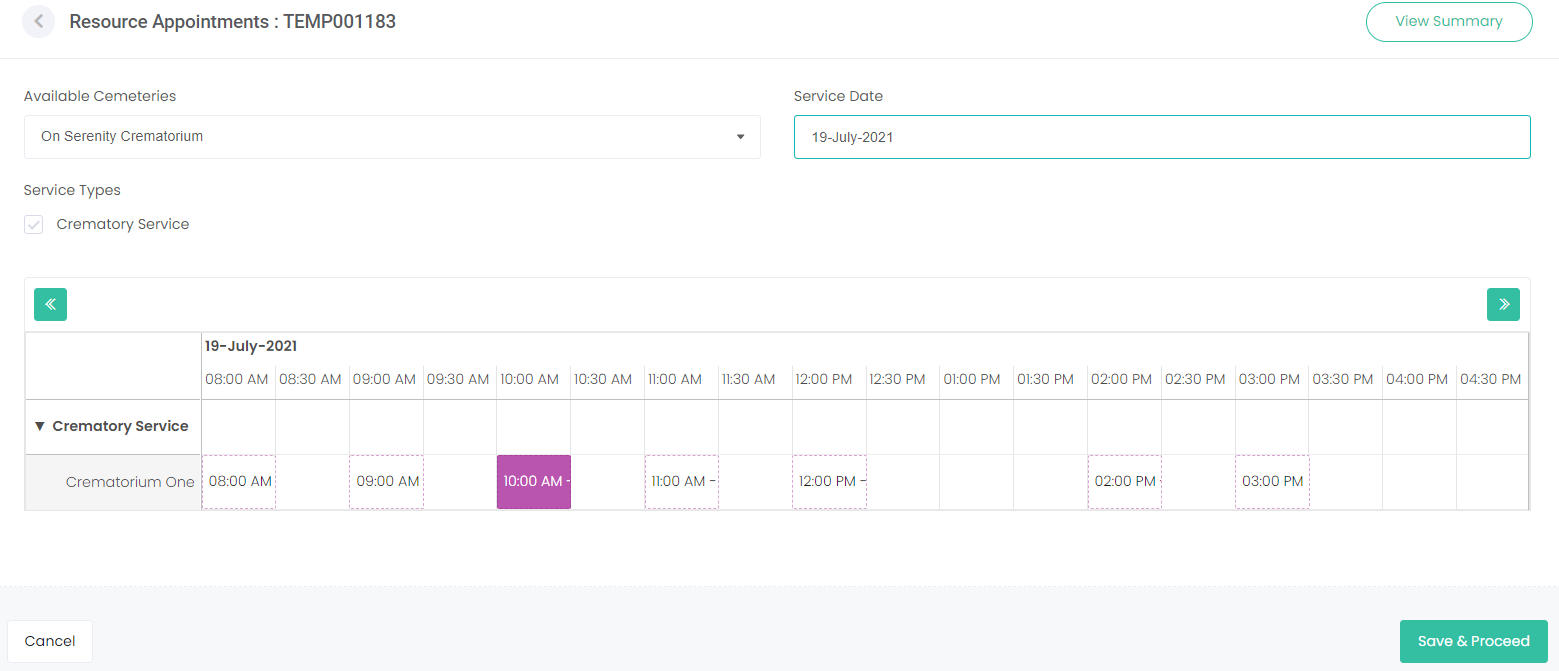
The next screen you will be presented with is the Resource Appointments screen.
Choose the Service Date you would like to book the service for.
The available time slots for the chosen date will be displayed with the dotted line around them.
Times that are not available will appear blank.
Click on the time you would like to book and it will turn purple to indicate your selection.
Choose Save & Proceed.
There may be additional screens to populate depending on the cemetery’s configuration.
For example, the cemetery may also provide chapel services with cremation or burial services and present a screen to enter chapel booking requirements.
Booking Summary & Editing Screens
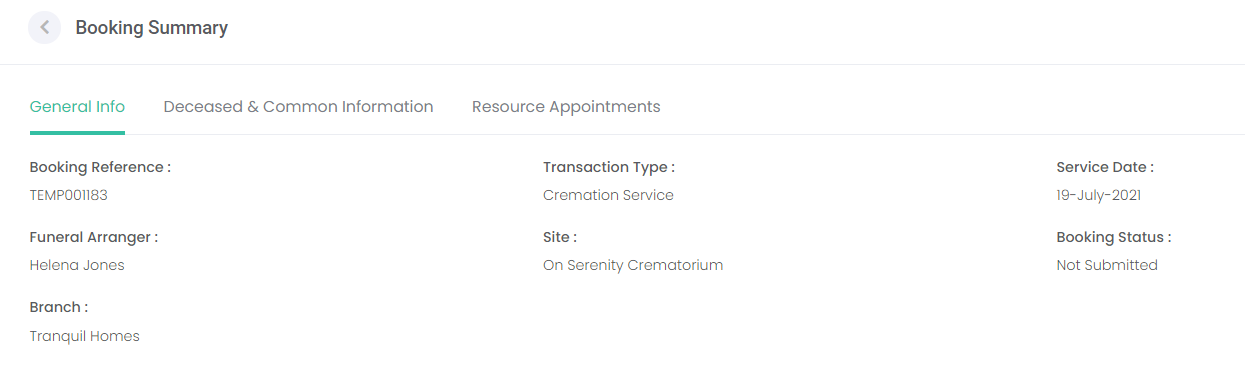
Once all screens have been completed, you will be returned to the booking summary.
If you need to make any changes, you can click through the tabs at the top of the screen to review the information entered.
-
-
Deceased & Common Information
-
If you need to edit the information, choose the back button on the top left of the screen and arrow back through the screens and make any changes.
Once you have completed everything, choose Save & Proceed.
At this stage, the booking is not yet submitted to the cemetery.
Choose Submit & Close to lock in the booking.
Note: if the booking is not secured within 20 minutes the resource time /s selected will be released; i.e. becomes available to other users of byondcloud.
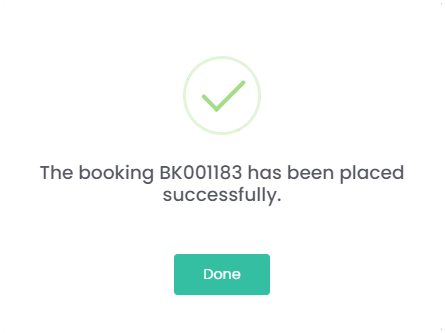
A notification will be displayed on screen confirming the booking has been successfully placed, and byondcloud will send a notification to the cemetery or crematorium, and an email confirmation to your bookings email account.