There are several ways to navigate in RecordKeepr. The navigation options are outlined below.
Rather than return to the navigation options throughout each sub-section, we encourage you to select the way you would best like to navigate the system.
Navigating from the Dashboard
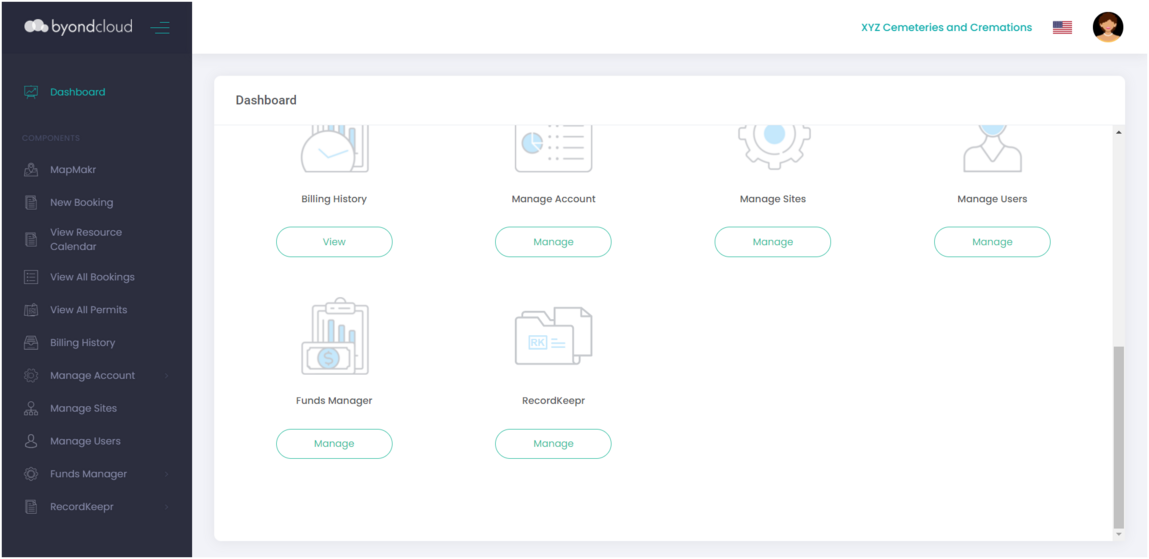
Click on the Manage button under the RecordKeepr icon.
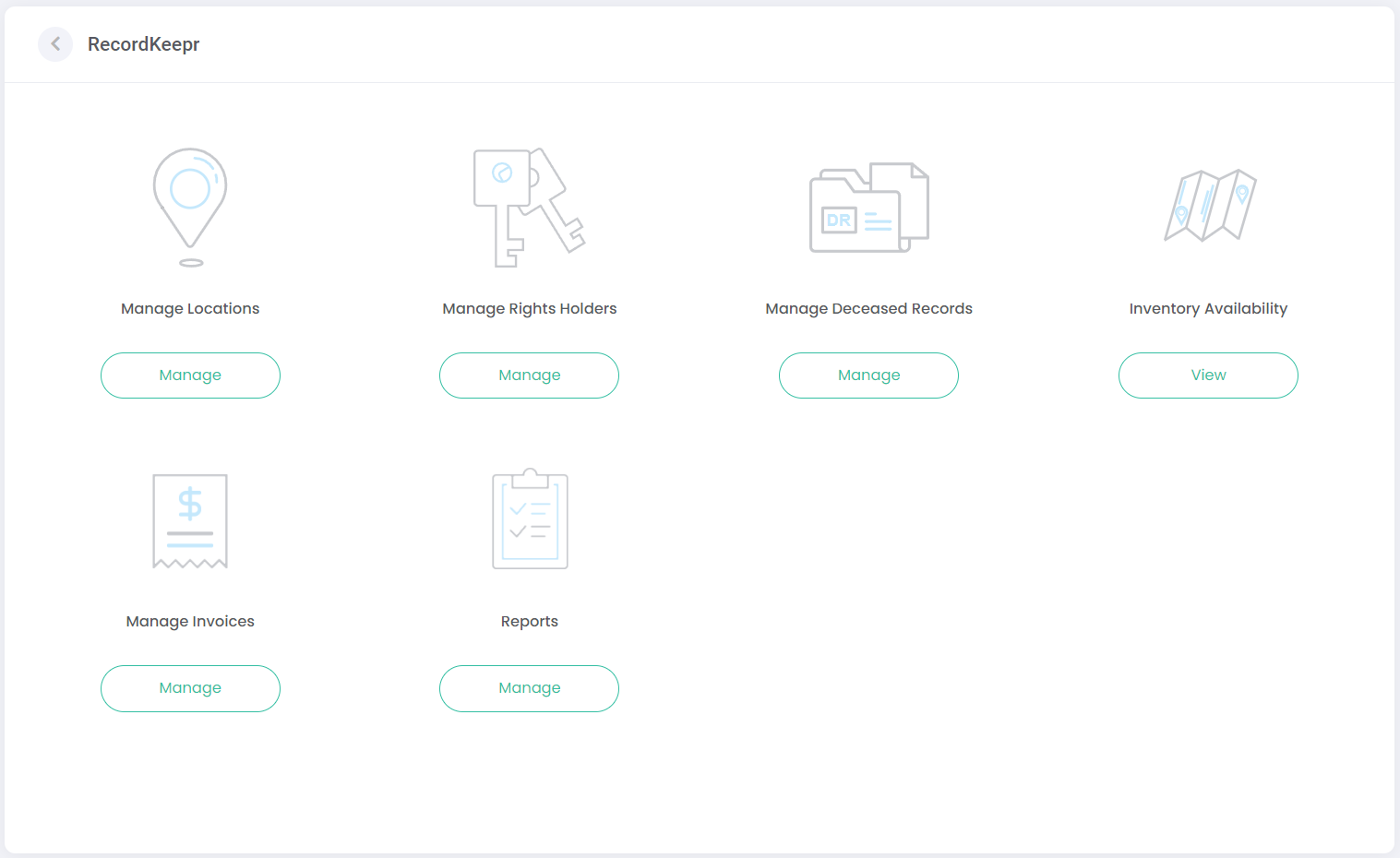
Each function relating to RecordKeepr will display. The options that display will be in line with user settings and permissions applied to the logged-in user.
Click on the Manage / View button under the function you would like to select. This will take you to the relevant screen.
Each function relating to RecordKeepr will display. The options that display will be in line with user settings and permissions applied to the logged-in user.
Note:
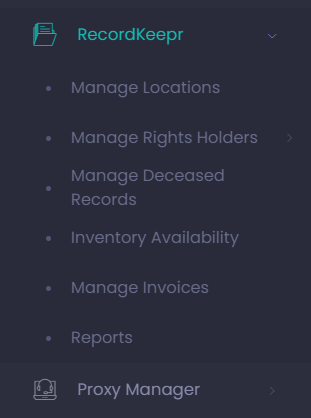
The same screen will display by selecting RecordKeepr on the side menu (as shown below).
The side menu takes you directly to the RecordKeepr functions, without needing to navigate via the Dashboard to the RecordKeepr icon, and then selecting the Manage/View button.
Navigating from the Side Menu
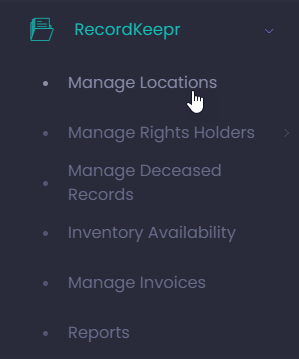
Select RecordKeepr from the side menu. All RecordKeepr functions display in a list on the side menu.
Click on the function you would like to be directed to.
Let’s look at an example below to see how to navigate to Manage Locations:
Using the Dashboard to navigate
From the Dashboard, click on the Manage button under RecordKeepr.
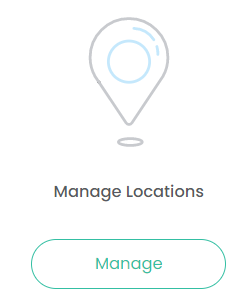
Click on the Manage button under the Manage Locations icon.
This displays a list of existing locations within RecordKeepr and gives you the option to add a new location on the top right of the screen, or search for an existing location.
Using the Side Menu to navigate
Select RecordKeepr, then choose Manage Locations from the side menu.
This displays a list of existing location records within RecordKeepr and gives you the option to add a new location on the top right of the screen, or search for an existing location,
Now that we’ve looked at navigation, let’s review each of the main functions in RecordKeepr – starting with Manage Locations.