Mapping Field Library Input Values
Where your byondpro has selection lists that also appear in the Funeral Director Application, these selections lists are mapped in the Field Library Input Values area of byondcloud.
If you have not configured your field library input values at this time, please visit the Manage Screen Categories -> Field Library Input Values section of this guide to find out more.
You are able to add or update the Field Library Input Values and map them at the same time if the byondpro sync has been switched on.
To map your Field Library Input Values, visit Manage Sites in your byondcloud application. Choose Manage Screen Categories under the site(s) that require mapping.
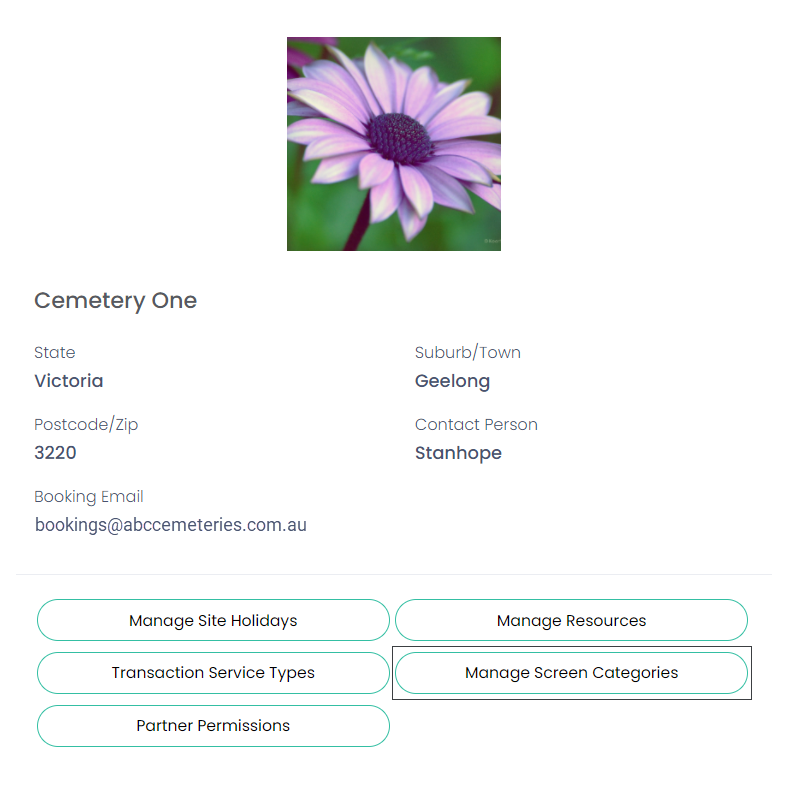
Choose Manage under the Field Library Input Values option.
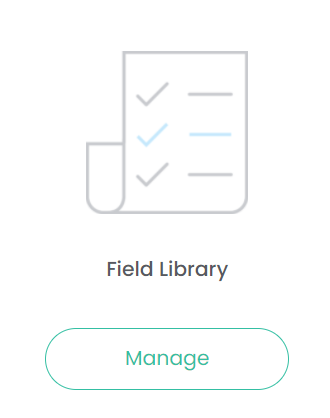
Complete a search of the Field Name(s) that need to be mapped.

For our example below, the field of Cremation Type has a selection list in byondpro on the Bookings tab of the Sales & Bookings module.
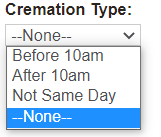
So, we chose the field name of Cremation Type from the selection list and pressed Search.
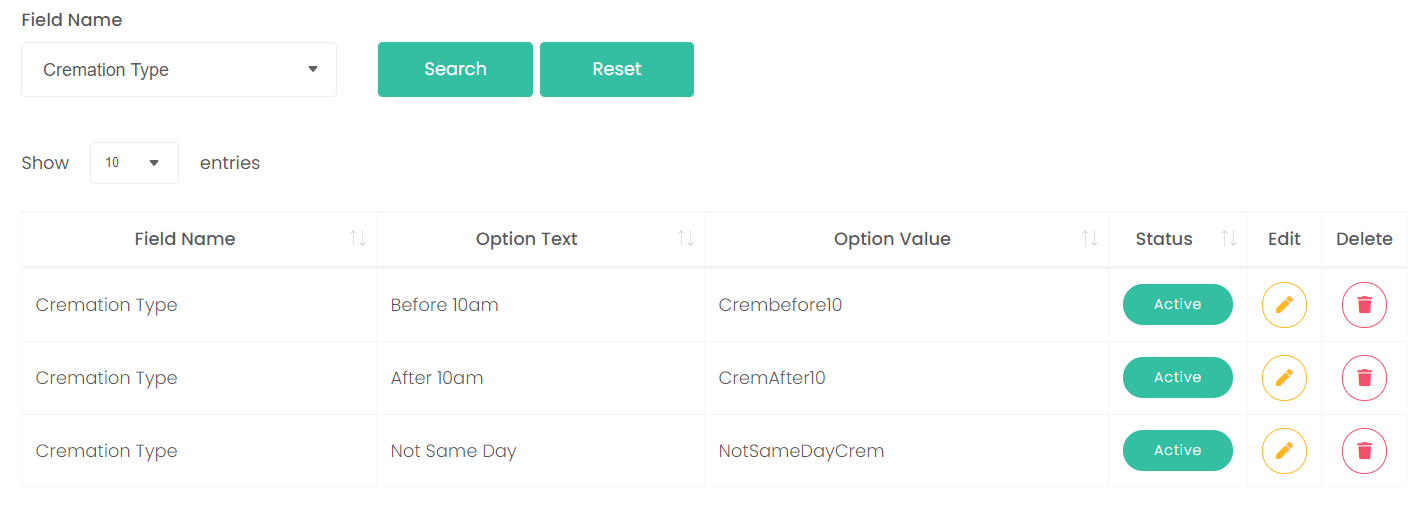
You will need to map each option to the option within byondpro.
Choose Edit next to the first option.

In the byondpro Value field, click on the arrow and choose the matching value from the selection list.
Press Update on the right-hand side of the page.
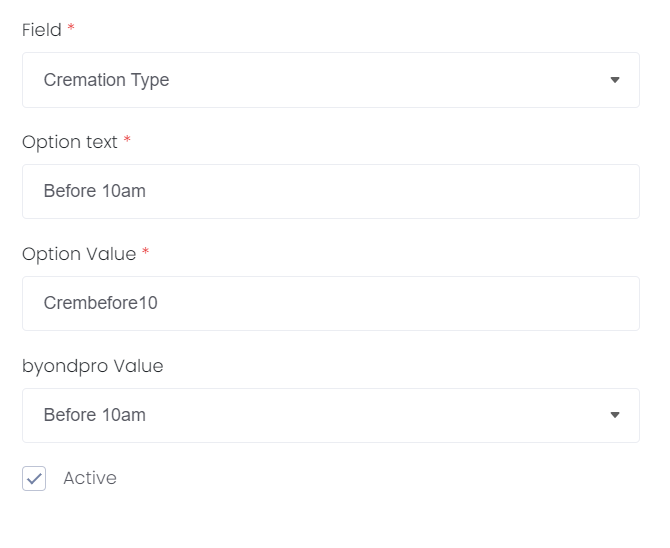
Complete this process for each option available in this field.
If you need to add a new option, choose the Add New Field Library Input Value button on the right-hand side of the page.
If you need to add a new option, choose the Add New Field Library Input Value button on the right-hand side of the page.

Once you have mapped all options on this field, you will need to find any other fields with selection lists and map these options to the correct selection.