Manage Screen Categories
On the site to be configured (Operational site) choose the Manage Screen Categories option as shown below.
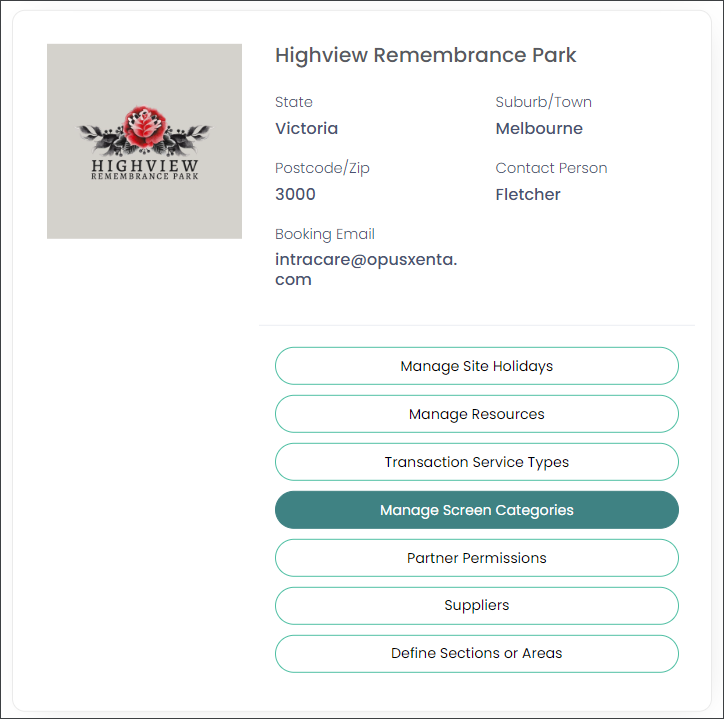
Manage Screen Categories is where to set the screens the funeral director will see when making a booking.
This includes:
-
Setting up the field options on each screen.
-
Customisation of field labels and selection lists to reflect the terminology used within your cemetery.
-
Setting mandatory fields that the funeral director must complete as part of the booking process.You may wish to have your byondpro Sales & Bookings modules available to help plan and complete the configuration settings here, if using the integrated product.
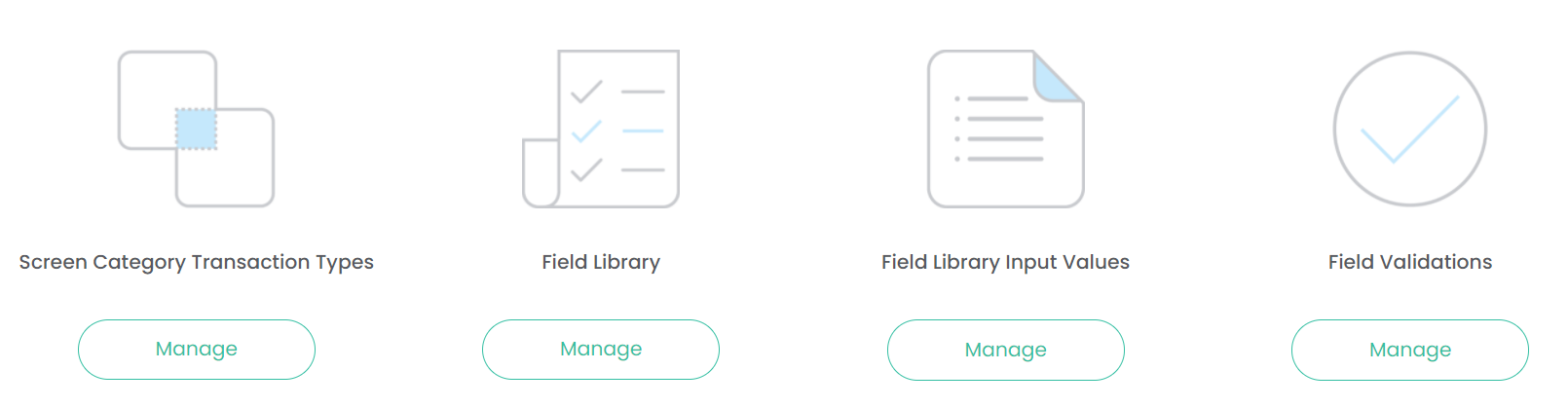
Four categories are presented (as shown below) when you select the Manage Screen Categories option.
|
Screen Category Transaction Types:
|
The screens the funeral director will be presented with during the booking process.
|
|
Field Library:
|
All fields that can be applied to any screen.
|
|
Field Library Input Values:
|
Selection list values that can be associated to specific fields
|
|
Field Validations:
|
To indicate if the field is mandatory when making a booking, and therefore requires validation.
|
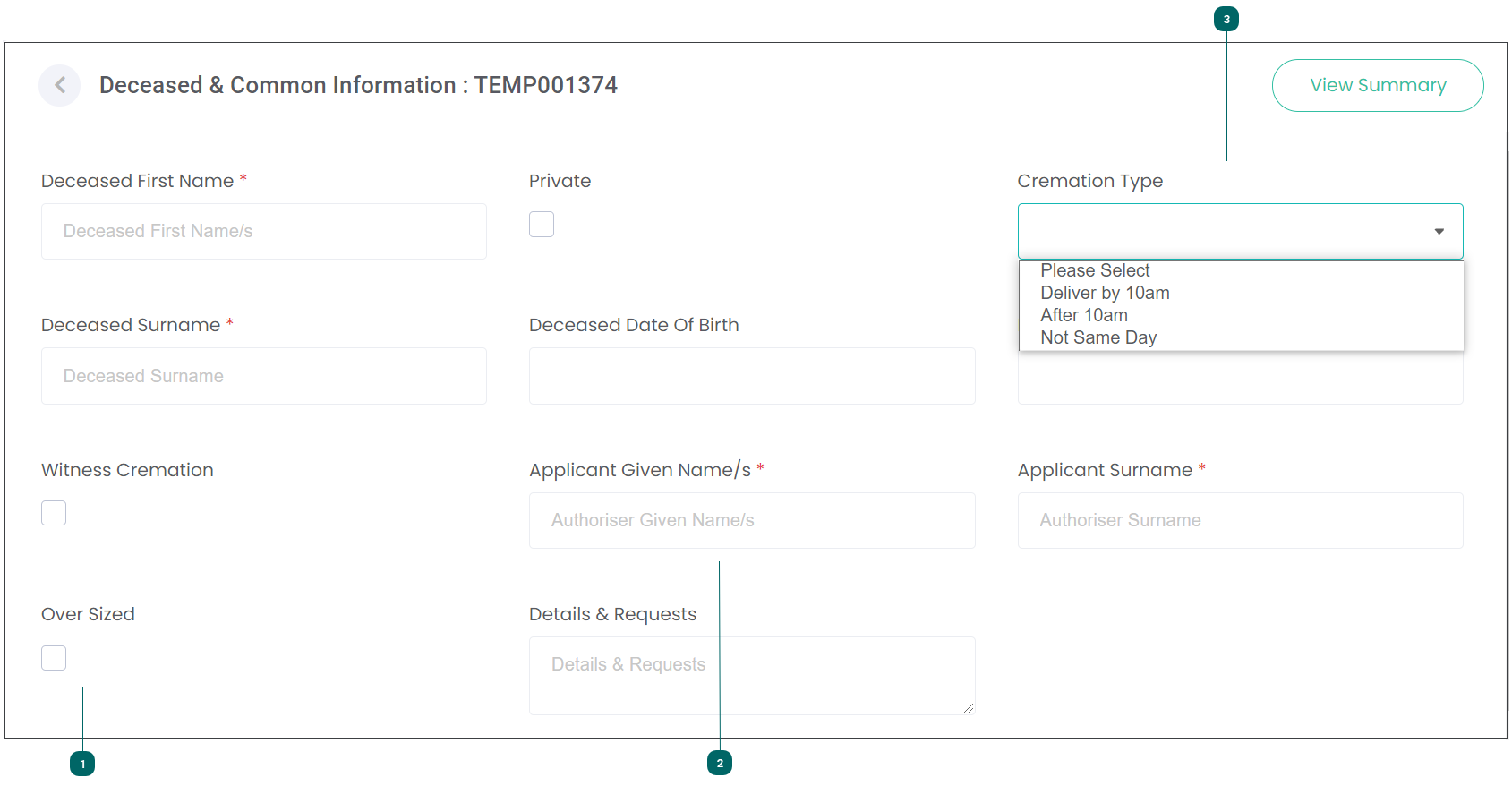
In order to visualise what is being set up and see how the screens will display, let us now review a booking screen and see how the Deceased & Common Information would appear to a funeral director when making a booking with your cemetery / crematorium.
The Funeral Director will be presented with a screen like this (depending on your business requirements, your screen may appear differently).
When we consider the booking screen on the next page, we can see how the field library, field library input values and field validations appear.


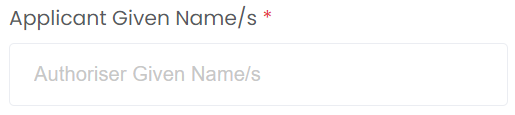

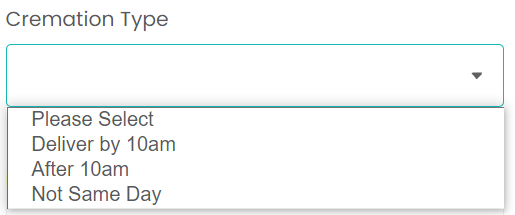
We will now go through in detail the steps in setting up the screens.