Manage Permits
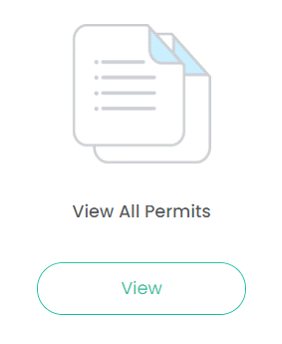
The View All Permits screen used to manage permits can be accessed by clicking either the View button under View All Permits on the dashboard:
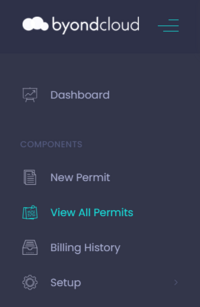
Or, by clicking the View All Permits option on the side menu.
The Manage Permits screen is used to review and edit permit applications submitted by your business with any of your cemetery partners.
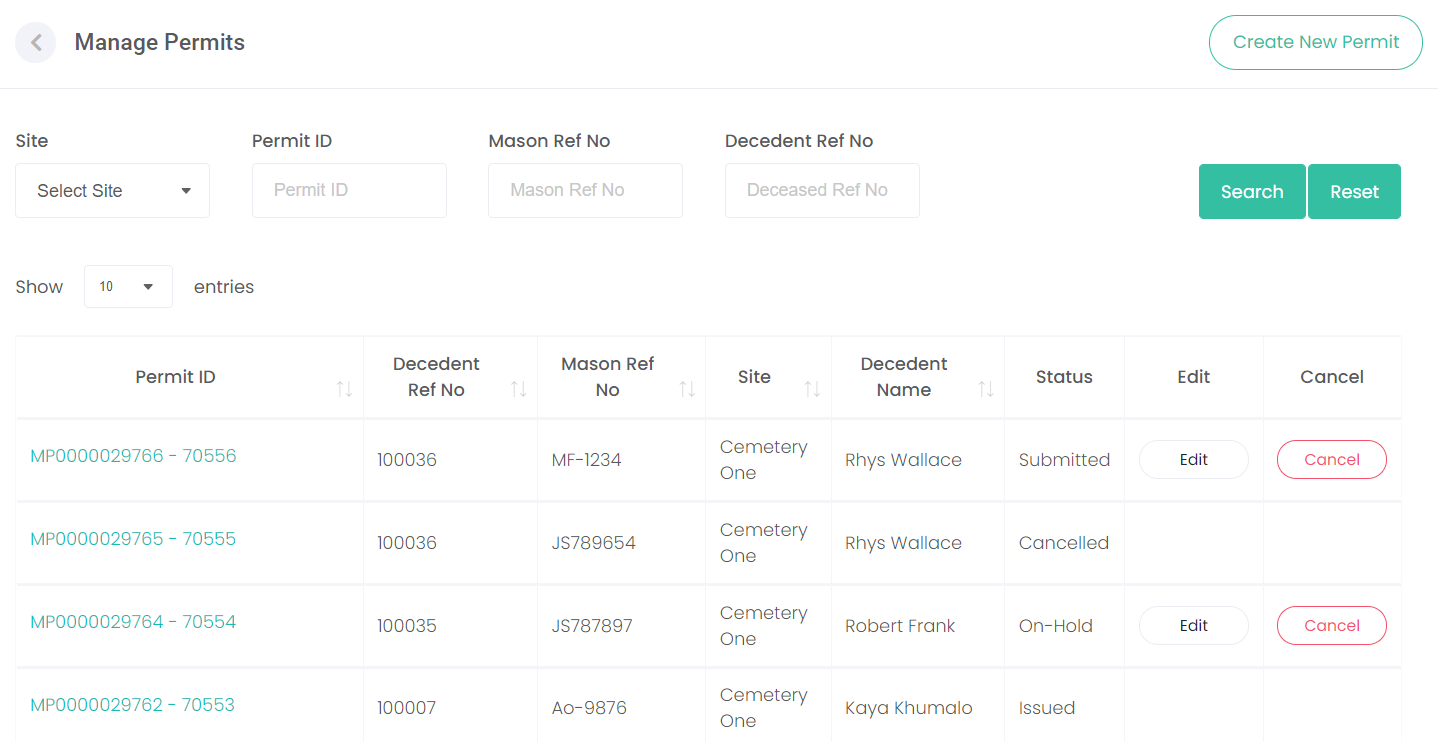
This screen allows you to:
-
Filter the permit entries shown in the list with the Search and Reset buttons.

-
Start a new application using the Create New Permit button.

-
Sort the results in the list using the arrows in the column headers.
Permit Statuses - The status of the Permit application controls your ability to edit the information submitted or to cancel the application.
|
Permit Status
|
Edit
|
Cancel
|
|
Submitted
|
Y
|
Y
|
|
On Hold
|
Y
|
Y
|
|
Issued
|
Mason cannot edit or cancel via byondcloud.
Contact cemetery direct if issues arise.
|
N
|
|
Rejected
|
N
|
N
|
|
Cancelled
|
N
|
N
|
|
Completed
|
N
|
N
|
The following actions are available to you on permit applications:
The Permit ID is a link that opens the permit application in a view-only mode.

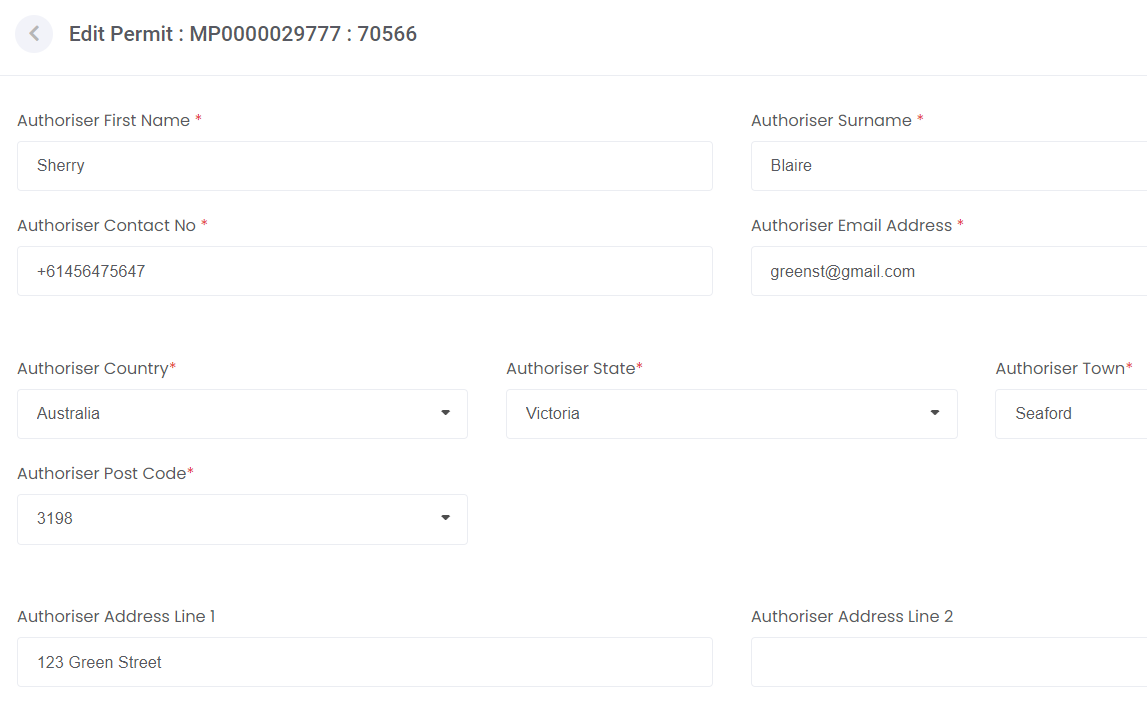
The Edit button opens the permit application in an edit mode, which allows the information to be updated and new documents to be added.
In edit mode, most of the fields can be changed, although the deceased / location records can't be altered once the application has been submitted.
The Cancel button changes the status of the permit application to cancelled. The cemetery is notified by email that the application is withdrawn.