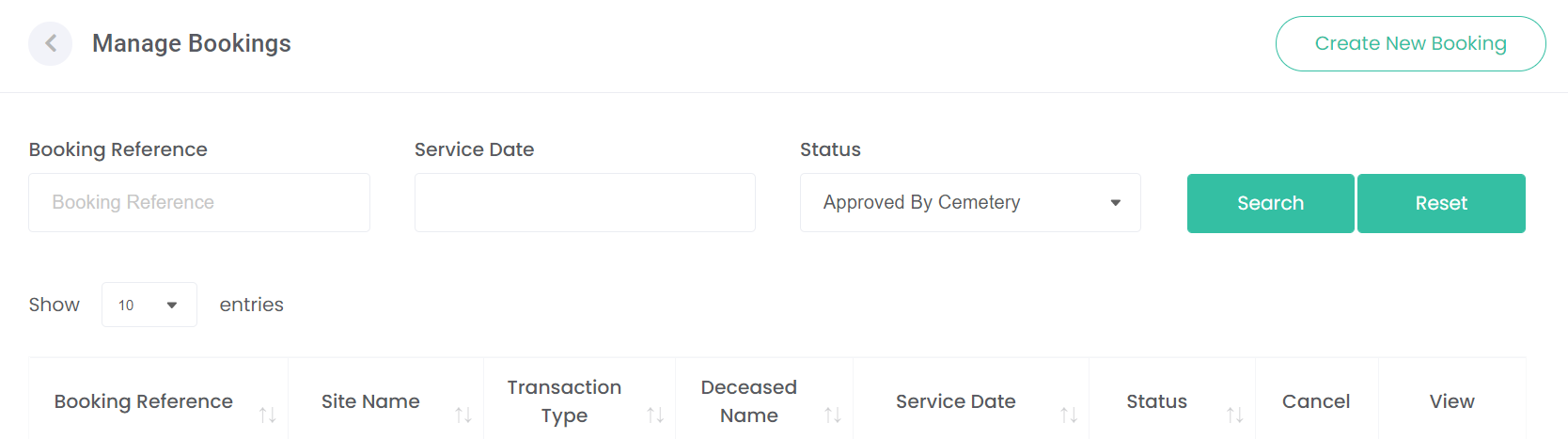
Manage Bookings
Once you have submitted a booking, you will be returned to the Manage Bookings screen, if you have access to manage bookings.
This screen will display all bookings in a list view.
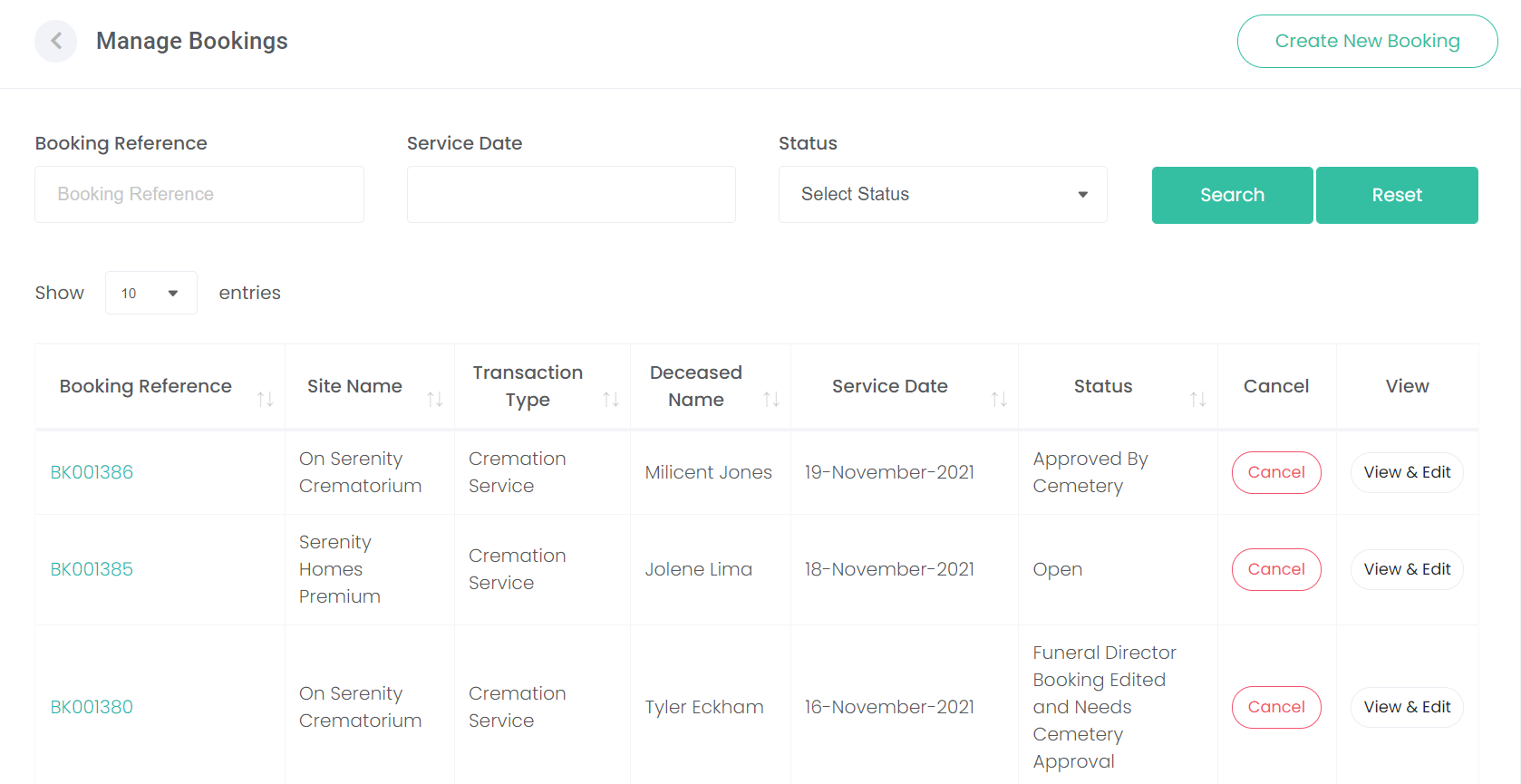
You can click on the booking reference hyperlink which will take you into a summary view of the booking.
Edit a Booking
You can also choose the View & Edit button if you have any changes to make on the booking.
To edit the booking, choose the Edit button on the screen you want to change.
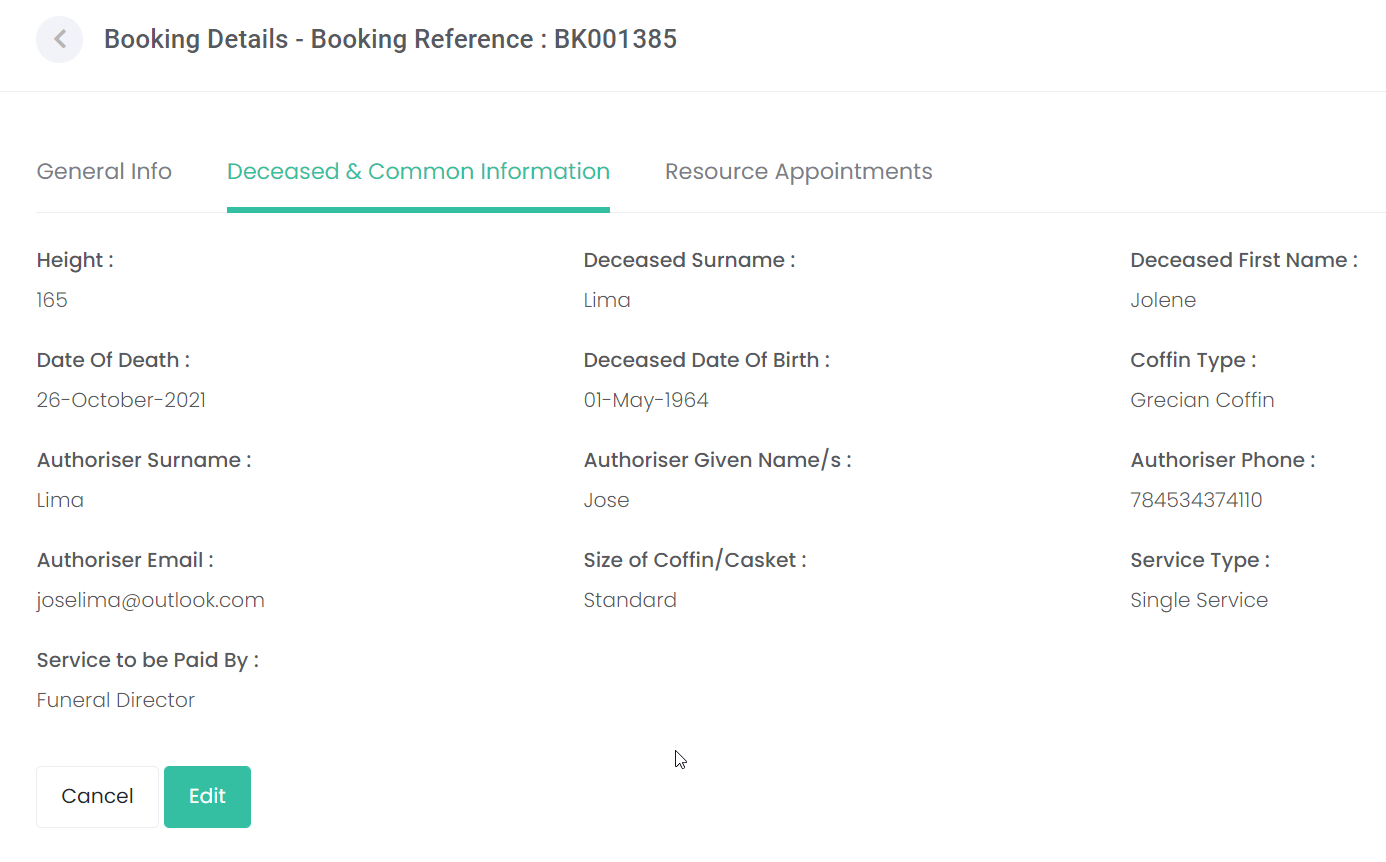
If changes are required on multiple screens, choose Save & Proceed until all changes are made.
Once complete, choose Submit & Close. This will resubmit the booking to the cemetery for review and approval.

You will receive a notification on screen advising the booking has been updated.
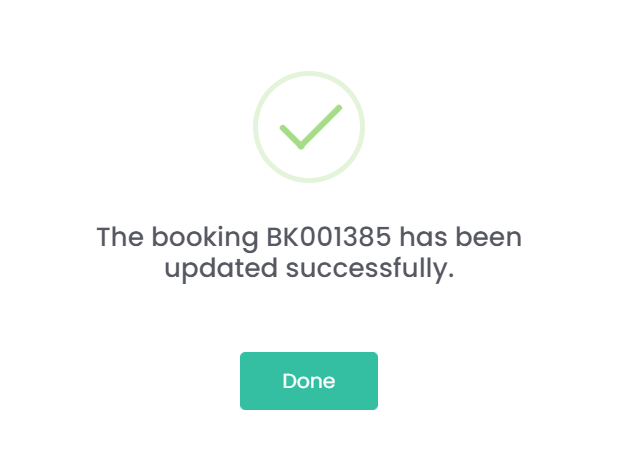
You will be returned to the Manage Bookings screen again.
Cancel a Booking
If you need to cancel the booking for any reason, choose the Cancel button on the right-hand side of the booking line entry.
Filter / Search
There is a filter option at the top of the Manage Bookings screen where you can search by Booking Reference, Service Date and or Status.
Using these filters will narrow down the list of bookings you have displayed based on your search criteria.
Choose the Search button to the right to search by the filtered options.
To clear the filter criteria, choose the Reset button.

Bookings that have been submitted to the cemetery or crematorium for review and approval will display with a status of Open.
If for some reason you have navigated away from a booking you had commenced without choosing the Submit & Close option, this booking will display with a status of Not Submitted.
For all bookings that are open, the cemetery can review and approve or cancel that booking.
If you need to make changes to a booking once it has been submitted & approved by the cemetery, it will display a status of Funeral Director Booking Edited and Needs Cemetery Approval after your changes have been made.
Please note that if the booking is placed with a cemetery where their byondcloud is linked to byondpro, you will not be able to make changes after the status has changed. You will need to contact the cemetery directly to make those changes.

Once approved by the cemetery, your booking will display with a status of Approved and your booking is therefore secured.

Bookings placed with a cemetery where their byondcloud is linked to byondpro can display a status of Other. You will need to make contact directly with the cemetery to clarify what the status means, and how to proceed.

If the booking service date has passed, you will not be able to cancel or edit this booking.
You can, however, commence a new booking by choosing the Create New Booking button on the top right-hand side of the Manage Bookings screen.