Job Management
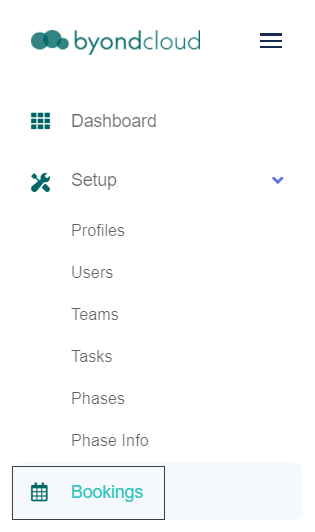
Access the Job Management screen from the side menu by selecting the Jobs option.
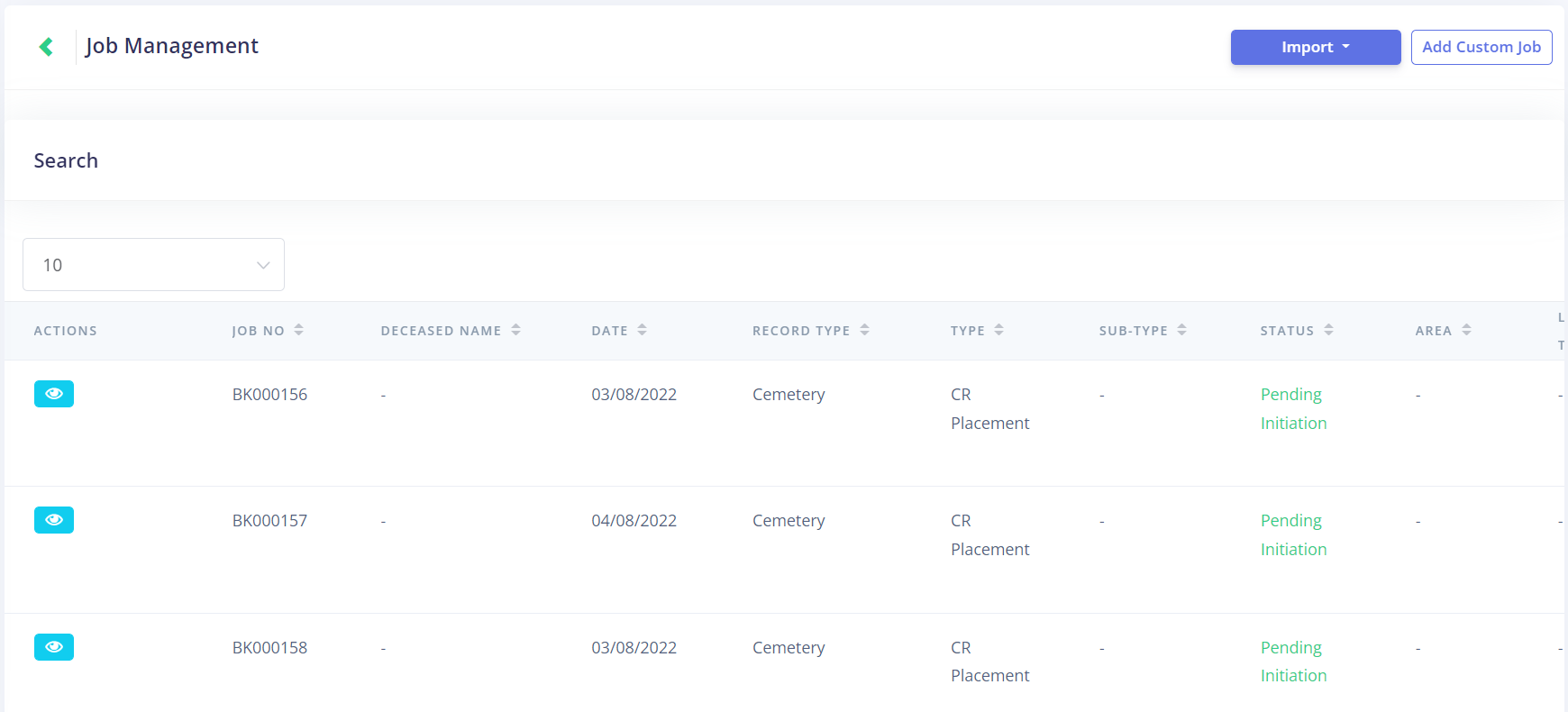
This will open a list of all the jobs that fall within seven days prior to or in advance of today's date.
At the time a booking commences in byondpro, the link to Task Manager is initiated based on the Job Type and the Location selected.
The booking from byondpro flows through to Task Manager with the information that has been captured to date.
Each time information is added in byondpro, Task Manager is updated with the newly provided information, including service date and time changes and specific service requirements.
If a booking is cancelled in byondpro, it will remain visible in Task Manager until the service date has passed.
This is to allow for any work in progress that may have commenced on the job to be closed out.
Search Function
There is also a Search function that allows you to look for a job /s with various filters.
To initiate the search function, click on the word Search to expand the menu and access the different search options.
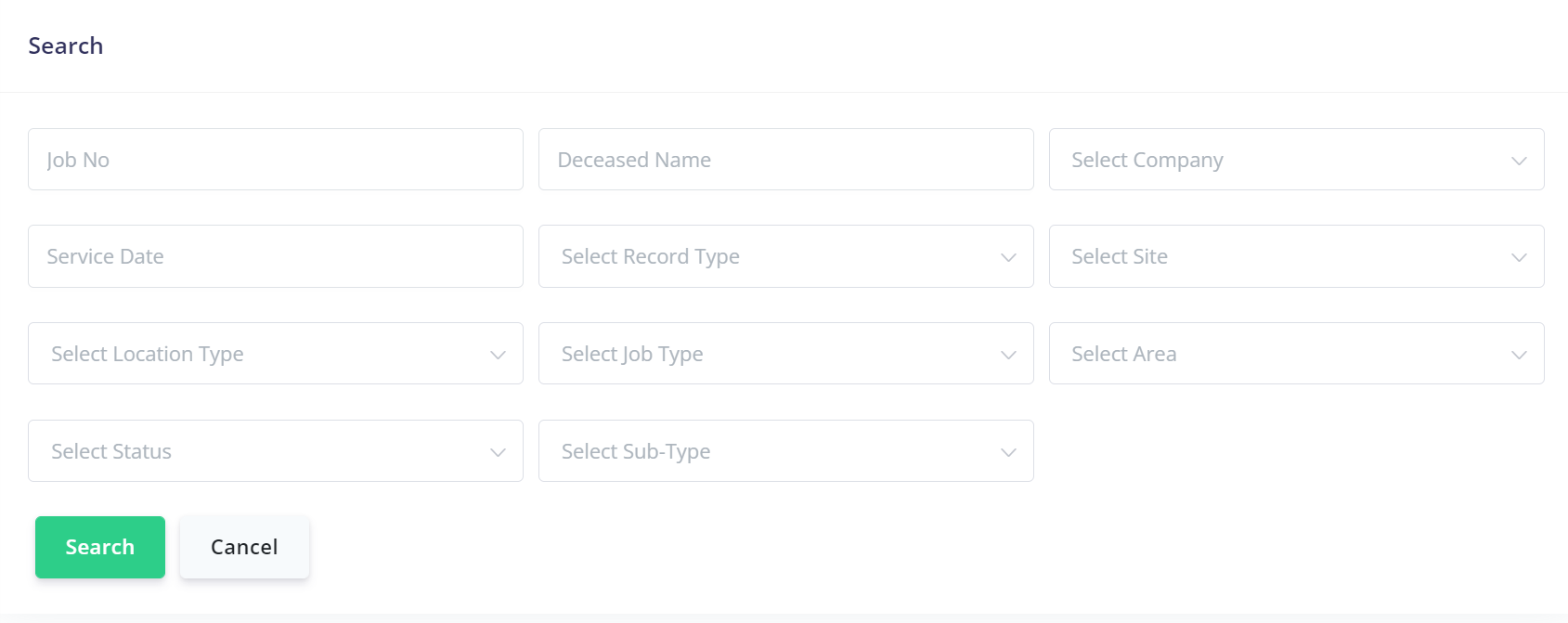
Users can search by:
-
Job Number
-
Deceased Name
-
Company
-
Service Date
-
Record Type
-
Site
-
Location Type
-
Job Status
-
Job Type
-
Sub-Type
-
Area
These selection options are responsive to the text entered in the list.
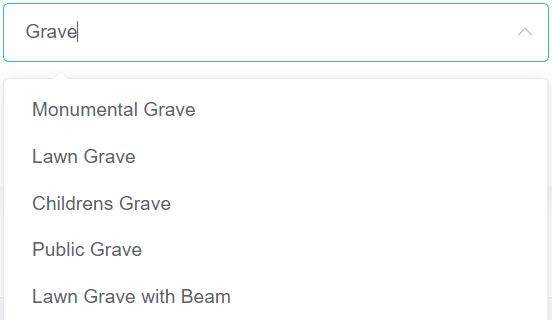
This means users can click on the down-arrow to select from the full list, or start typing and the list will filter accordingly.
For example, typing ‘Grave’ into the Location Type field returns the results as shown below.