How to import records
For this example, we will look at how to import location records into RecordKeepr.
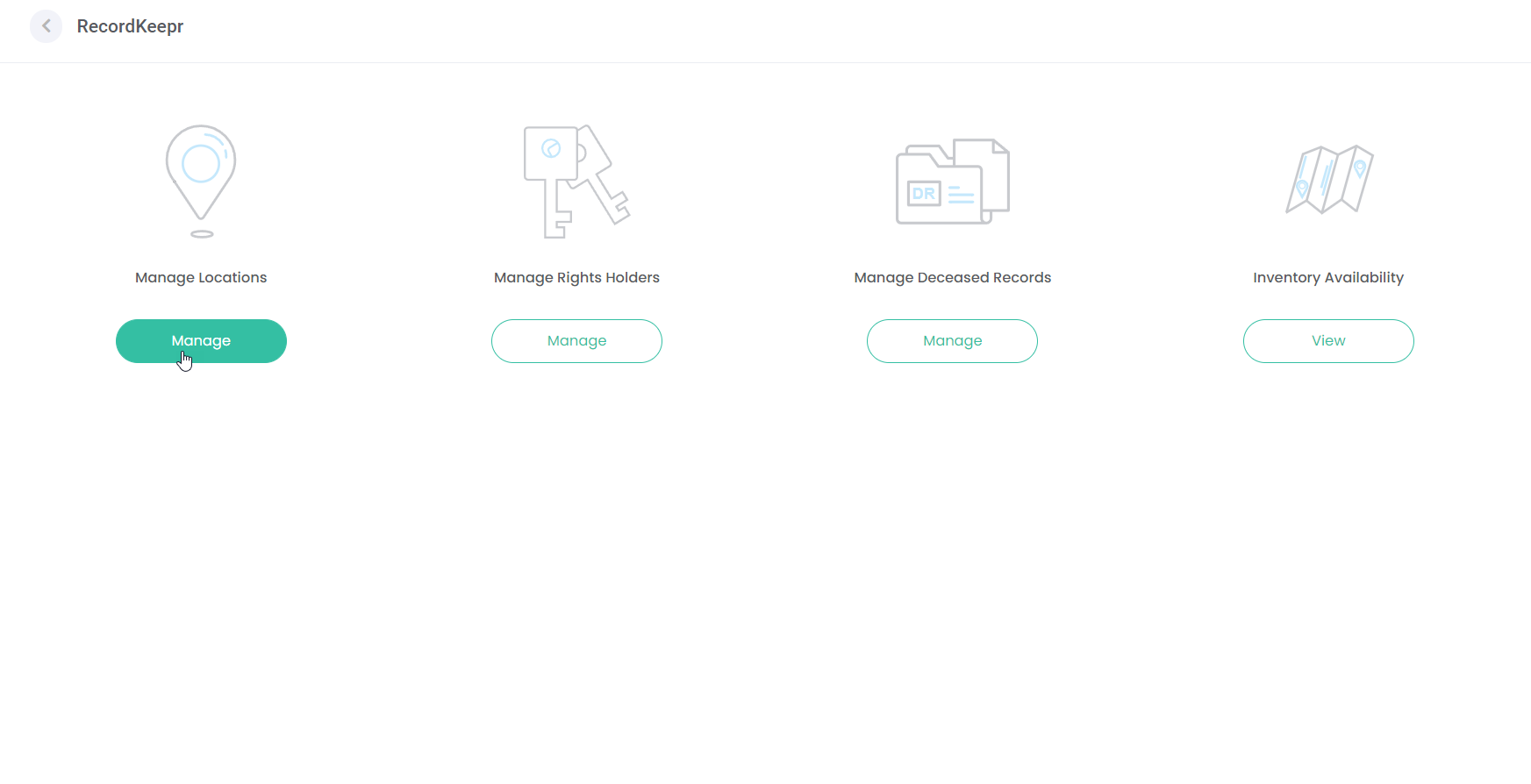
From the Dashboard, click on Manage under the Manage Locations icon (or select Manage Locations from the side menu).
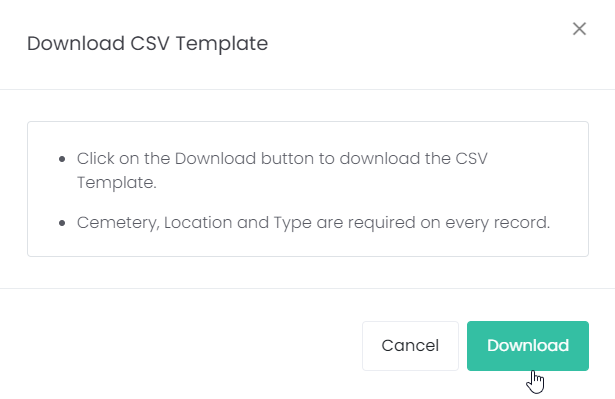
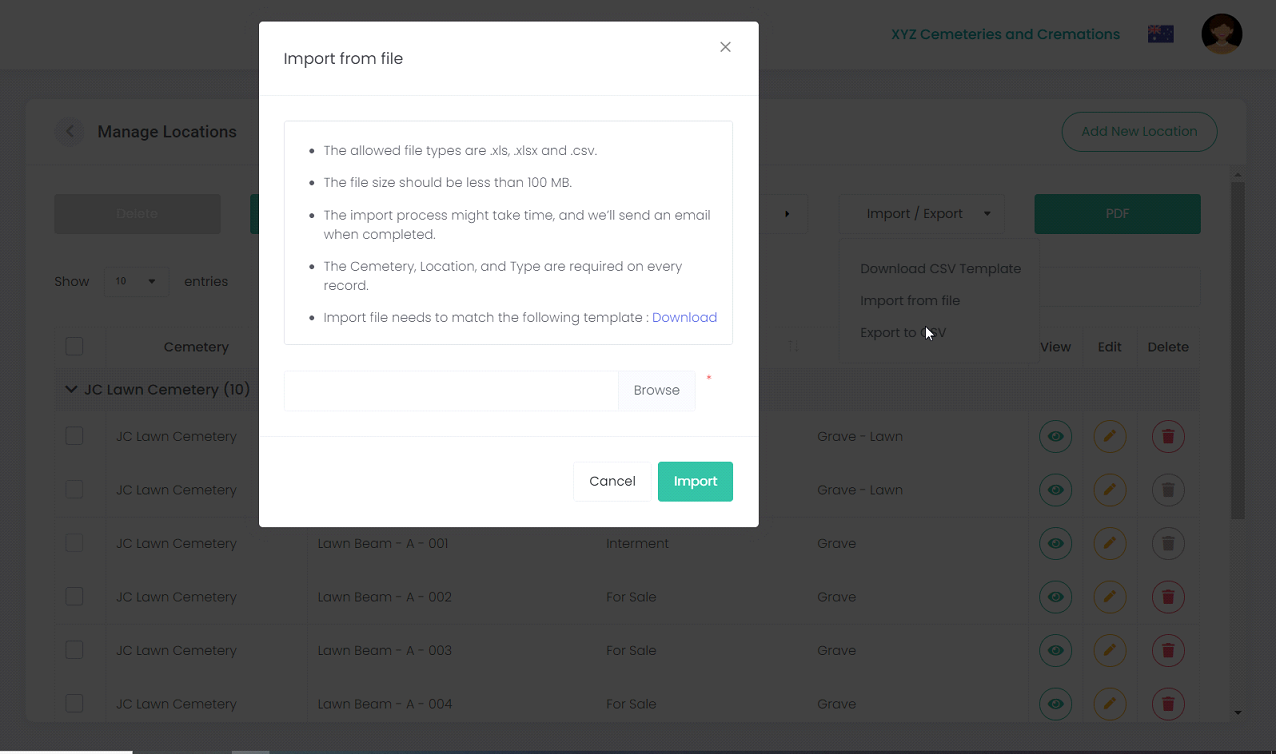
Click on the Import / Export down-arrow and select Download CSV Template.

Click on Download to download the CSV Template.
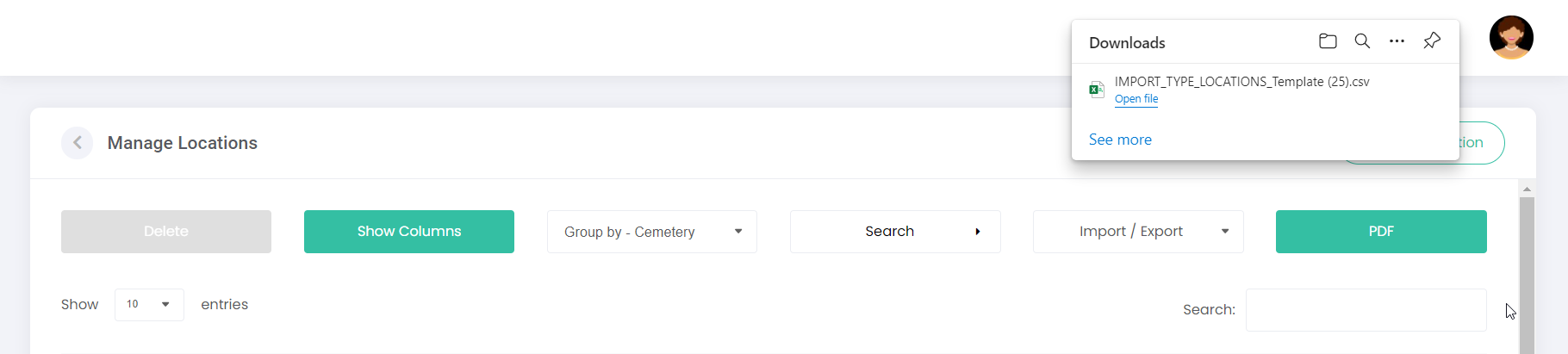
After the document has downloaded, click on Open file to open the document.
The CSV file will open in Excel, ready for you to populate the required fields. NB: Cemetery, Location and Type are required on every record.
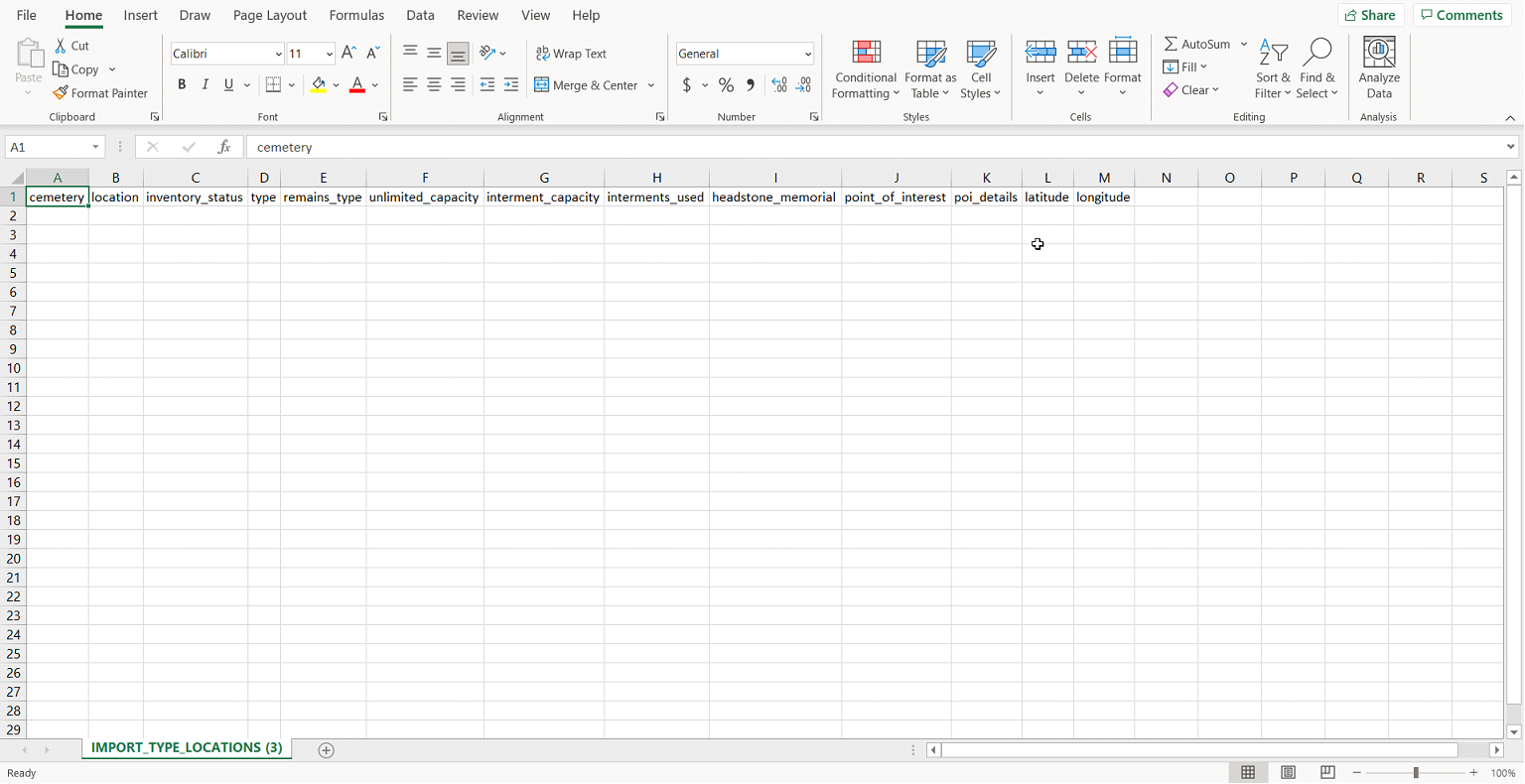
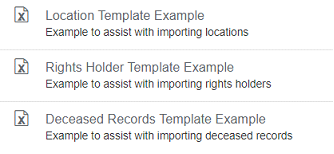
Please contact us for additional Template Instructions to help you populate these fields. These templates provide the selection options and examples to assist you with populating your template:
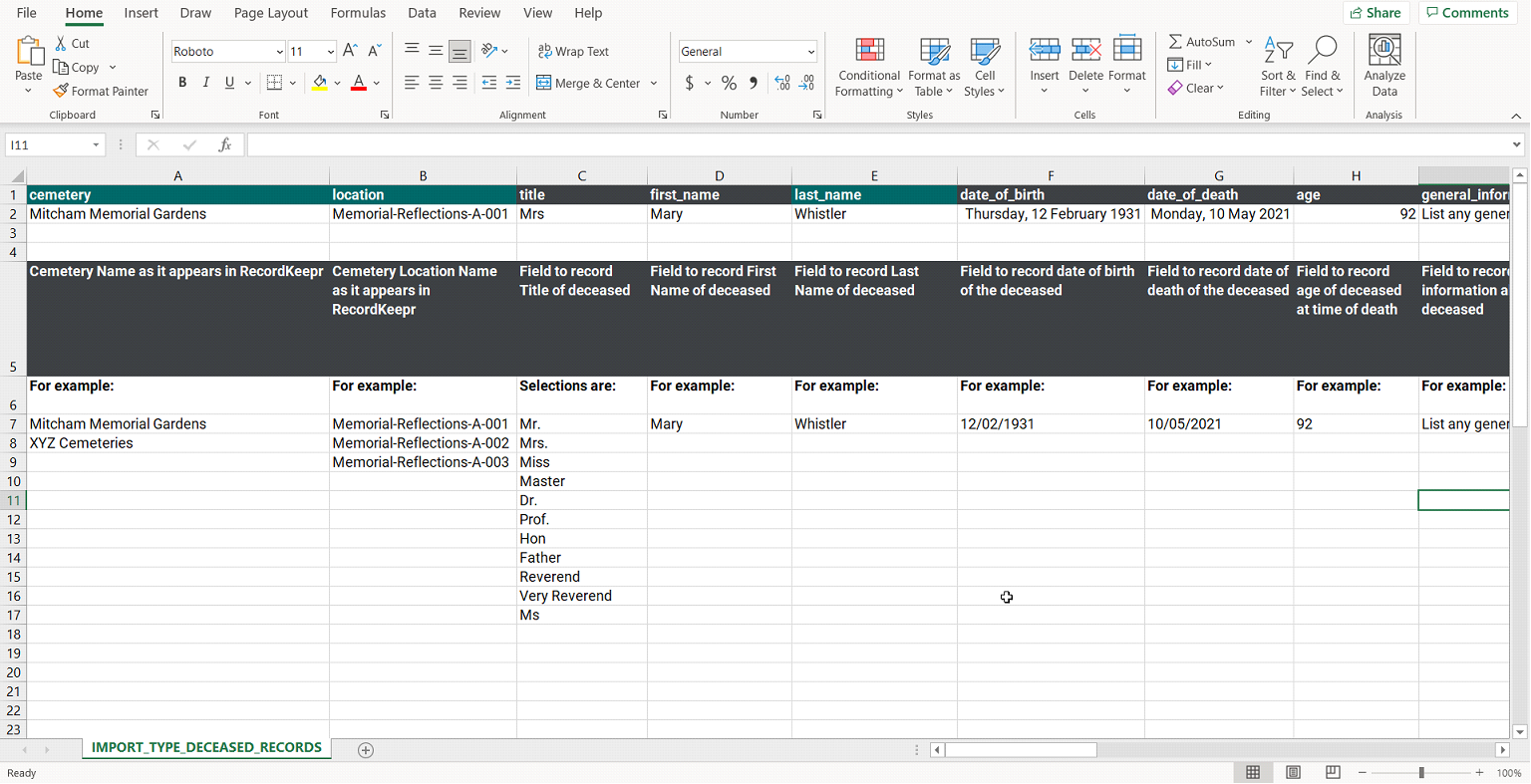
Deceased Records Template Example
Once the CSV template is populated, save the file. NB: The allowed file types are .xls, .xlsx and .csv. The file size should also be less than 100 MB.
To import the file back into Recordkeepr, click on Import / Export and select Import from file.

Click on Browse to locate the file on your computer and then click Import. You will receive an email when the import has completed.
Repeat the same process for your Rights Holders and Deceased Records, starting by downloading the relevant CSV Template on the Manage Rights Holders and Manage Deceased Records screens.