Generate Barcodes
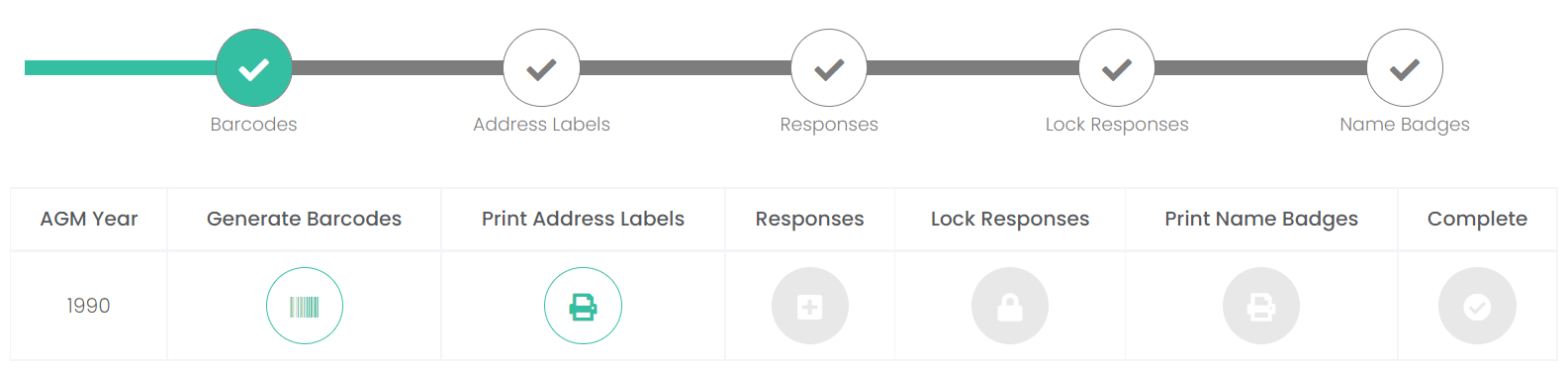
To start managing the campaign, click on the Generate Barcodes icon underneath the timeline.
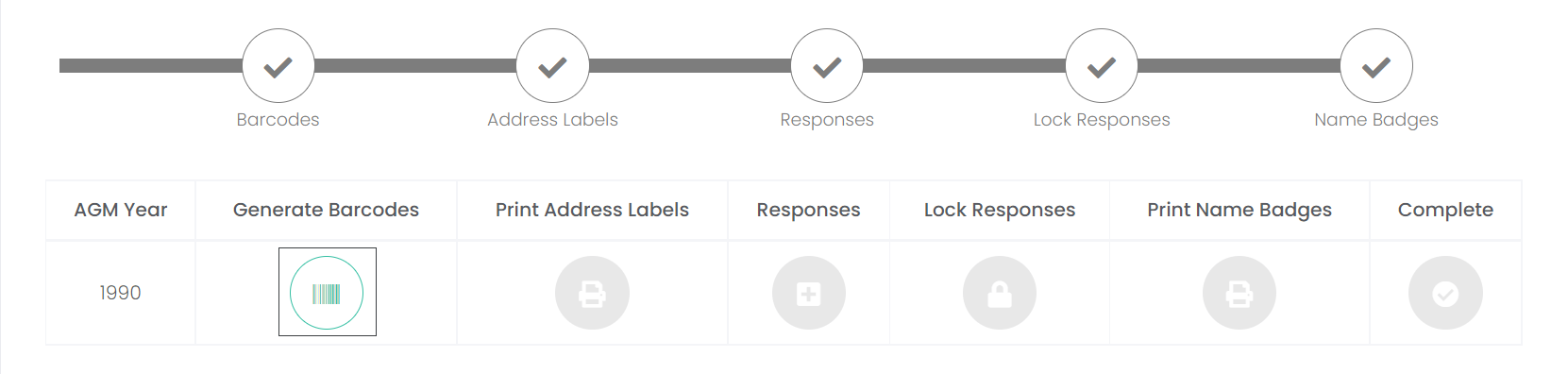
Given all your rights holders and locations are within byondcloud, they will display in a list format on this screen.

If you wanted different fields to display or to choose not to display one of the fields, such as the Addressee Name, click on the Show Columns button.

From the pop-up window, choose to tick on or off the column headers from the following options:
-
Location Code
-
Owner Name
-
Addressee Name
-
Barcode
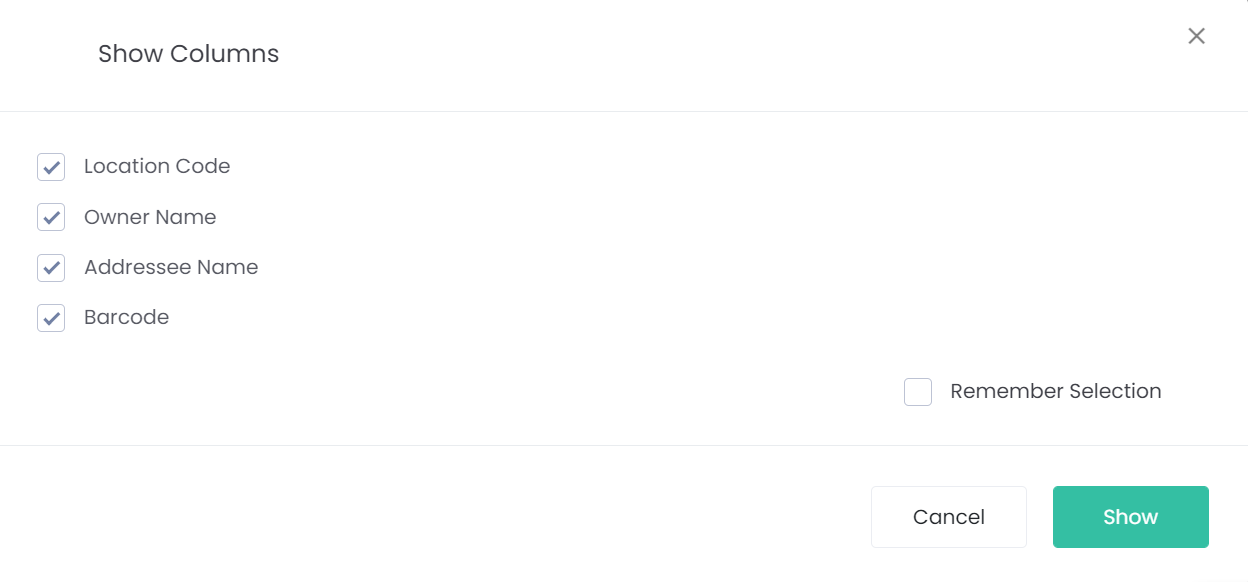
Tick the box next to Remember Selection if you want all the columns chosen to always display when you enter this screen.
To apply the changes, click the Show button.
To disregard the changes, click the Cancel button.
If you made any changes, the columns will have been updated to reflect these changes.

To generate the barcodes, click the Generate button on the bottom right-hand side of the page.
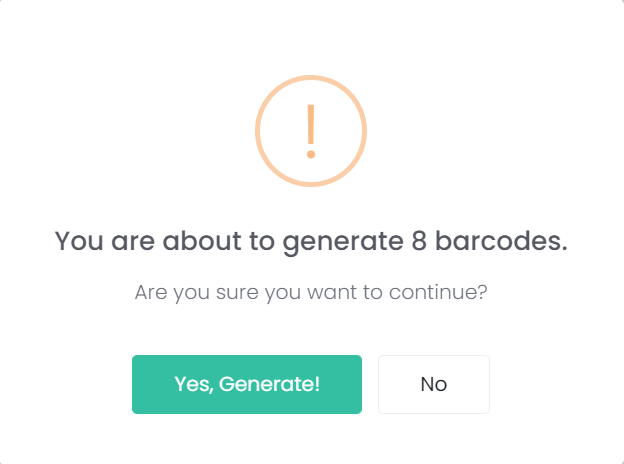
A message will ask to confirm that you want to generate the number of barcodes on the list.
To generate, click Yes, generate!
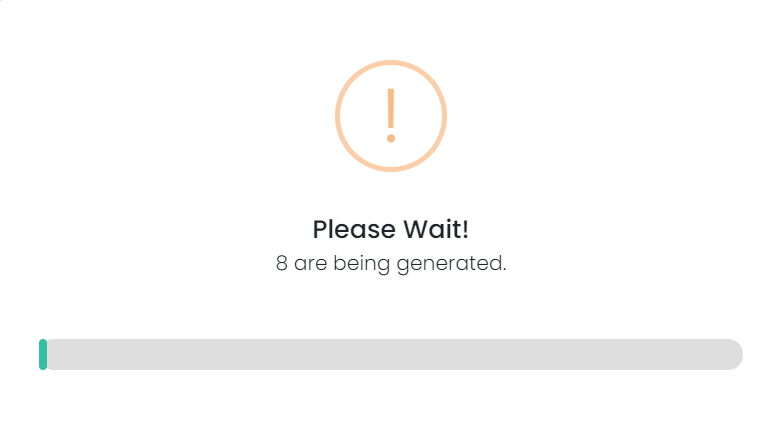
A message will request you to wait while the barcodes generate.
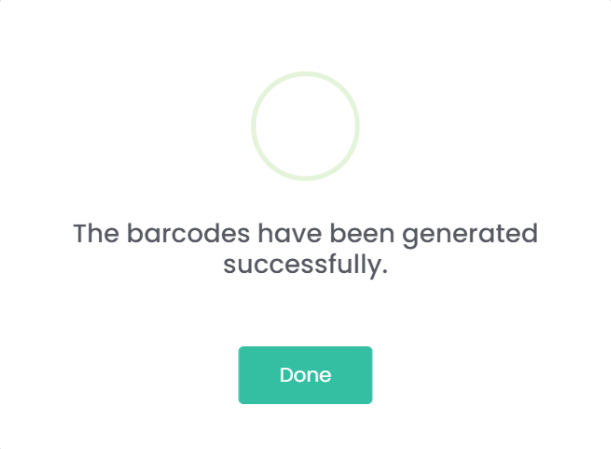
Once the barcodes have been generated, the message will change to advise the barcodes have been generated successfuly.
Click Done.
The generate button will no longer allow barcodes to be generated.
Clicking on the PDF button, will allow you to view the data in a pdf format either Landscape or Portrait format.

Choose the format from the pop-up window which displays and then click the Generate button.
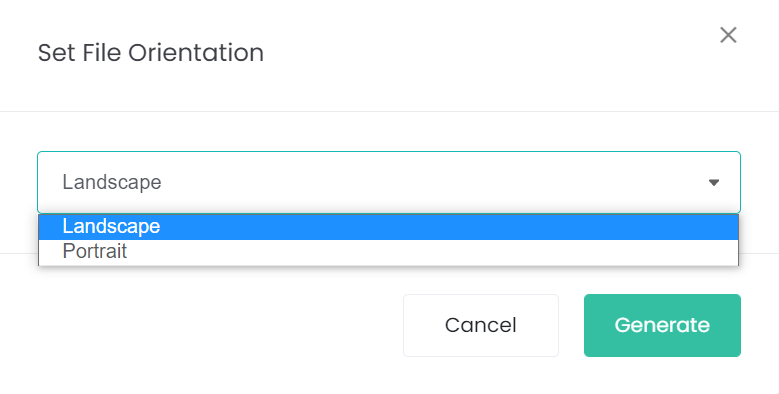
A PDF will download to your device. Click into the PDF to view.
You will note that the PDF displays the columns that display on the Generate Barcode screen.

Click on the arrow next to Barcodes to return to the campaign.
On the timeline, the barcodes section has been marked as completed with a green tick.
Additionally, the next step of Print Address Labels is now available for action, shown by the icon turning from gray to green.