Field Library
Click on Manage under the Field Library icon.
The field library lists all the fields that can appear on the booking pages.
Here is where the order the fields appear on the page is defined and the field names are updated to reflect the terminology used in your business.
This guide will show how to configure the Deceased & Common Information Screen.
The Resource Appointment screen does not require any layout configuration.
If there are additional screens, configure these in the same way as outlined for the Deceased & Common Information screen by first choosing the relevant screen to configure.
If integrated to byondpro, have a Sales & Booking open in byondpro to cross check which fields need to appear on each screen and how they appear.
A full list of all available fields are displayed. To make it simpler, we will filter by screen category.
Choose the Deceased & Common Information screen category and select the Search button.

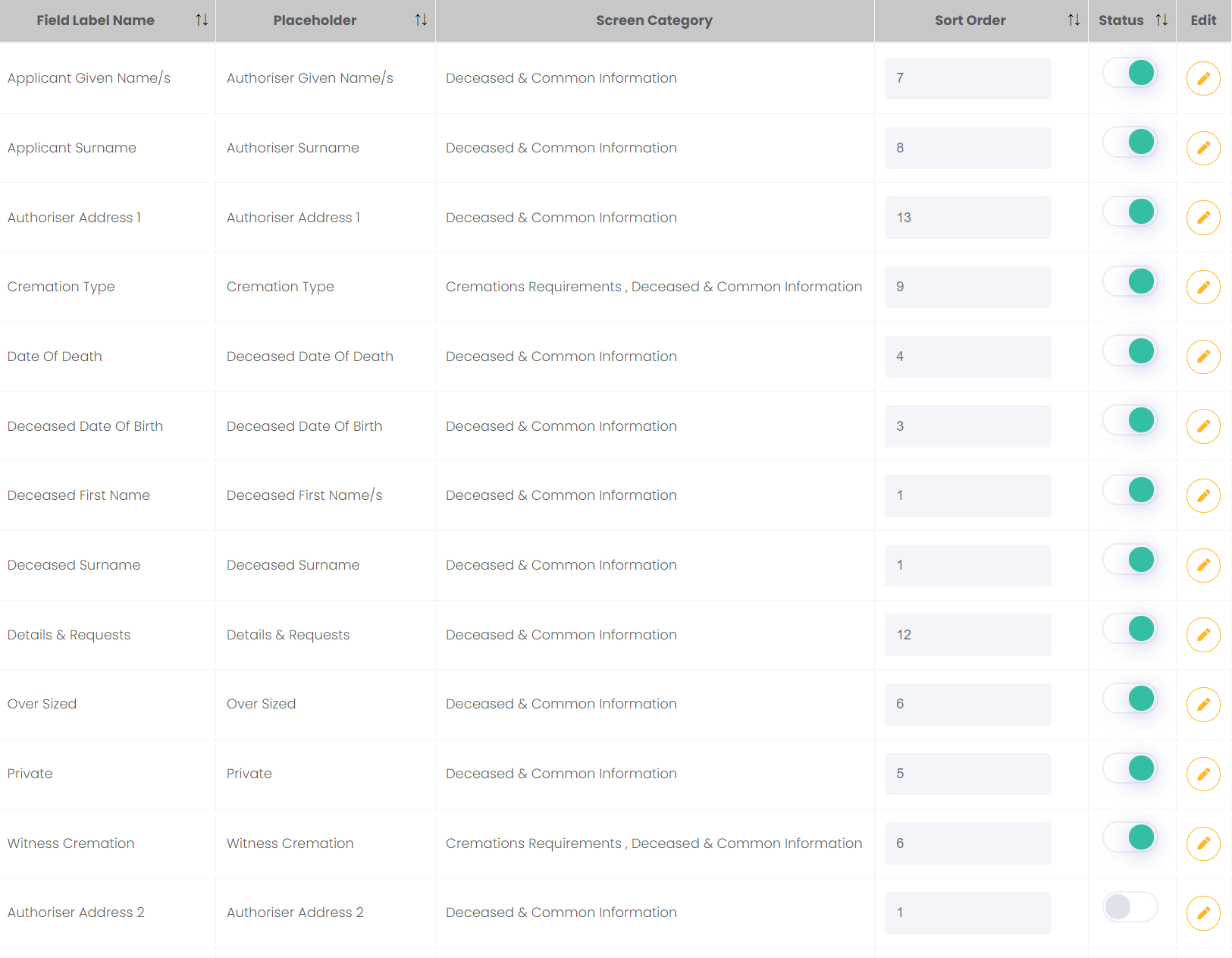
The fields that display on the Deceased & Common Information screen are marked with the status switched on.
Each field label has a sort order associated to it, as well.
The Sort Order defines where the label appears on screen.
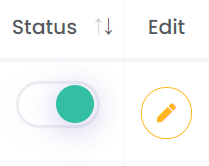
Any labels that are switched on that you do not want to appear on screen can simply be switched off and the status marker will turn grey.
Review each of the field labels to determine what you would like funeral directors to see on screen and then allocate the sort order to identify the order in which these fields are presented.
Be sure to scroll through each of the 4 pages to identify the field labels to use.

It’s okay to have 2 fields with the same sort order or to leave gaps in the numbering sequence.
Sorting by Screen Category ‘Deceased & Common Information’ returns multiple results across various pages as shown below.
Some are flagged with a green status to display, others with a grey status not to display on the page.