Field Library Input Values
Click on Manage under the Field Library Input Values icon.
This is where selection lists associated to your field library are set up, if applicable.
For example, Deceased Surname won’t have a field library input value as this is free form text.
However, if there are multiple options applicable to the Cremation Type field, this is where these options can be activated, added or de-activated.
Let us look at the Field Name, ‘Cremation Type’.
Enter Cremation Type into Field Name and choose Search.
As you can see in the screen shot below, there are multiple options activated which will be displayed to the Funeral Director as a drop-down selection list during the booking process.
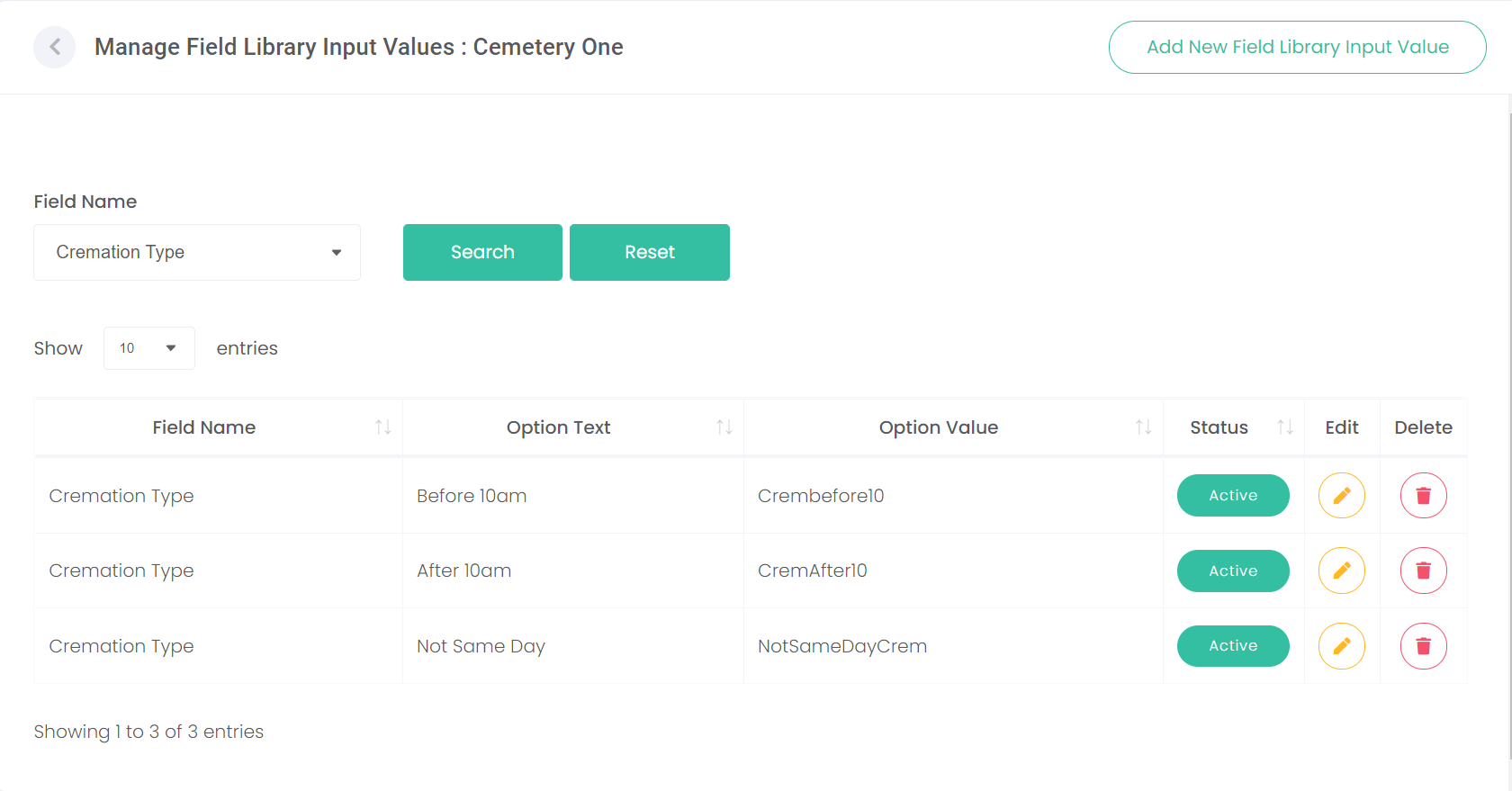
To configure the options, choose the Add New Field Library Input Value button at the top right of the screen to add a new option.

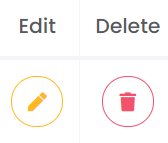
To edit an existing option, choose the Edit icon on the far right of the option.
Delete a field library input value by choosing the Delete icon on the right.
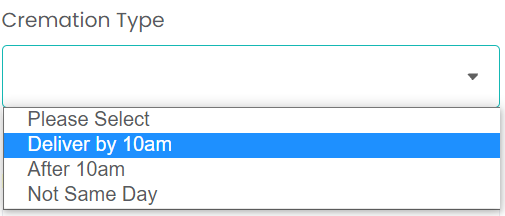
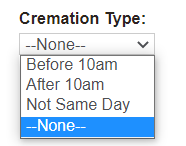
Based on the above configuration, the Funeral Director will be presented with the following options for Cremation Type on screen during the booking process.
Each selection list in the Sales & Bookings module of byondpro will need to be reviewed and mapped to the selection list within byondcloud, if integrated to byondpro.
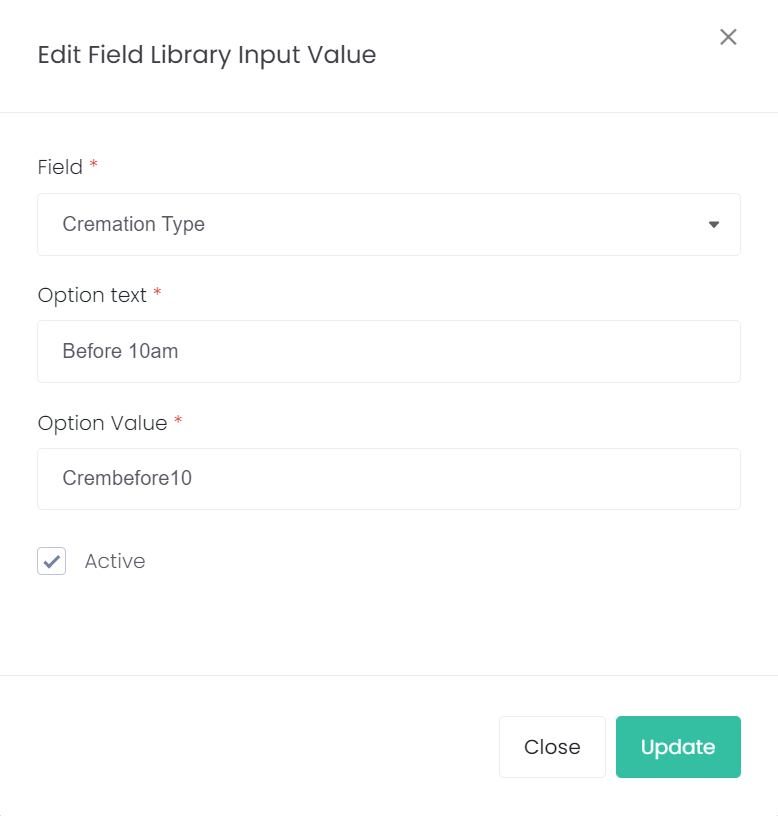
Option Text is how the field will display to the Funeral Director during the booking process.
To change the option text to reflect your preferred terminology, select the Edit icon next to the field option and change the option text.
Option Value is the code to link this field with the corresponding database value within byondpro. This field should be left as is, unless your byondpro database has a different code.
To inactivate the input value, untick the Active tick box.
Review, edit and add field library input values in line with your business requirements.
Once the sync within byondpro has been turned on, you will need need to map these selection lists within byondpro.