Edit Floral Program
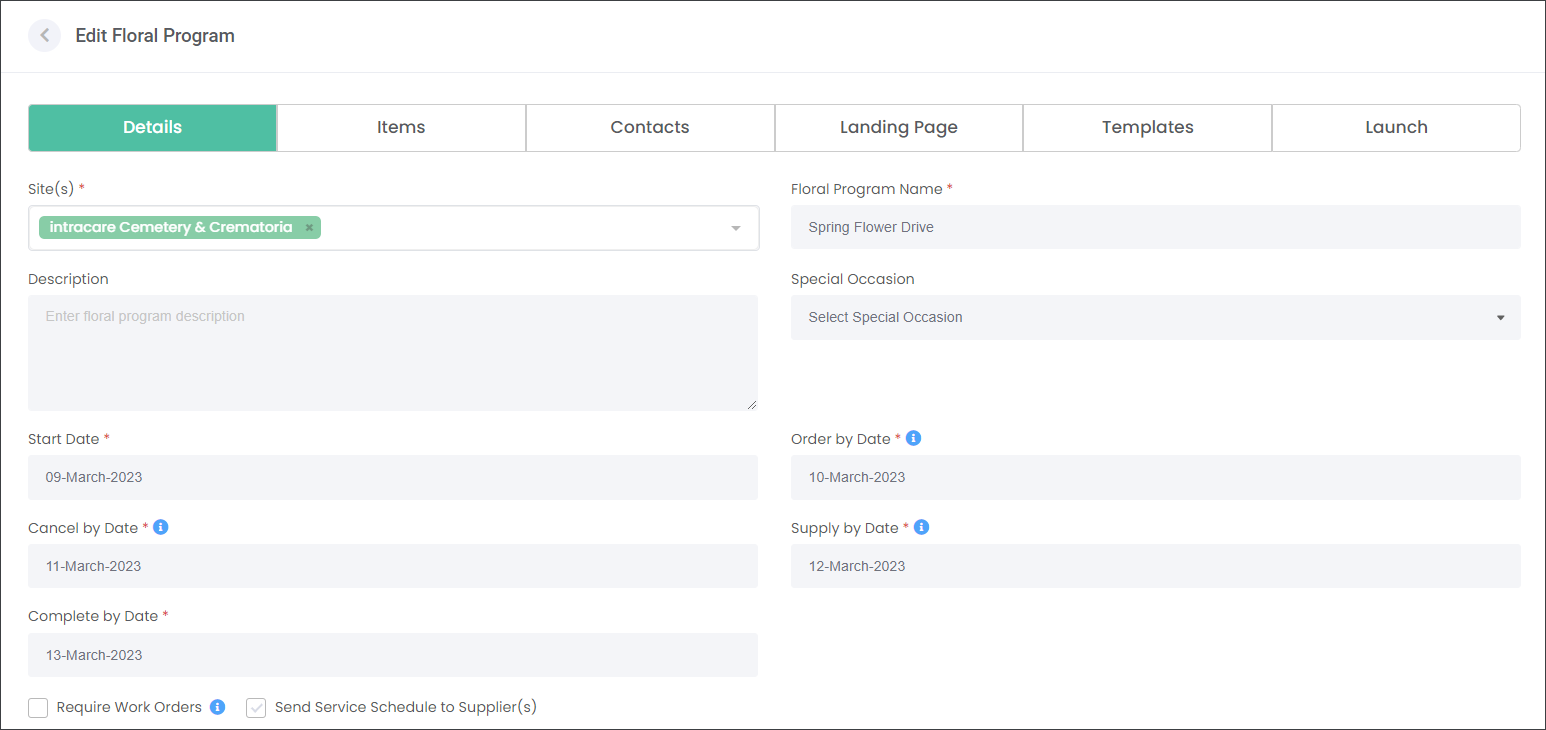
Click the Floral Program hyperlink to edit the campaign. Different editing options will be available to you depending on the Floral Program status.
Draft
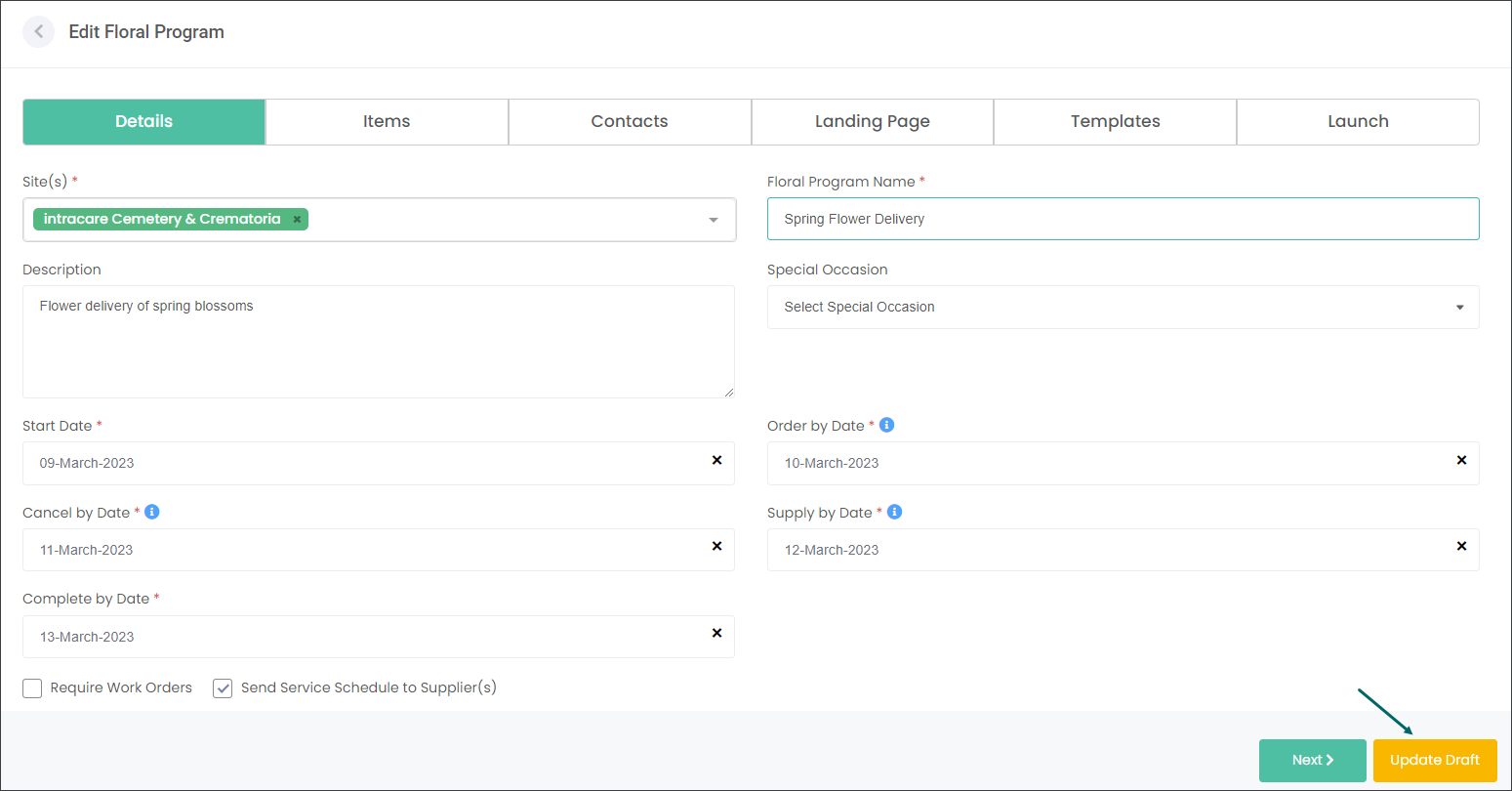
When you have saved a Floral Program campaign as a Draft, you will be able to edit all fields. When you have updated the fields, choose the Update Draft button to save the changes. Alternatively, if you are ready to launch the campaign, navigate to the Launch tab and press the Activate Campaign button.
Active
When you're creating a campaign that will be released to your customers in the future, the campaign's status will be Active.
For example, you might be creating Mother and Father's Day campaigns at the same time. However, upon completion you will immediately launch the Mother's Day campaign while you will wait another month to release the Father's Day campaign. The Status of the Father's Day campaign will be Active.
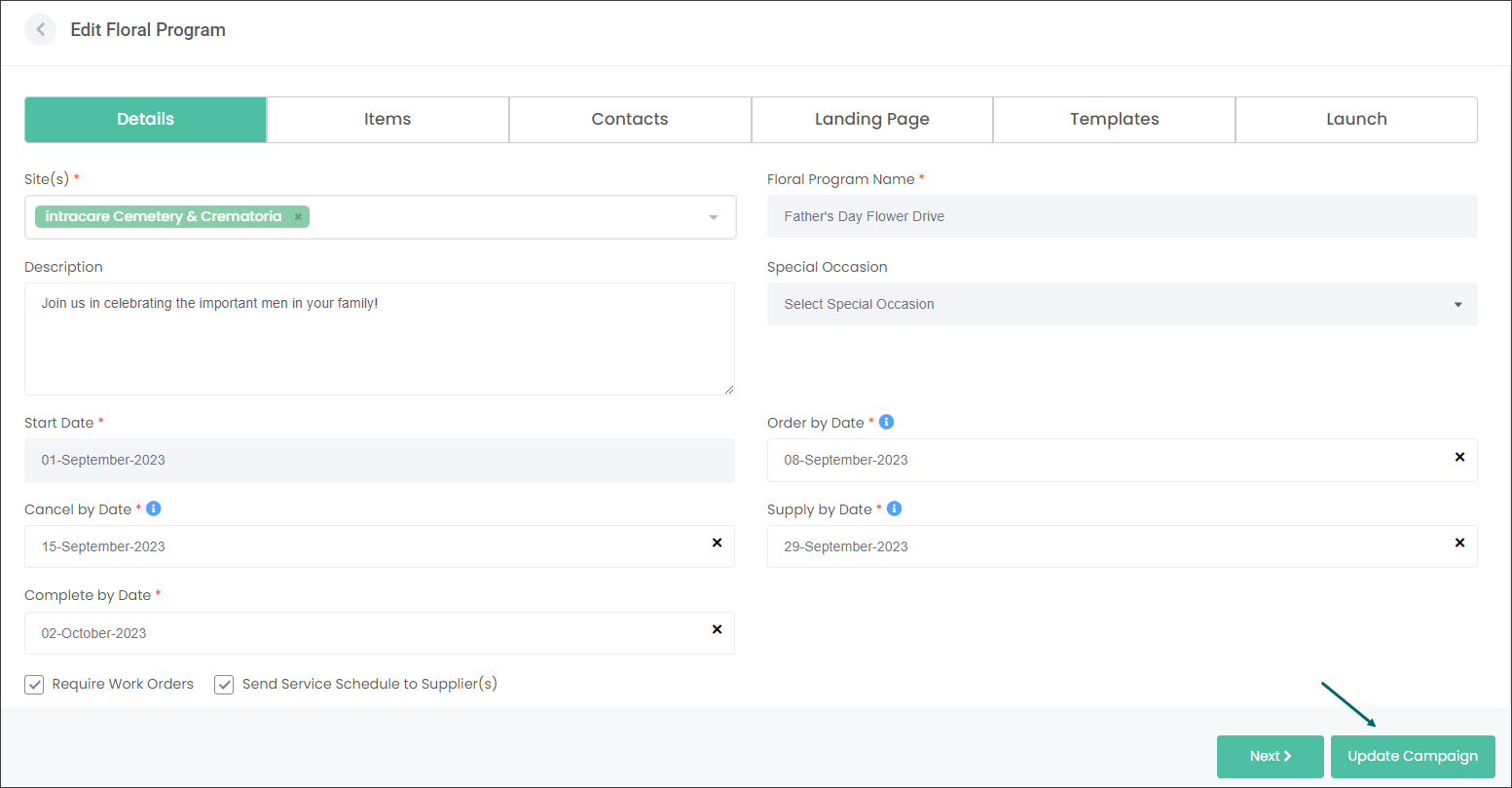
When the status is Active, you will be able to update all details on the Items, Landing Page and Templates tabs.
However, there will be details you won't be able to change. These include:
-
the Site where the program will be offered
-
Floral Program Name
-
Start Date and associated Special Occasion (if selected).
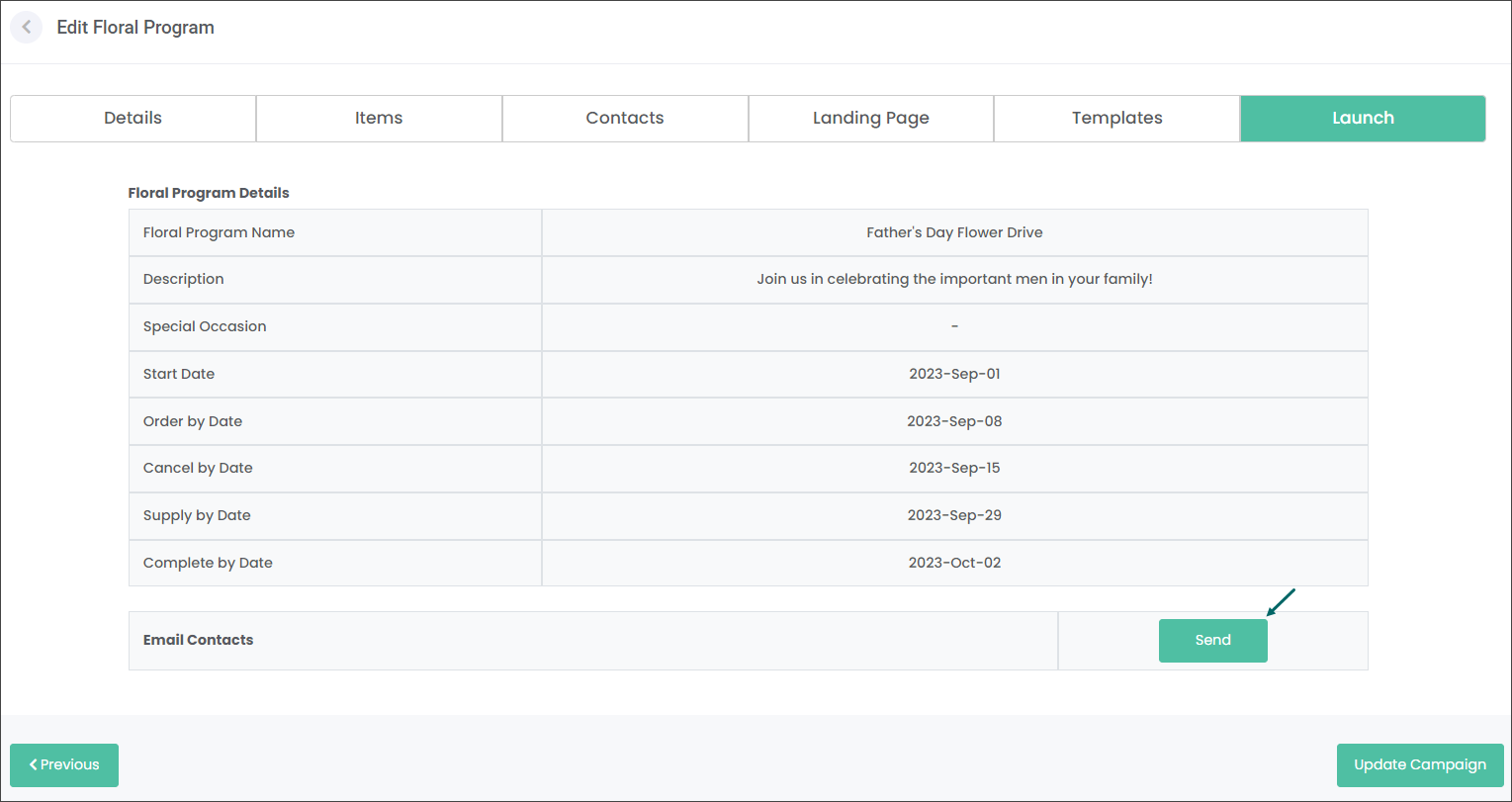
Additionally you will be able to send your customers from the Contact List early emails about the upcoming campaign. If you choose this option the Floral Program will change from Active to Published.
Published
When you have launched a campaign, that is, created it in byondcloud and sent email and/or paper messages to your customers, the campaign's status will be Published. You will be able to view the details of the Published Floral Program.
Completed
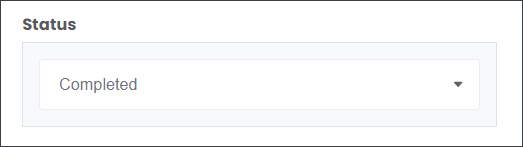
When you have completed a campaign meaning; the Items purchased by the customers were successfully delivered to selected locations, the campaign's status will be Completed. You will be able to view but not update a Completed campaign.