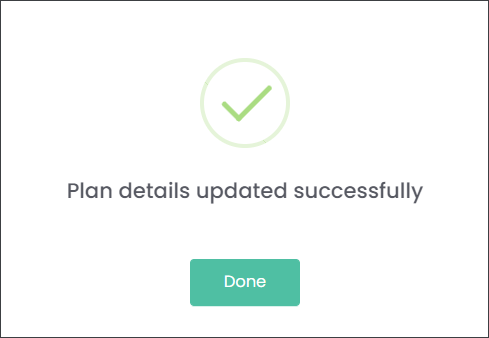
Duplicate Plans
When you need to create another Plan, that is similar to an existing plan, you can use the Duplicate function highlighted green on the image below. This will save you time populating the Plan details. For example, Highview Remembrance Park also sells lawn graves with headstones. The user can copy the information from the Lawn Grave Plan and adjust it to the Lawn Grave Headstone offer.

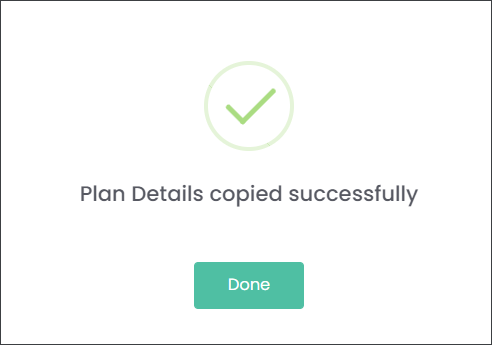

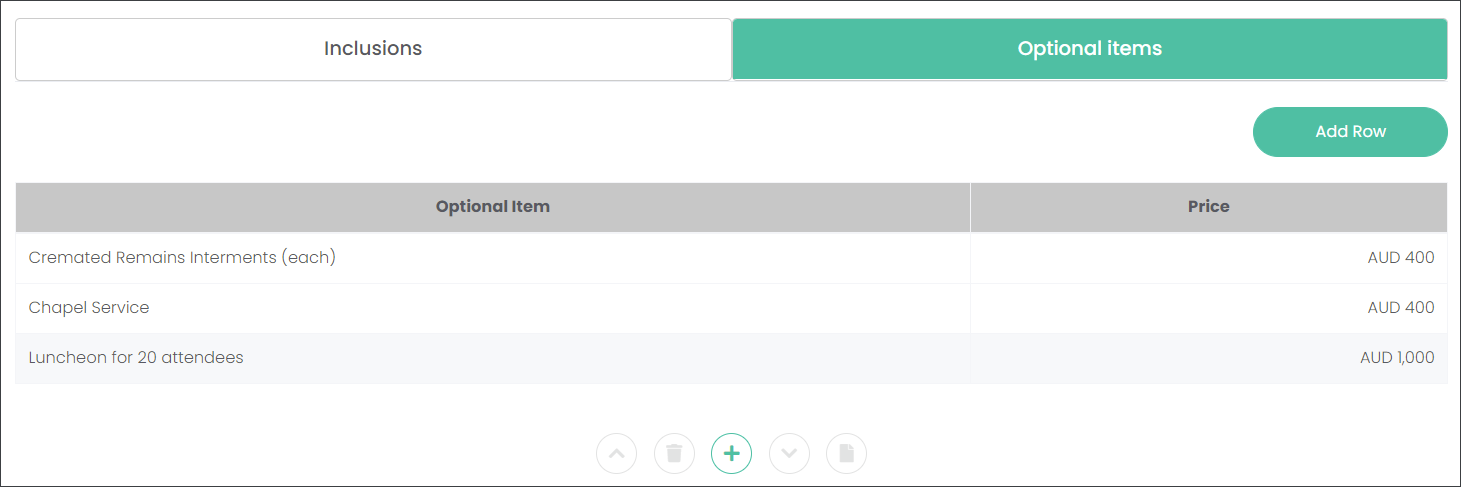
The duplicated Plan is saved on the Maintain Plans and Pricing page with the original Plan's name and _copy, for example Lawn Graves_copy. Press the duplicated Plan's hyperlink to edit the details. As visible on the example below, all details including Inclusions and Optional Items were copied.
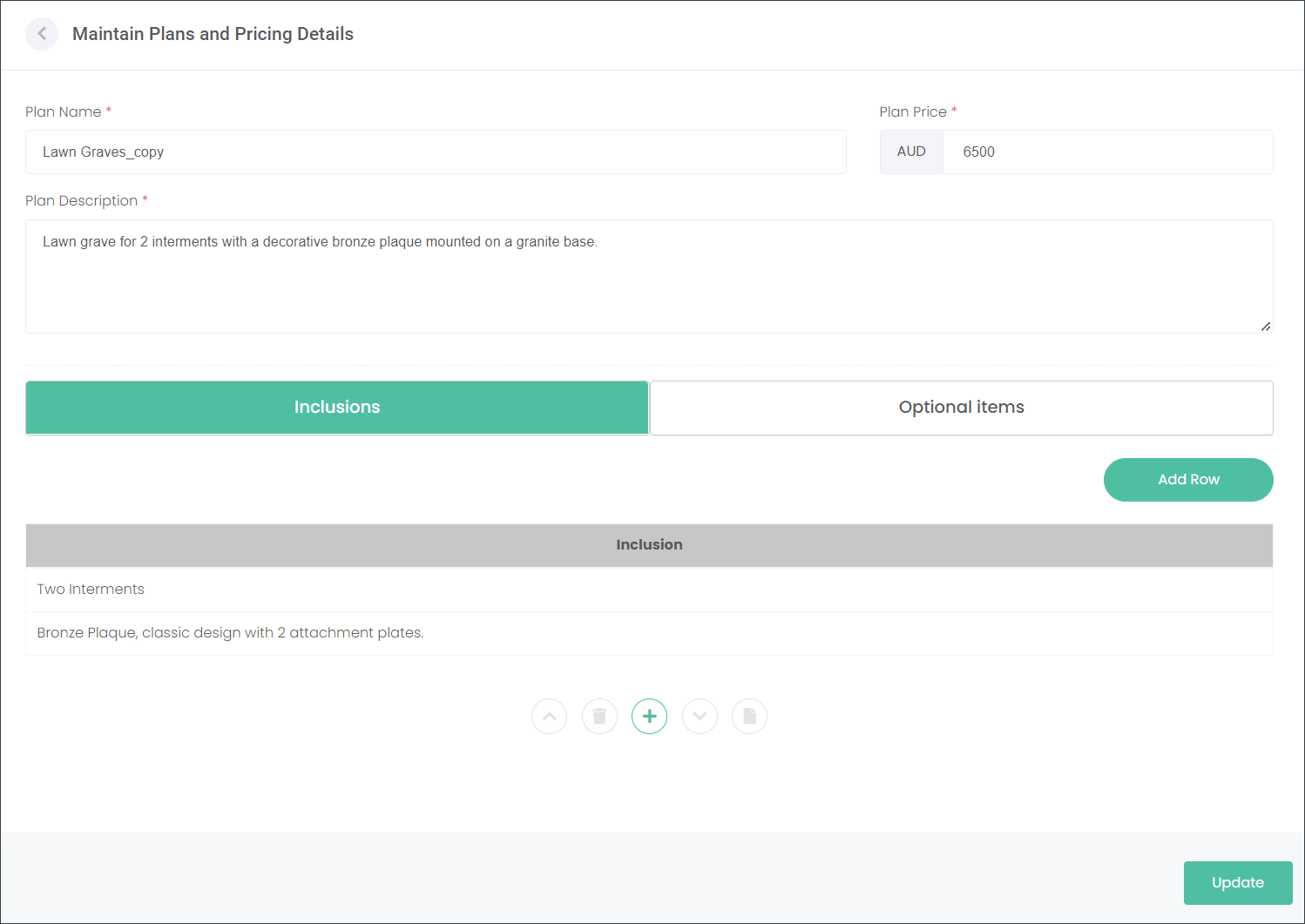
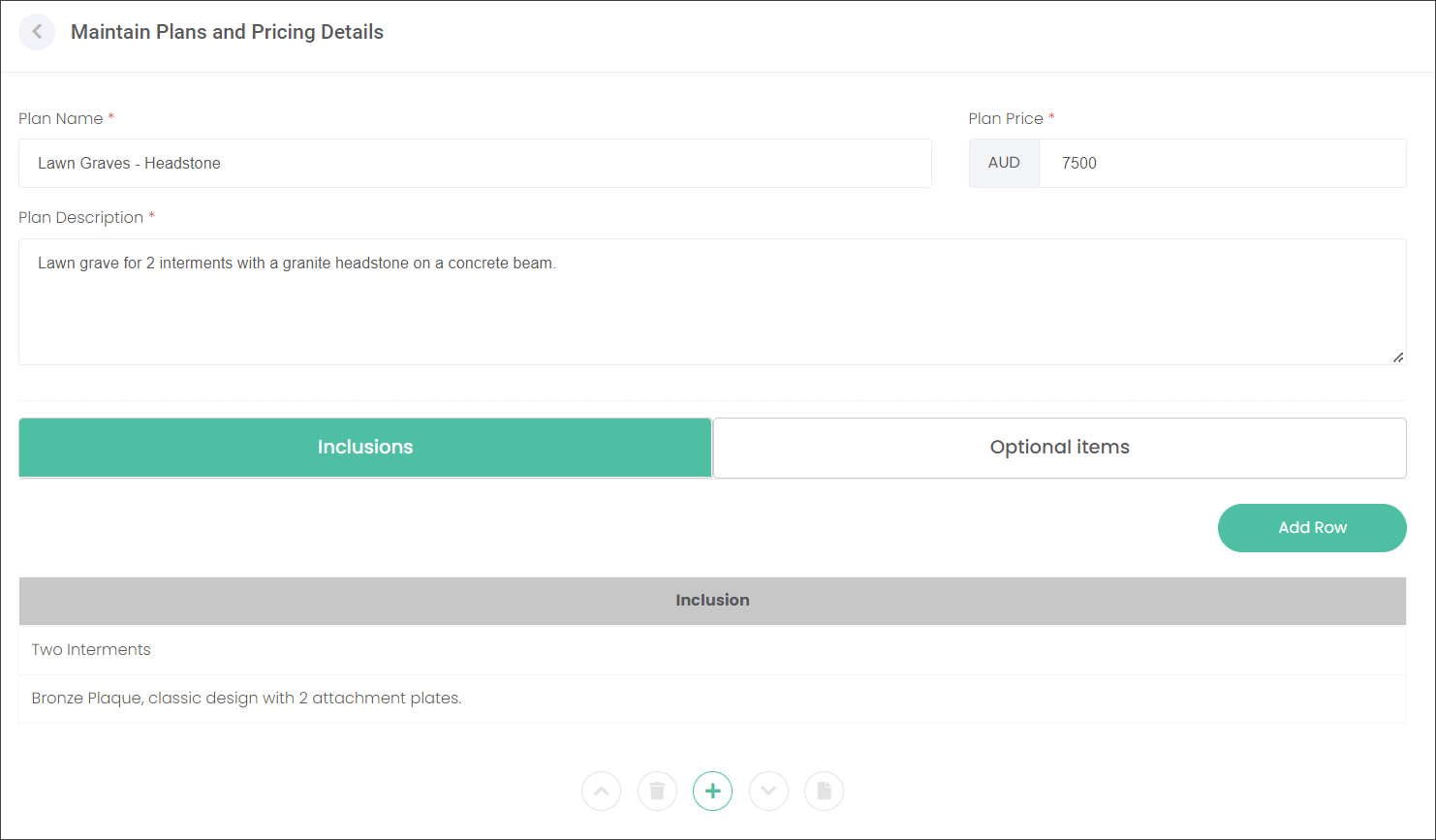
Make the necessary changes using the same approach as when adding a new Plan. In our example, the user adjusted the Plan Name by adding the word 'Headstone', changed the price to $7500 and adjusted the Plan Description. The user kept the exact details in the Inclusions and Optional Items tabs as they still apply.
Press the Update button in the bottom left of the screen when finished making changes.