Define Sections or Areas
An additional feature called Define Sections or Areas has been added to the Manage Sites page. If you are an OpusXenta cemetery customer this feature allows you to showcase particular sections of your site/s.
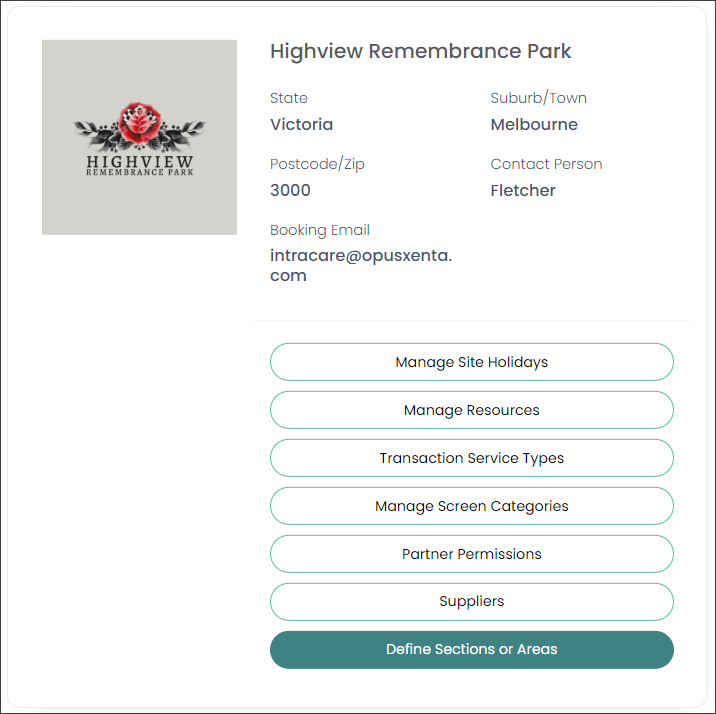
Navigate to the Manage Sites page, then choose a site and press the Define Sections or Areas button.
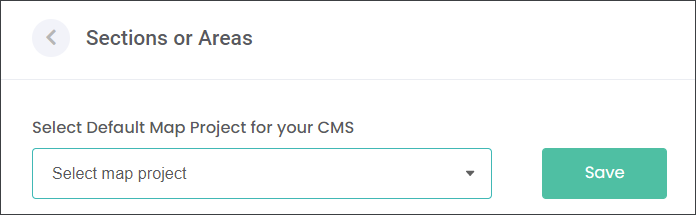
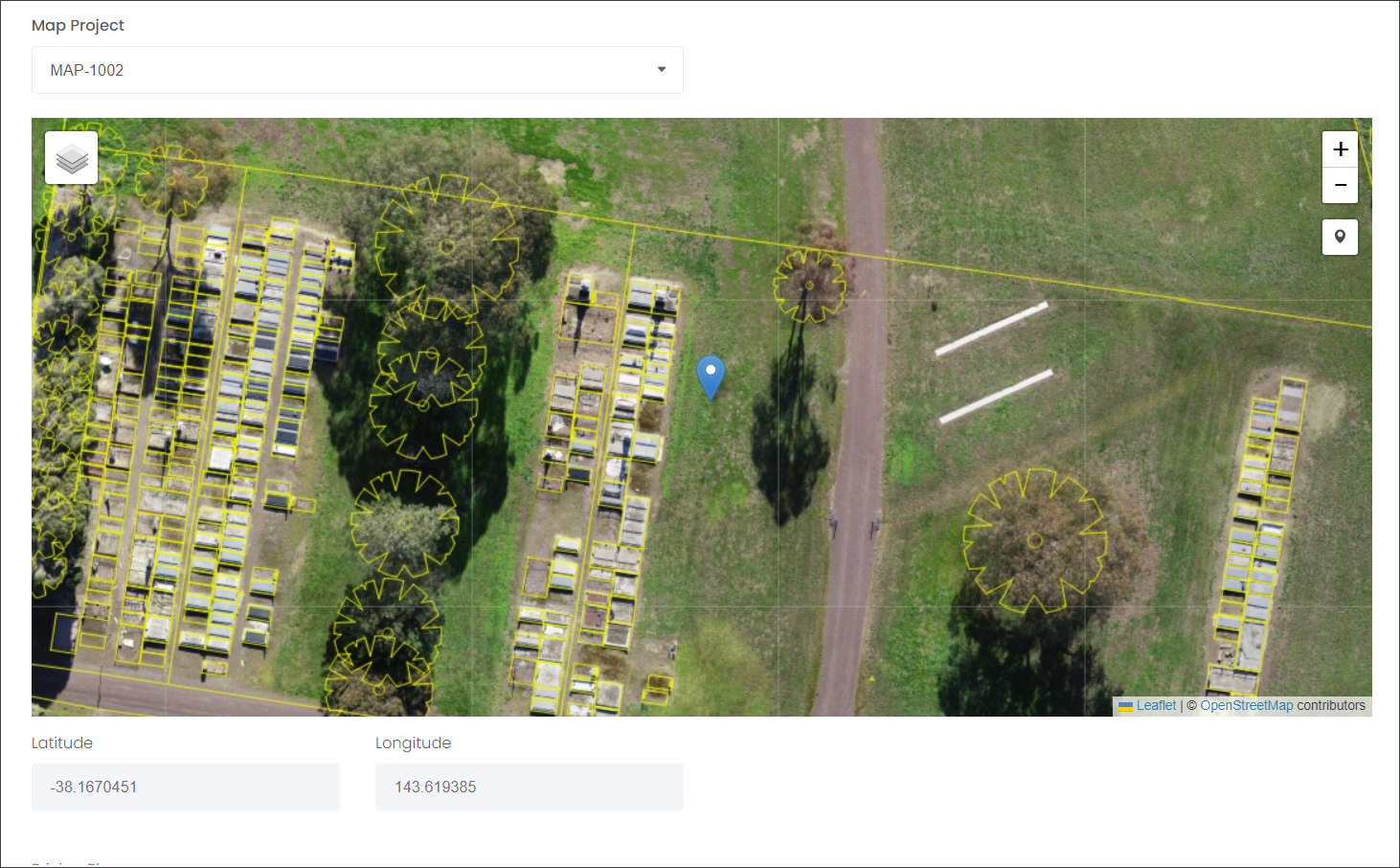
Firstly, you will choose which Map Project from mapmakr will be displayed on the website.
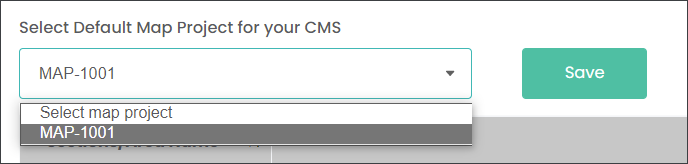
Choose a Map Project from the Select Default Map Project for your CMS drop-down list and press Save.
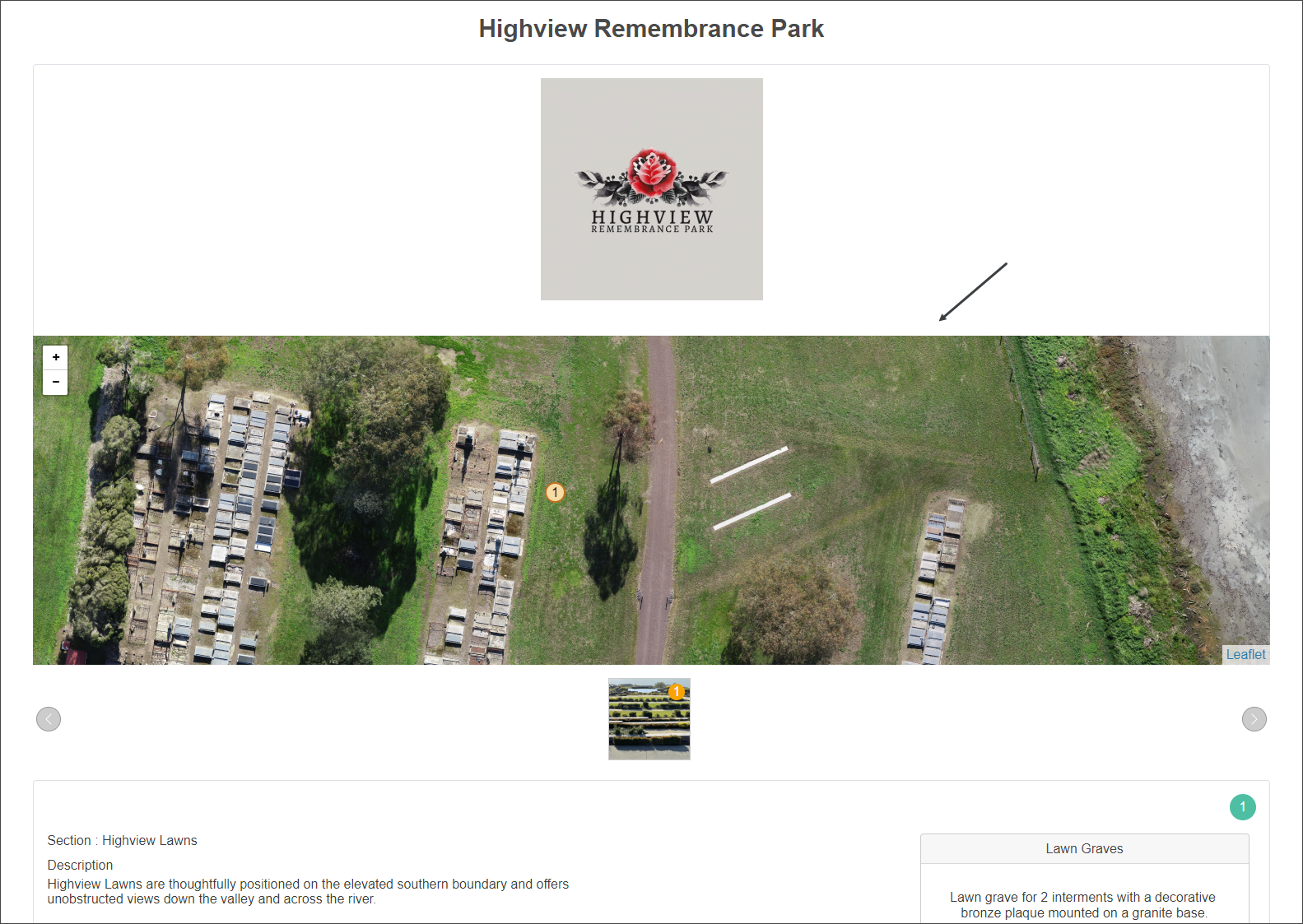
In our example, at Highview Remembrance Park the selected Map Project MAP-1001 is displayed on the website as shown below.
The way you can manage the Define Sections or Areas page, depends on whether your byondcloud is integrated with byondpro.
If your byondcloud is integrated with byondpro, the information displayed in the Define Sections and Areas will transfer over from byondpro, like for our example of Highview Remembrance Park.
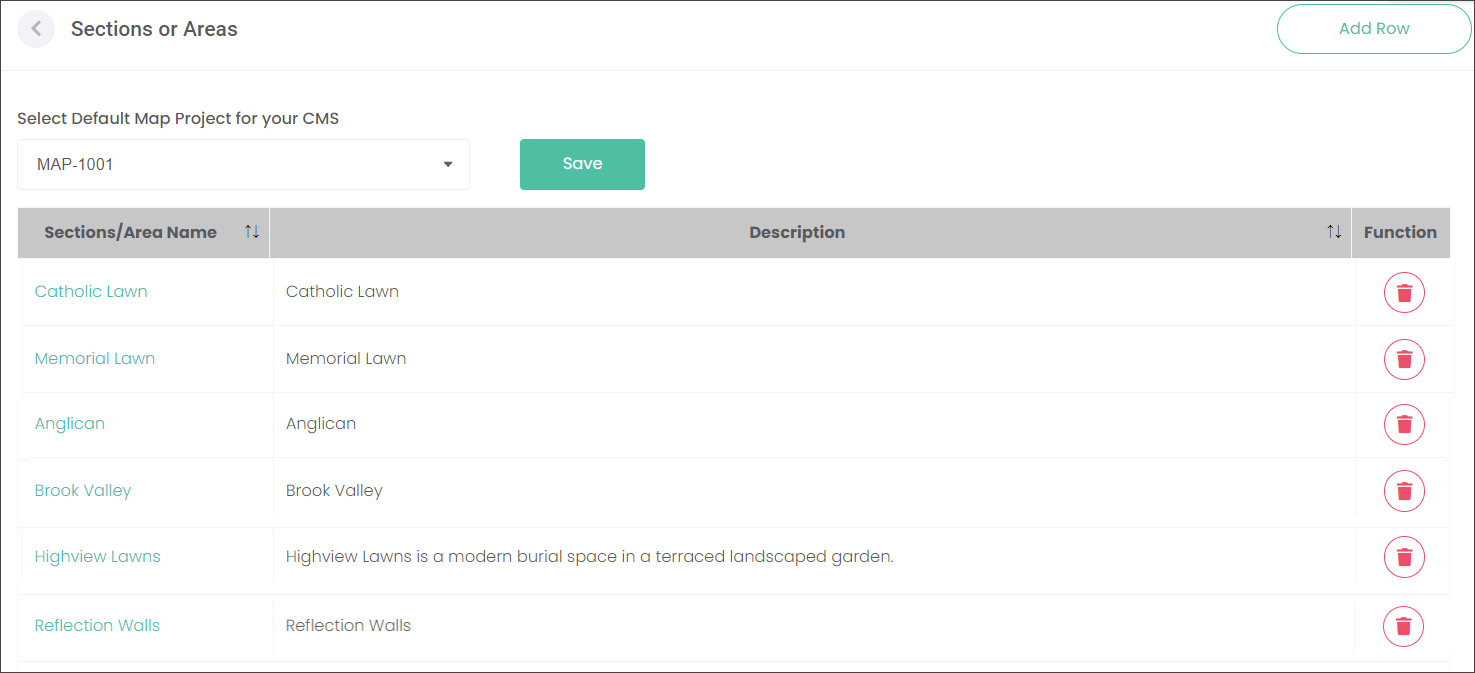
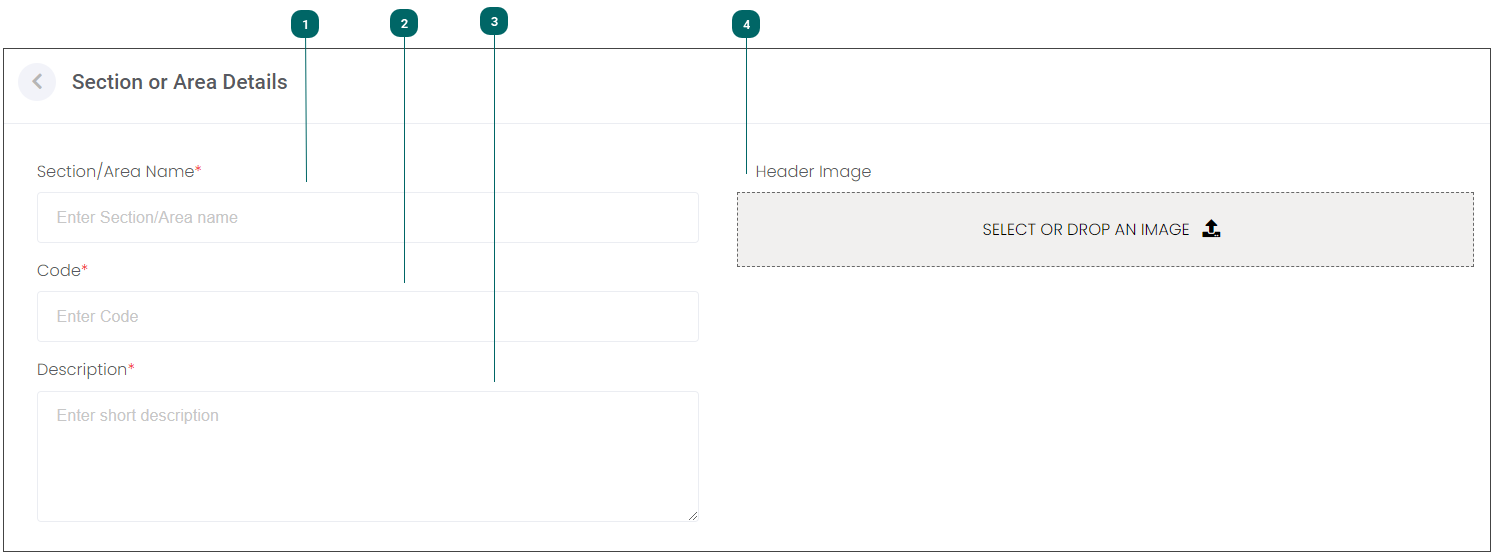
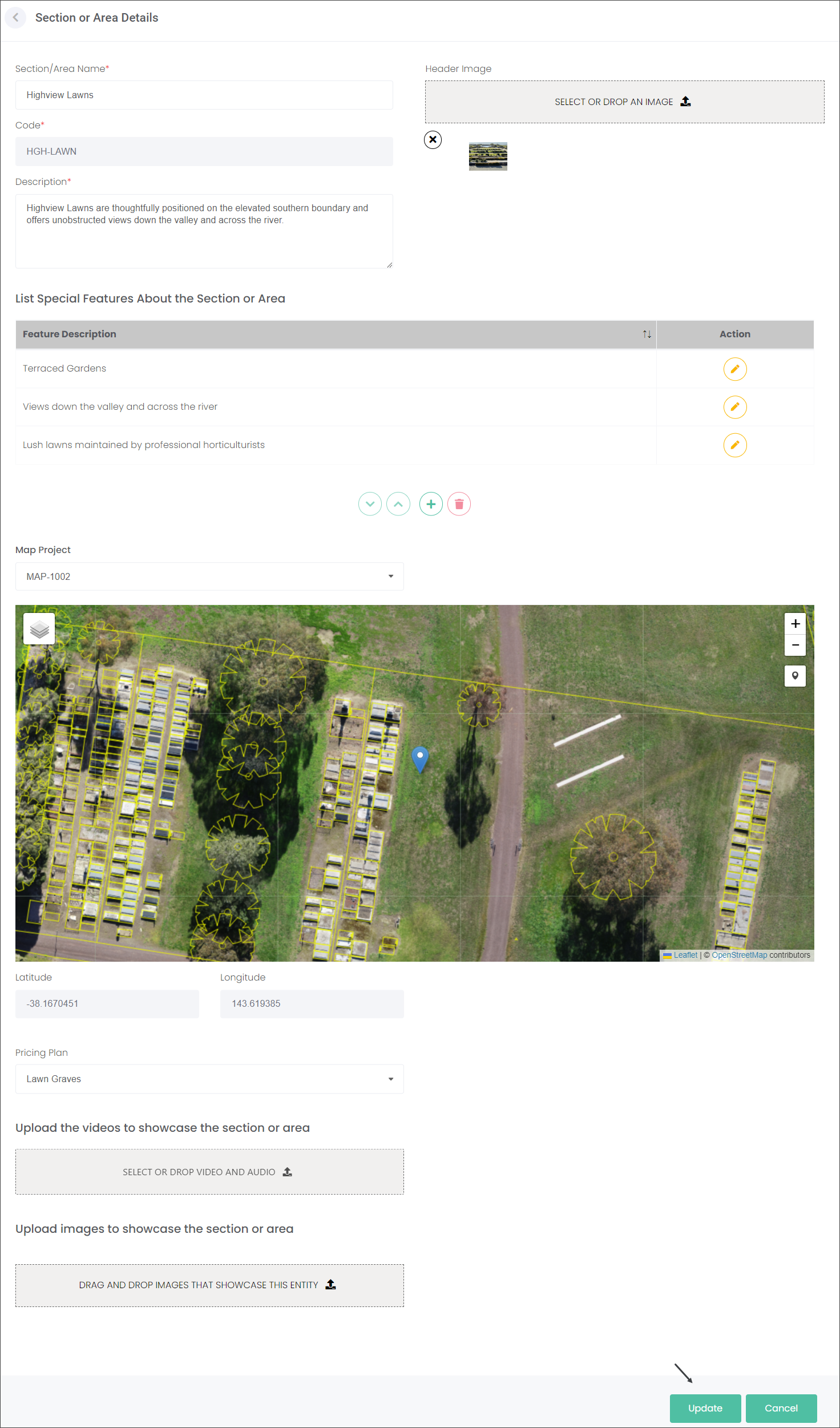
The integration with byondpro saves the users time is setting up Sections or Areas to showcase on the website, as some of the information has already been entered. The user in this instance can edit the existing Sections or Areas. Press a green hyperlink of the area you would like to edit and populate the fields as outlined below.
If byondcloud is your only OpusXenta solution, you will have to enter information about the Sections and Areas.
Choose the Add Row button and populate the fields as outlined below.
Follow the same approach when editing an existing Section or Area when adding a new one using the Add Row button.


Press the plus symbol to List Special Features About the Section or Area. Type in the Feature Description in the available text field and press the save symbol to save.

Use the up and down arrows to decide which feature will be displayed first.

Use the yellow edit icon in line with the Feature Description to update the wording.
Use the red delete button to erase the selected Feature Description.
The Map Project is saved as the one selected on the main Sections and Areas page.
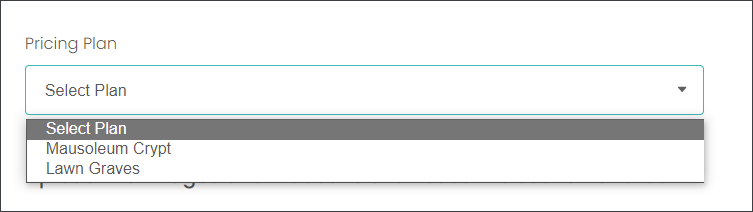
Select which Plans, configured on the Maintain Plans and Pricing page, are offered on the Section or Area. In our example, the user at Highview Remembrance Park has set two Plans: Mausoleum Crypts and Lawn Graves. The user can now select one Plan that applies at the particular Section or Area.
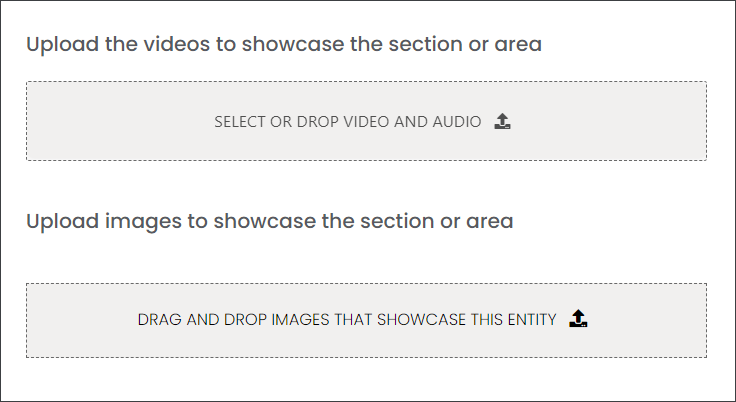
You can add additional images or videos to showcase the Section or Area. Upload or drag-and-drop images in the provided field.
Press the Save or Update button to save the changes to the Section or Area.
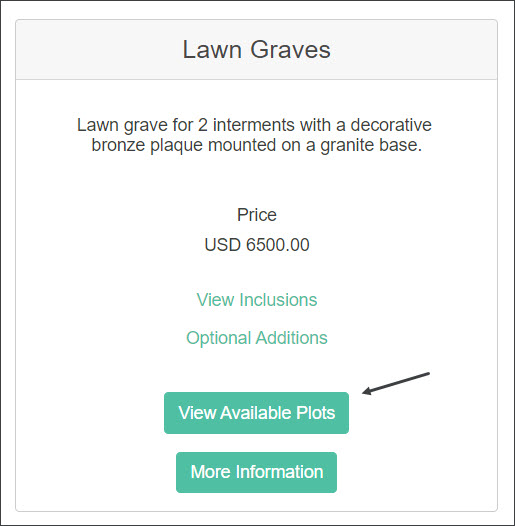
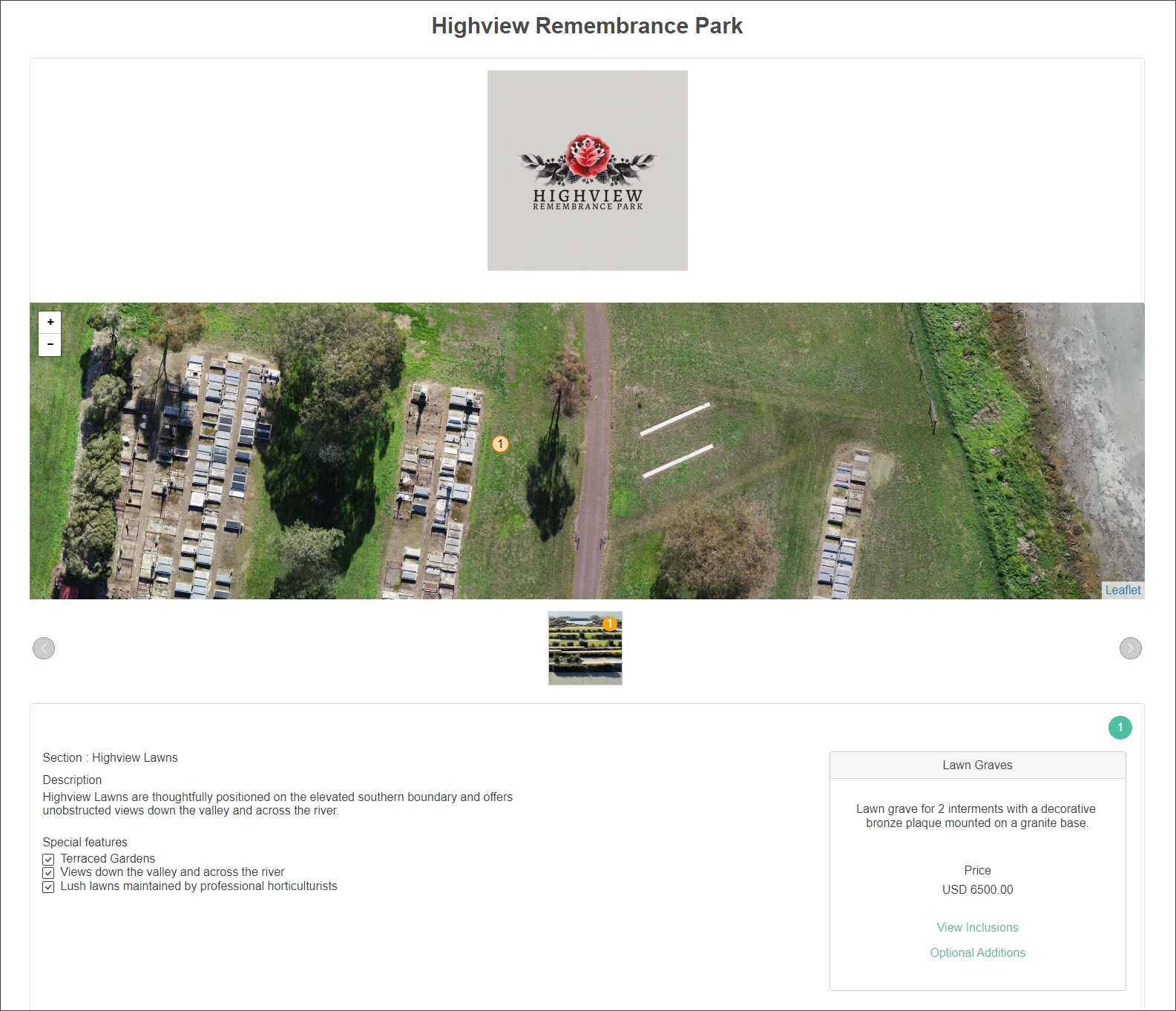
When Highview Remembrance park customers press the View Available Plots button, they will be presented with the information entered on the Define Sections or Areas page like the map of the Highview Lawns Section, uploaded images, its Description and Special Features.