Create Phase Details
Adding phase details to your phase info entry is the process by which you add phases and tasks to the designated transaction and location types applied to the phase info entry.
Tasks are added to phases and ordered in a logical manner so that users can complete them sequentially.
Click on the New Phase Detail button at the top of the Phase Details Management page to open the Creation Phase Details page.

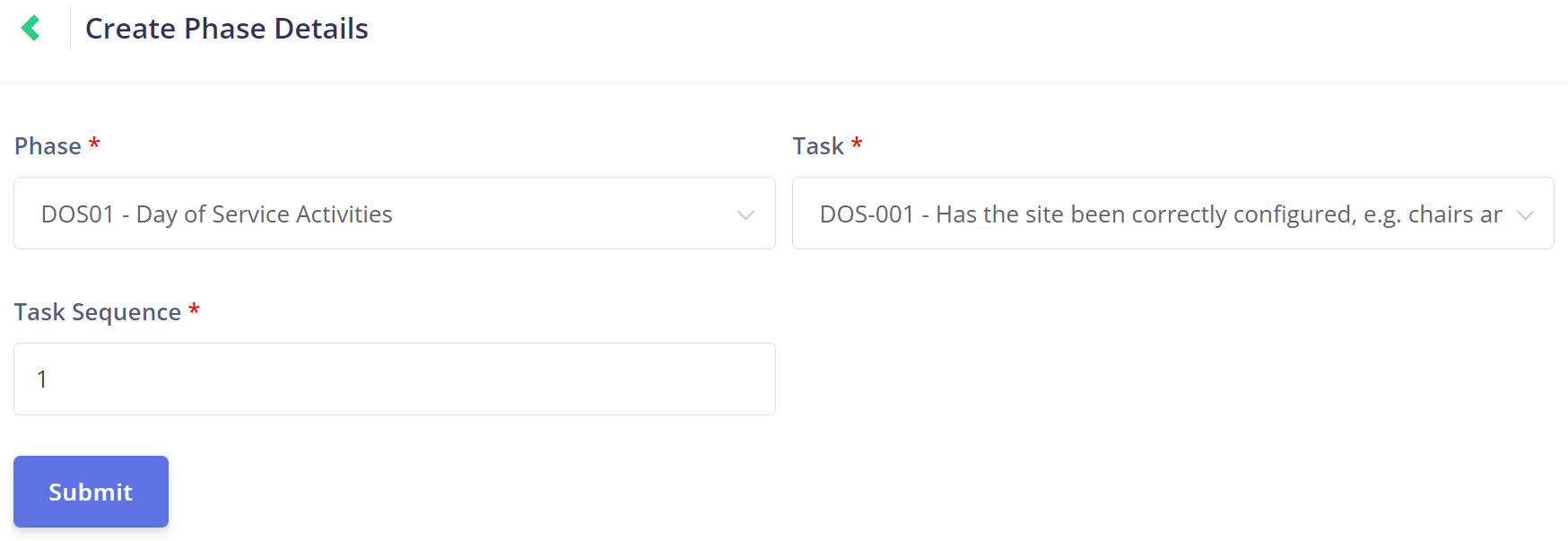
The Phase drop-down will list all the phases that have been set up in Task Manager.
If you know the phase you're searching for, you can type the phase code or description to find it.

The Task drop-down will display all the tasks that have been setup in Task Manager.

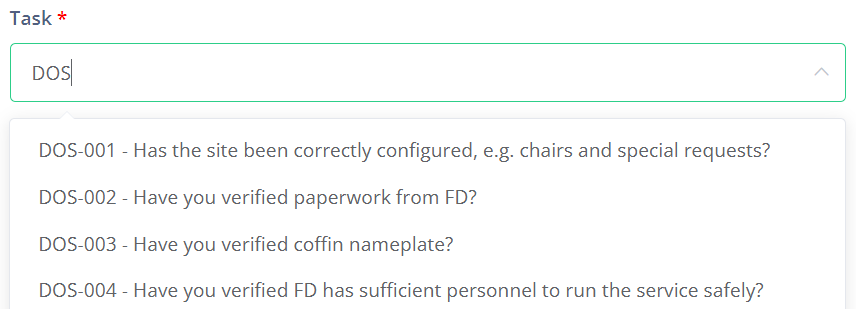
You can type the task's code or description to narrow the options down and find the task /s you're searching for.
If you created the task codes to match the phase codes, you would simply type the linking part of the phase code into the drop-down, and all tasks that share the code would appear.
For example, see our Day of Service Activities phase code of DOS used below.
However, some Tasks may be applicable to multiple Phases, and therefore won't share a similar code.
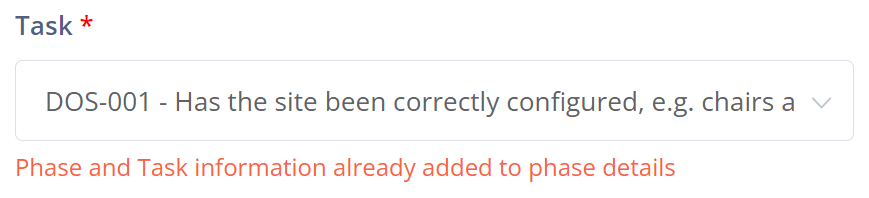
Attempting to add a Task that has already been used with the same Phase in another Phase Detail will result in an error, as pictured:
The Task Sequence field dictates when the task will be completed in relation to the other tasks in the phase.
In the shown example, the task will be completed first as it has a task sequence of 1.
If the task sequence were 3, then it would be the third task to be completed in the phase.
Some planning will be required to sequence tasks in a manner that is logical for your processes.

Once all fields are complete, click the Submit button to create the new phase detail.