Create a New User
To create a new user:
Choose Add New User on the top right-hand side of the screen.
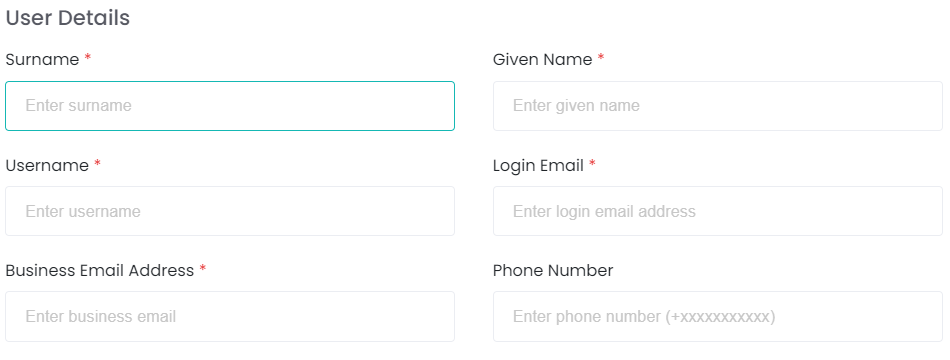
Complete the information fields.
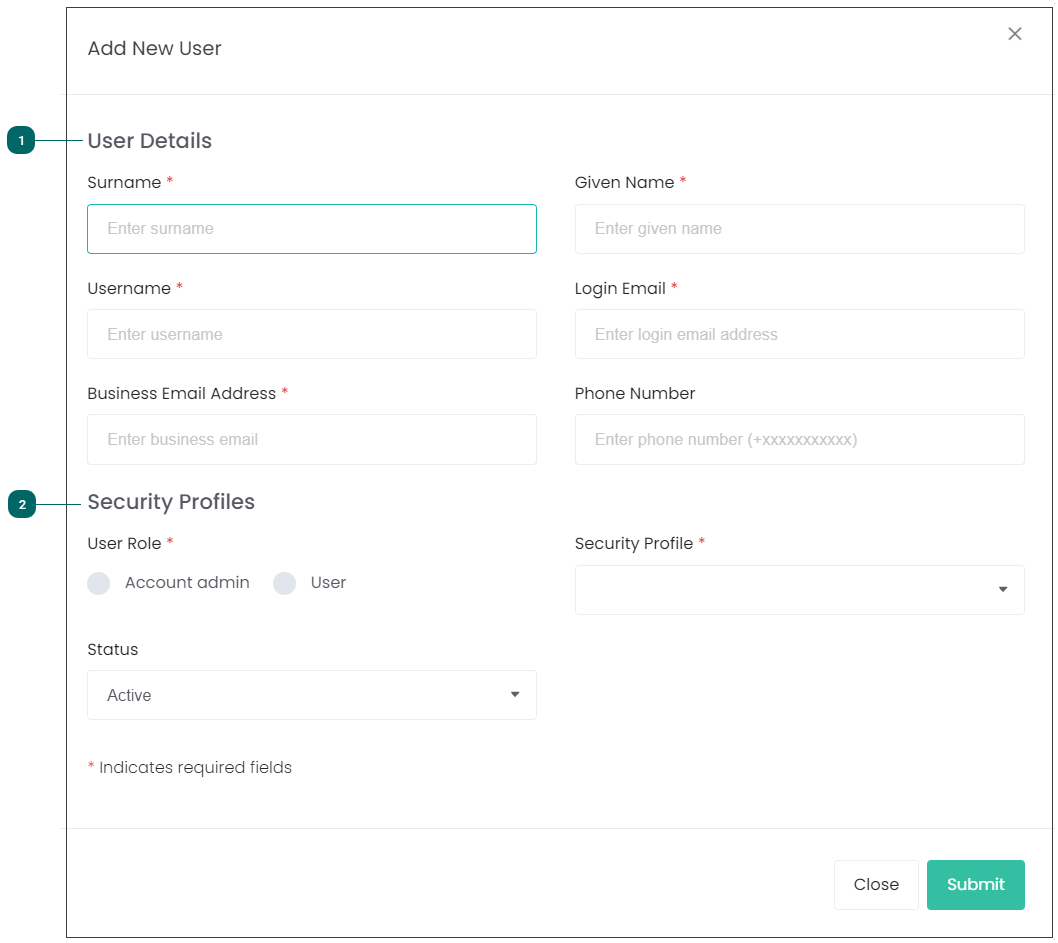


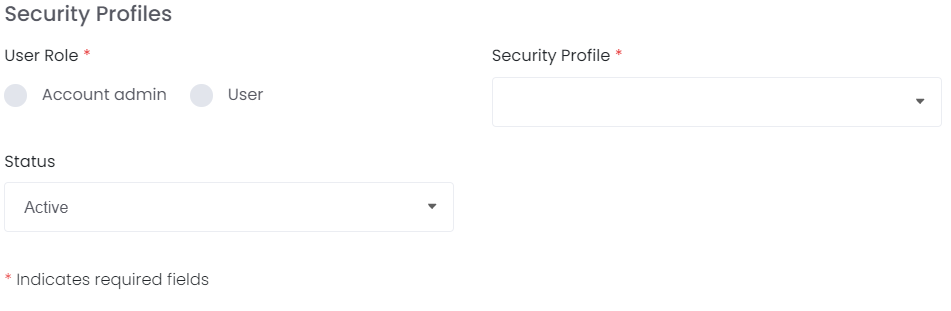
Select Submit to save the user.
The user will now be visible on the Manage Users screen.
Territory Permissions
Please note that assigning territory permissions is required for the user to use the following applications.
-
RecordKeepr
-
MapMakr
-
Funds Manager
-
Funeral Director Application
-
Monumental Mason's Application
To use Proxy Manager, territory permissions are not required.
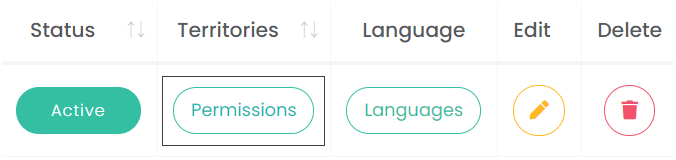
Select Permissions from the Territories column of the user list.
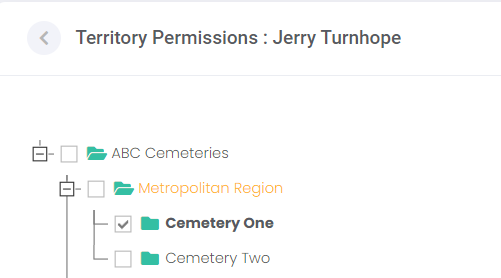
Check the box alongside each of your sites / branches that this user can access. That is, the user can transact on behalf of the checked sites / branches.
Once selections are made, select Update.
Languages
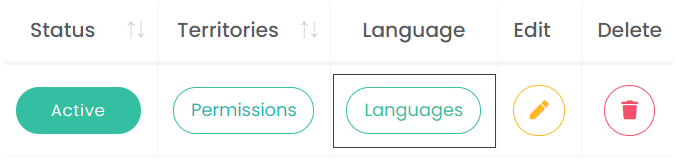
The Languages button allows those with appropriate access to update the languages that a user has available to use on their profile. While this is not a required step, it may be useful to individual users.
To update, click on the Languages button.
Check the box alongside each of the language /s that this user can access.
Once selections are made, select Update.
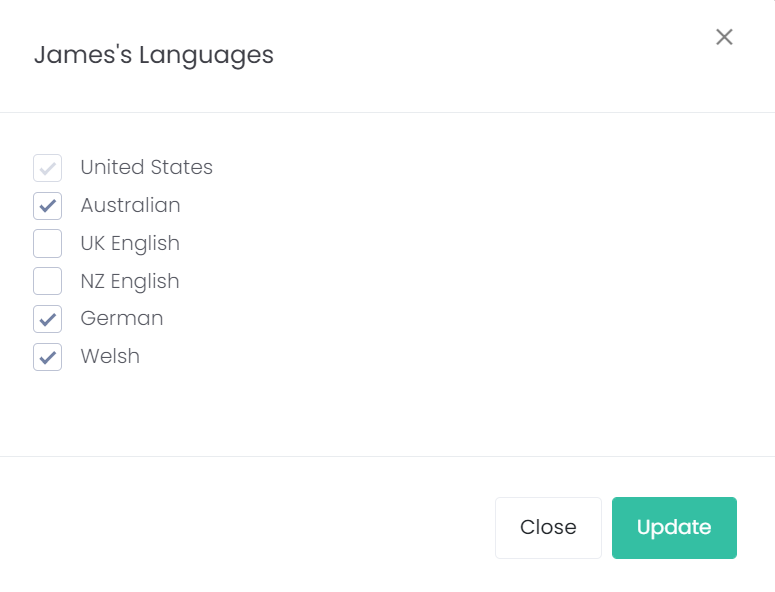
The user will then have access to all languages selected on their profile.