Create a New Project
To create a new map project, click on Create New Project.
The following screen displays:
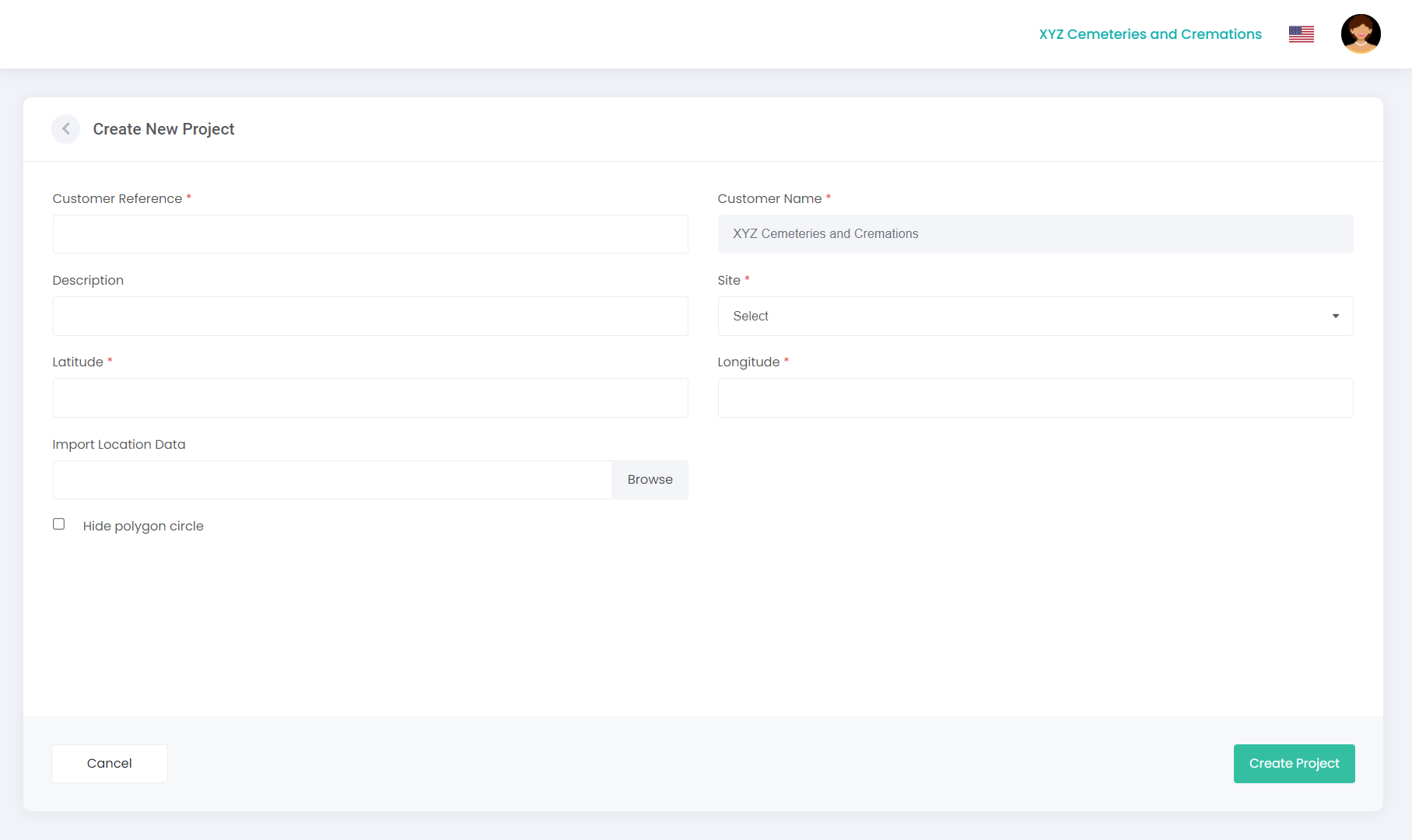
Complete the following fields:
|
Field
|
Field Description
|
|
Customer Reference
|
Enter a reference name for your map project, e.g., MEMGARDENS. Note: the reference name can only be up to 10 characters long.
|
|
Customer Name
|
This field will auto-populate with the organisation / trust name.
|
|
Description
|
Enter a more detailed description for the map project, e.g., Memorial Gardens.
|
|
Site
|
Select the relevant site from the drop-down list.
|
|
Latitude
|
Enter the latitude of the site (use google maps to obtain the general latitude or use actual latitude if available). TIP: This field will only accept up to 6 digits after the decimal point i.e. -38.164982
|
|
Longitude
|
Enter the longitude of the site (use google maps to obtain the general longitude or use actual longitude if available). This field will only accept up to 6 digits after the decimal point i.e., 38.164982
|
|
Import Location Data
|
Click on Browse and upload your Location Data CSV template (with Location Code, Longitude and Latitude as a minimum requirement). Refer to next topic – Import Template for more information.
|
|
Hide Polygon Circle
|
If using polygons in your map project, tick this checkbox to hide the centre-circle of the polygons if they are too big for the area you are mapping.
|
Click Create Project.