Care Programs
The Care Programs are packages of services and products sold to customers.
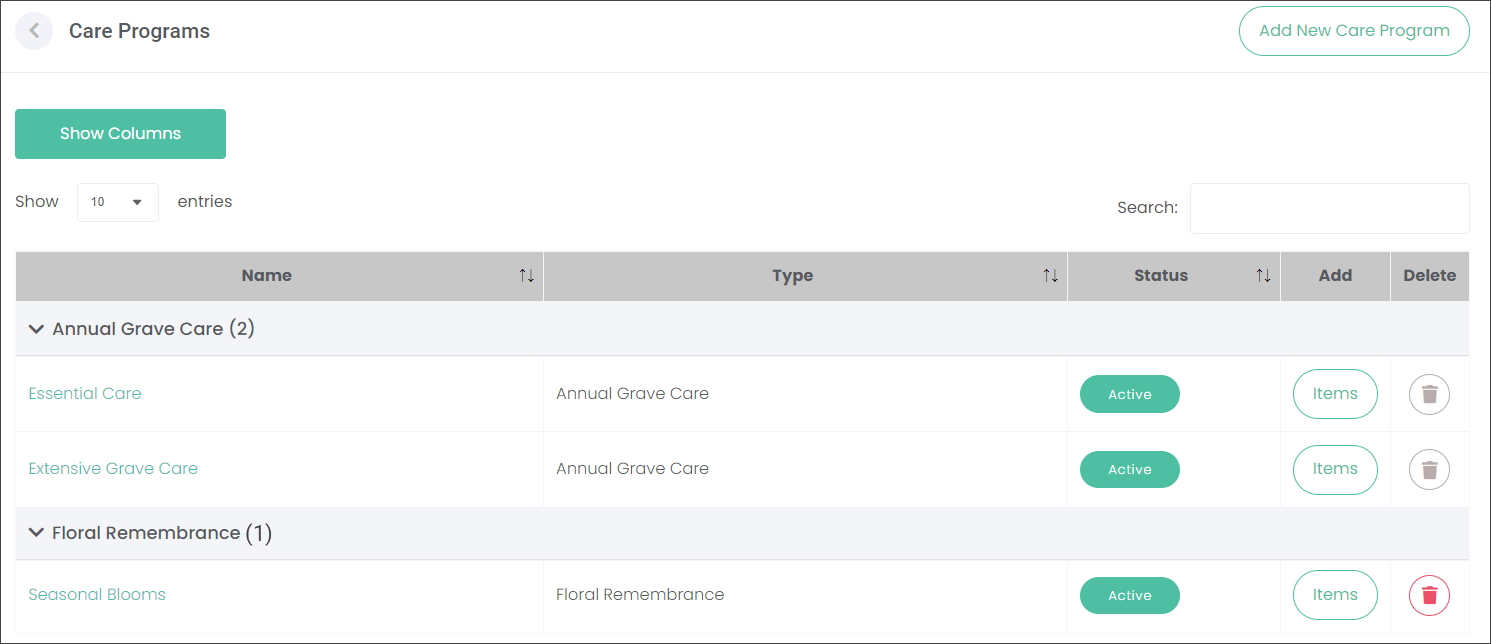
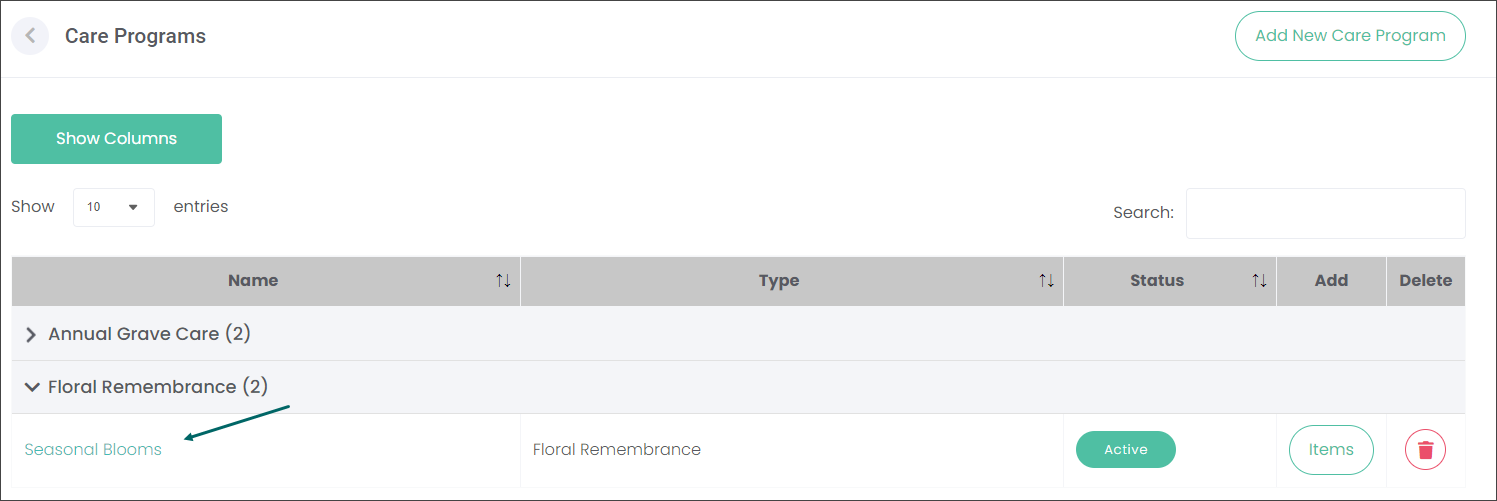
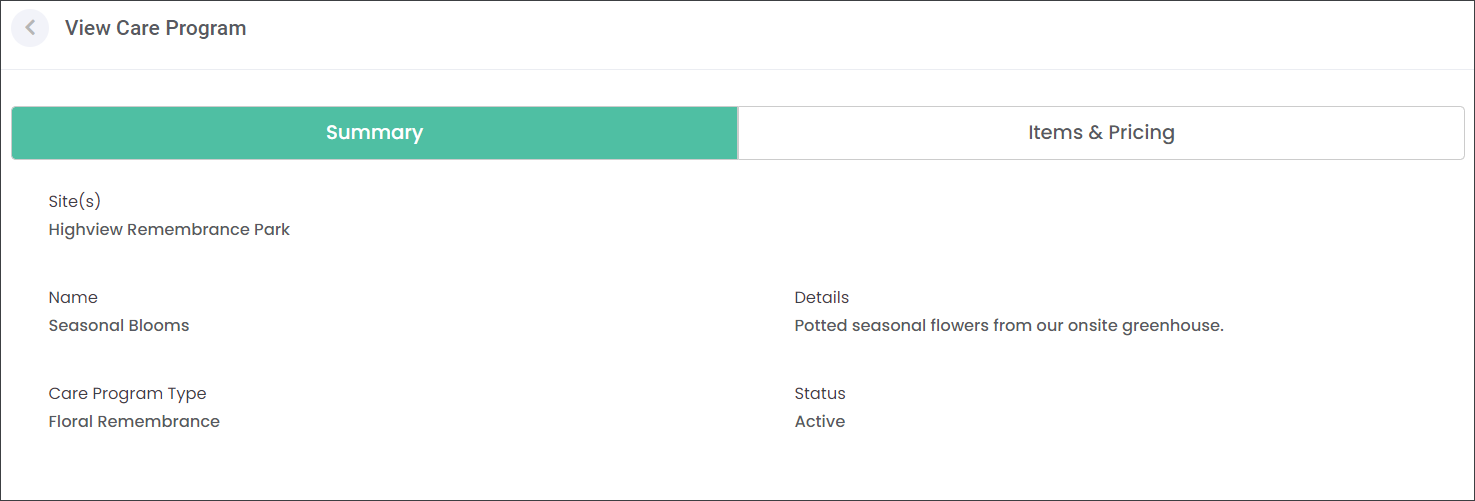
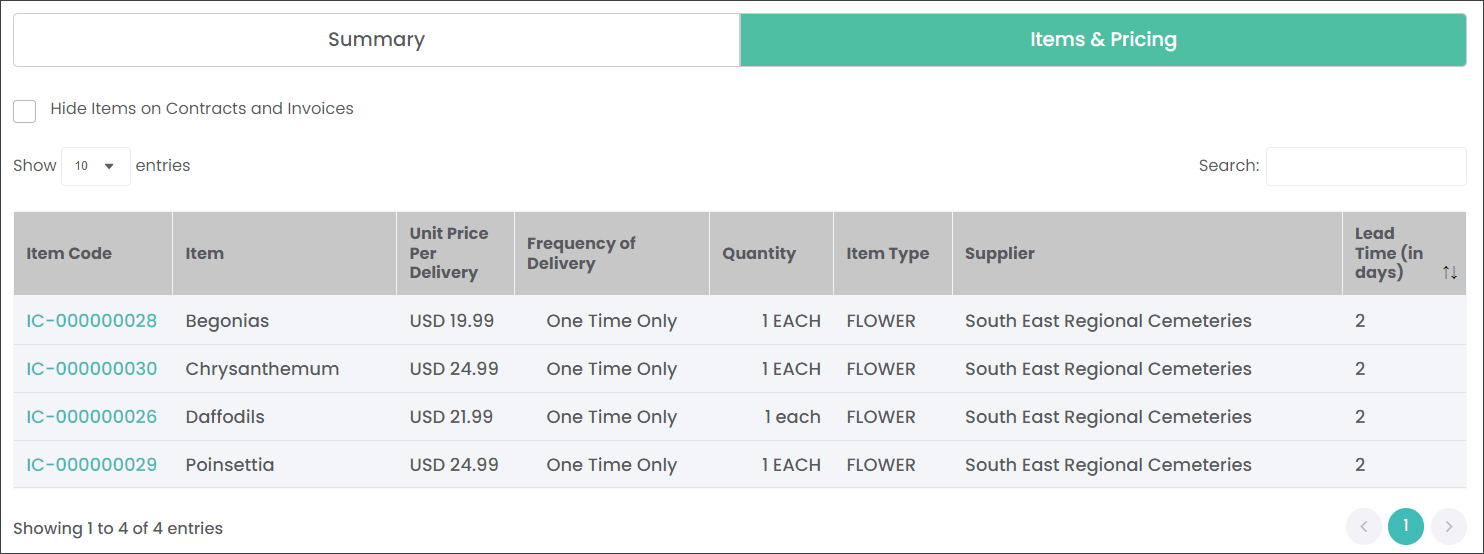
Let's take a look at an existing care program e.g. Seasonal Blooms.
Each Care Program is made of two components:
-
The Summary section captures basic information like the Site, Name, Details and Care Program Type, and
-
The Items & Pricing section is a list of included Items.
Press the Add New Care Program button to make a new entry.
Summary
Begin creating a new Care Program in the Summary tab.
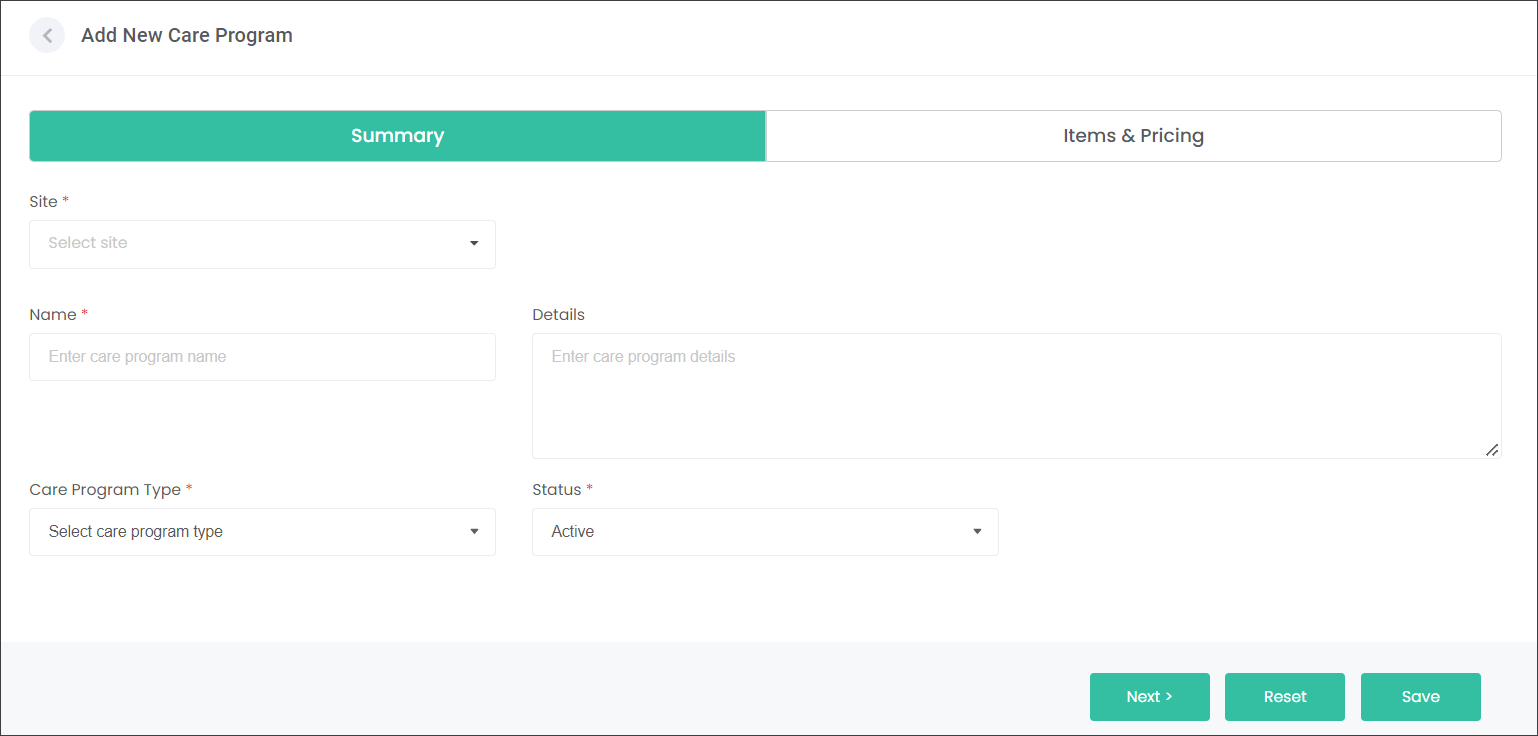
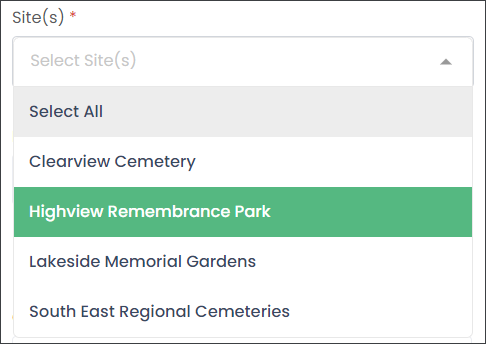
In the Site menu, select where the program will be offered.
Note: Multiple Sites can be selected.
In the Name and Details text boxes type in the description of the program.

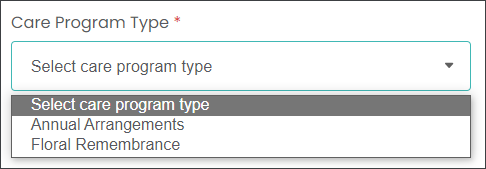
Select the Care Program Type associated with the new program.
Items and Pricing
Navigate to the Items & Pricing tab to nominate the individual components of the package.
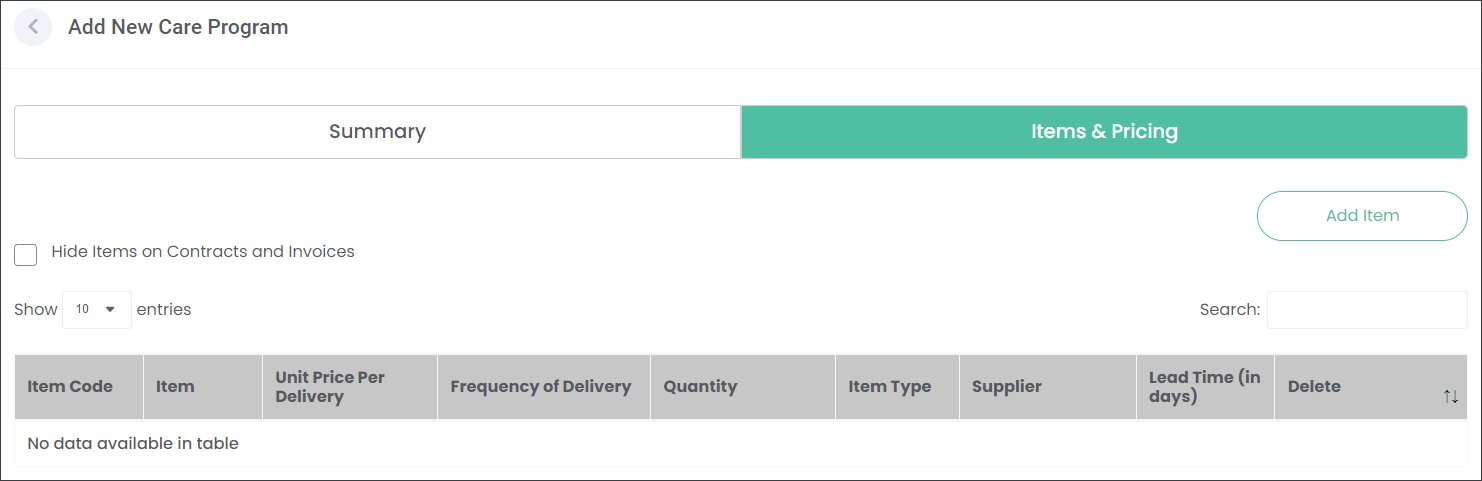
Press the Add Item button to trigger a pop-up window for the Item selection.
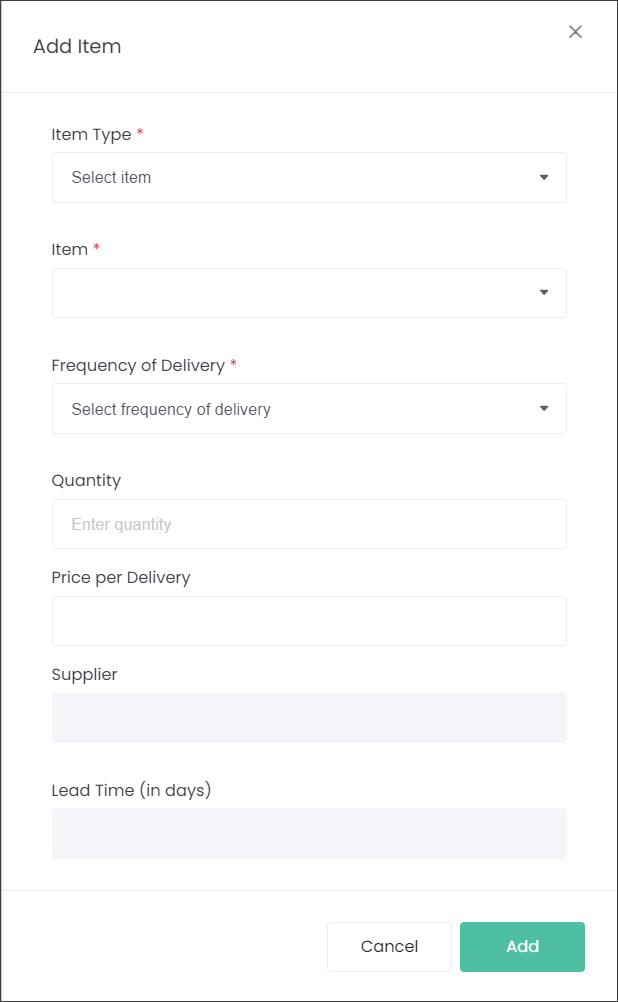
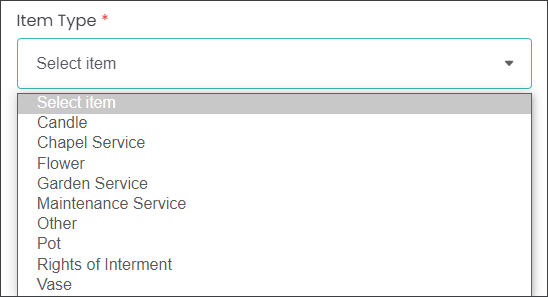
Select an Item Type from the drop-down menu.
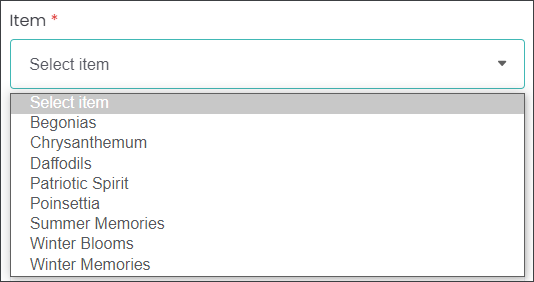
Select an Item from the drop-down menu.
Note: The available Items were created in the Items module or came across from your supplier's portal.
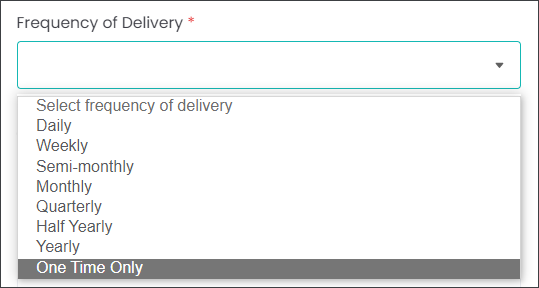
In the Frequency of Delivery menu select how often the Item will be delivered to a location.
In our example, the selected Begonias will be delivered One Time Only as the package is related to an annual arrangement.
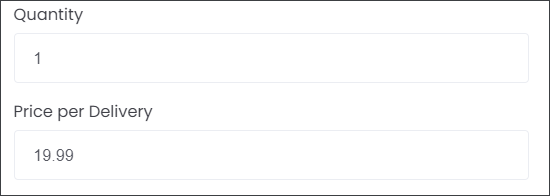
Type in the Quantity of the Item.
The Price per Delivery is auto-populated as per Item configuration.
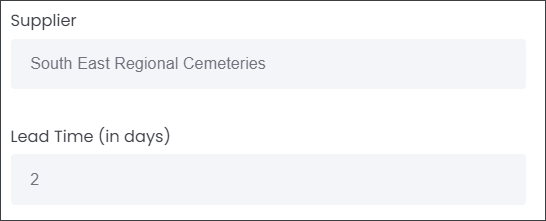
The Supplier and Lead Time fields are also auto-populated as per the Item configuration.
Press Save to select the Item.
Continue adding Items until you're program is ready.
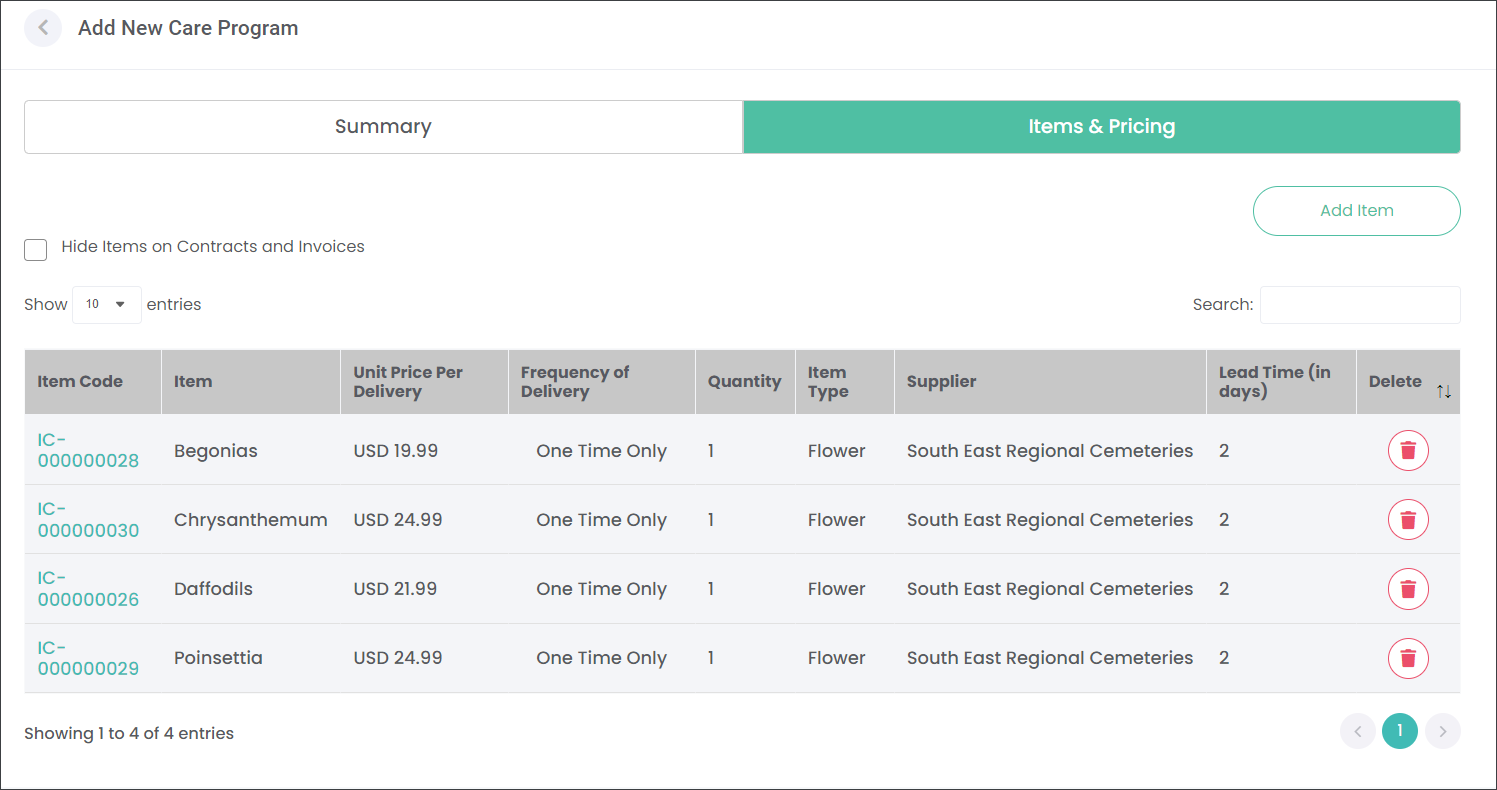
Tick the Hide Items on Contracts and Invoices box to decide whether the customers receive a basic view of the program or a detailed view with the Items listed.
Press Save to create the Program.