Assign Phase to Team
From the Jobs Details window, click on the Assign To tab to reveal a drop-down selection of the job's phases.
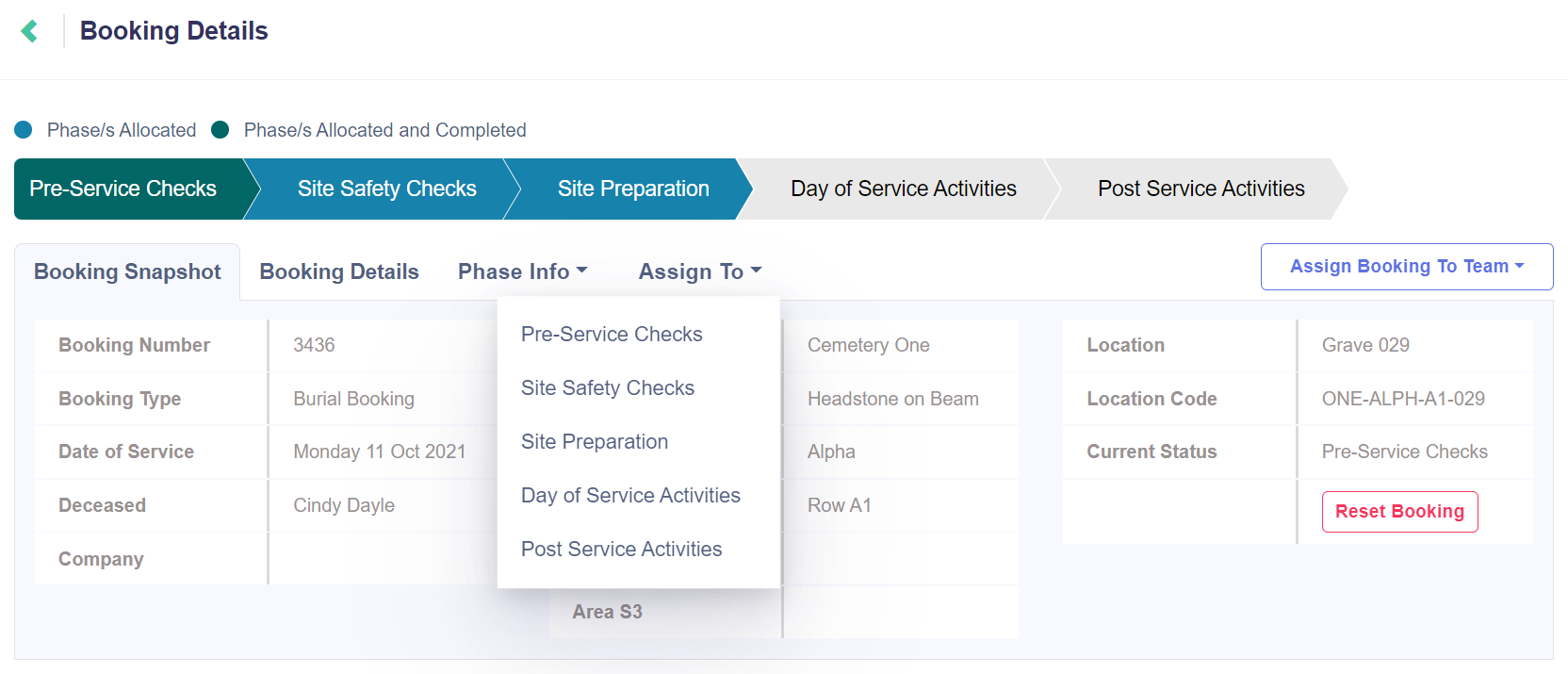
In the example below, the Day of Service Activities phase has been chosen.
The tasks associated to the phase are then listed.
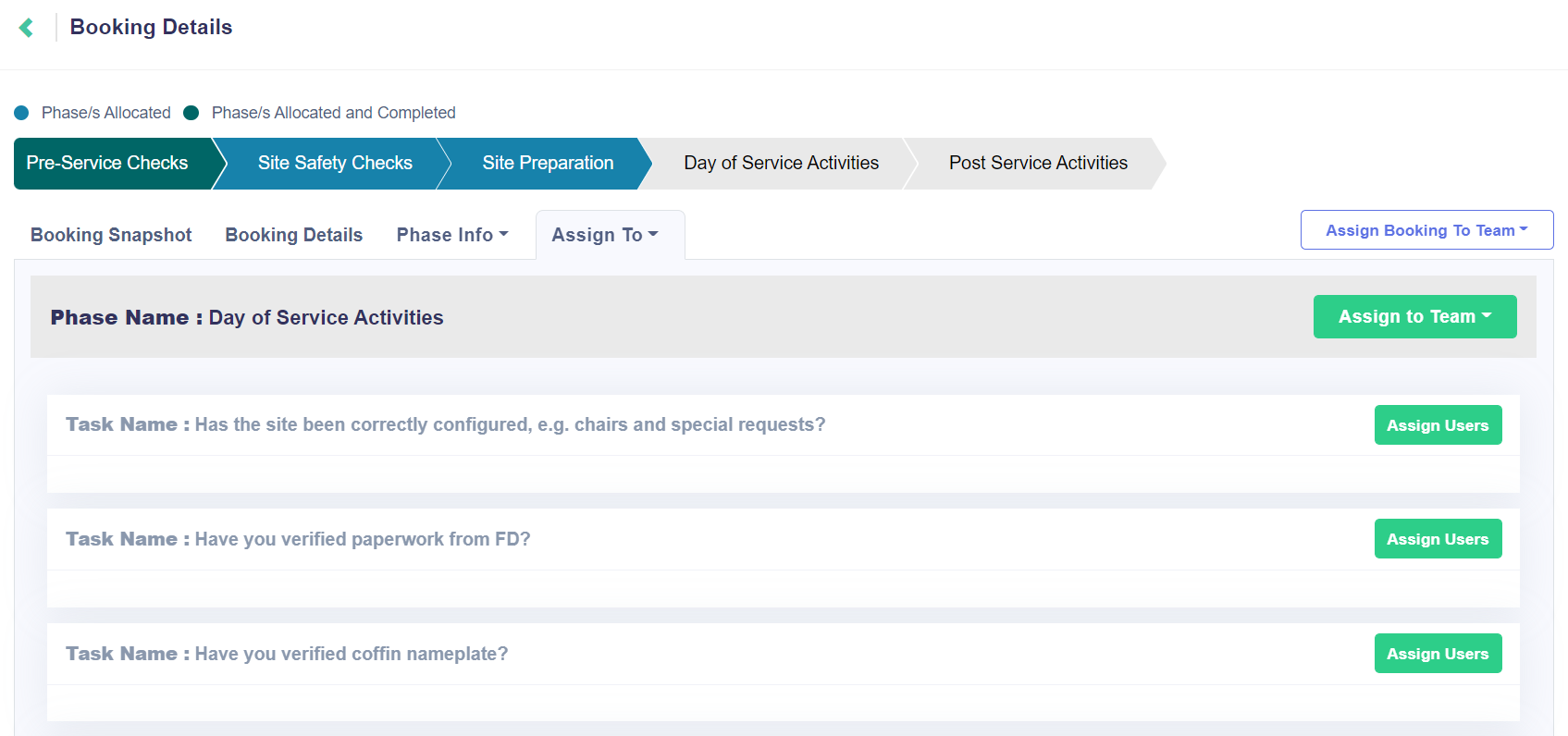
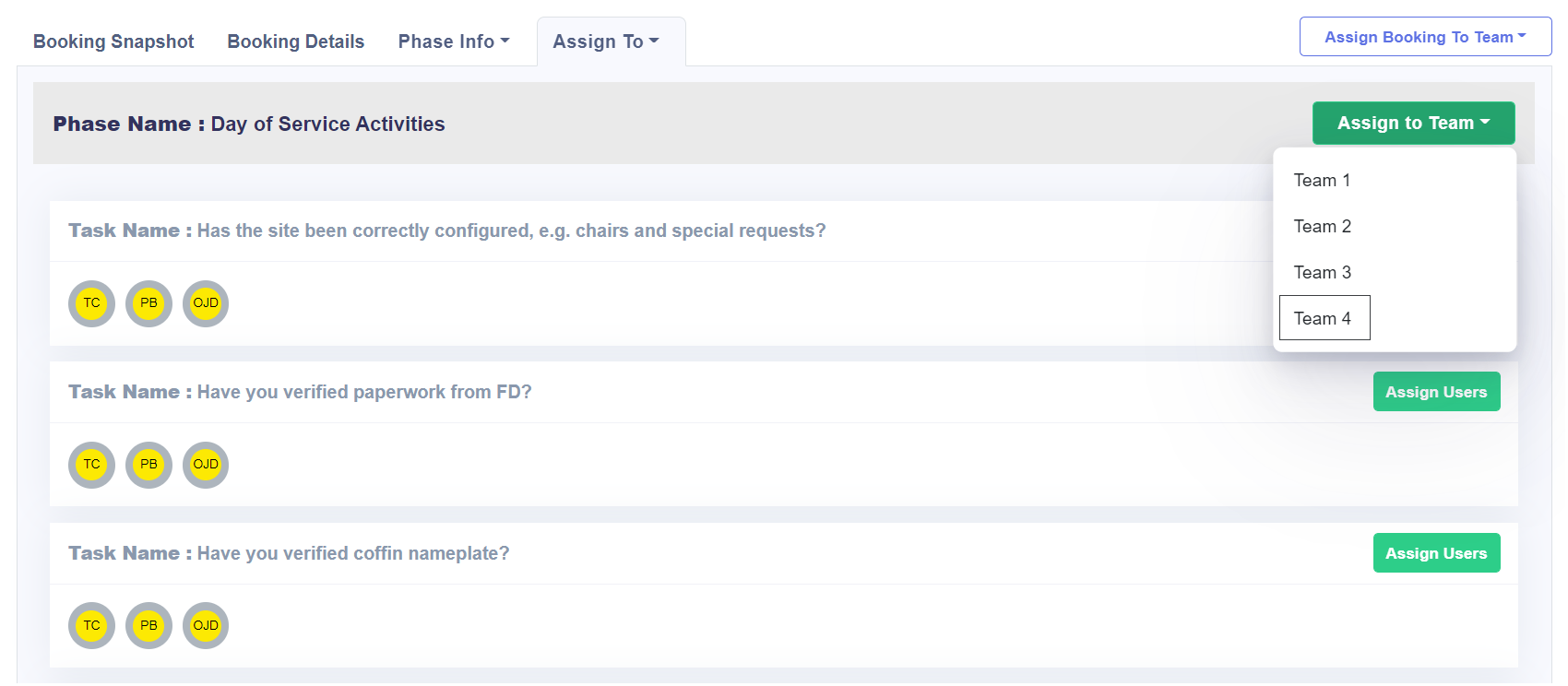
Click on Assign to Team and choose the desired team from the drop-down selection list.
For this example, we have assigned Team 4 to all tasks in this phase.
This team has three members, whose initials are listed under each task on the left-hand side.
Up until a task is started, the assigned team members can be changed.