Add New Package
Summary
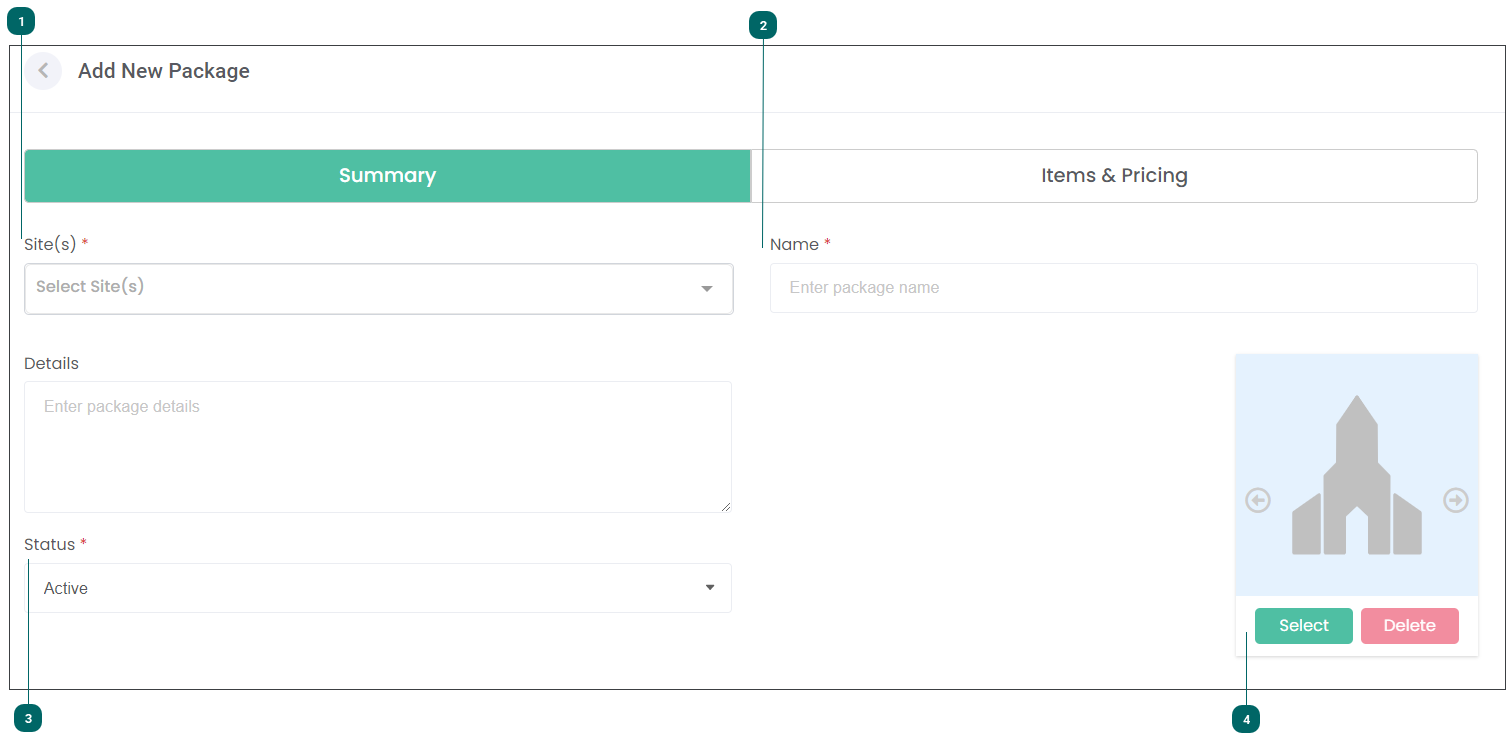


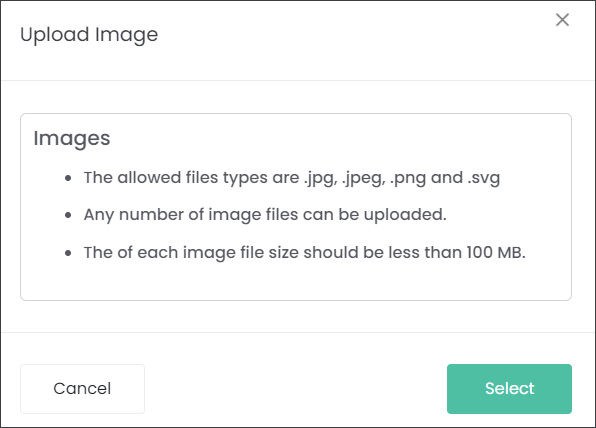
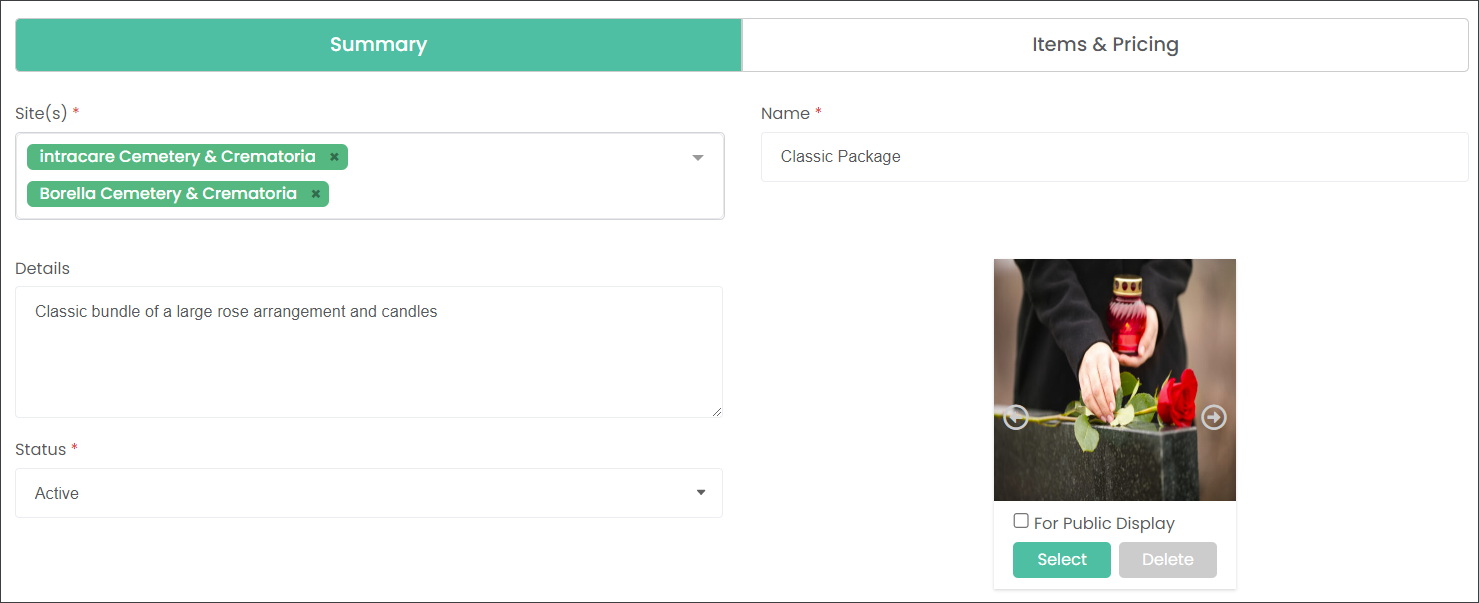
Navigate to the Items & Pricing tab when you are satisfied with the information populated on the Summary tab.
Items & Pricing
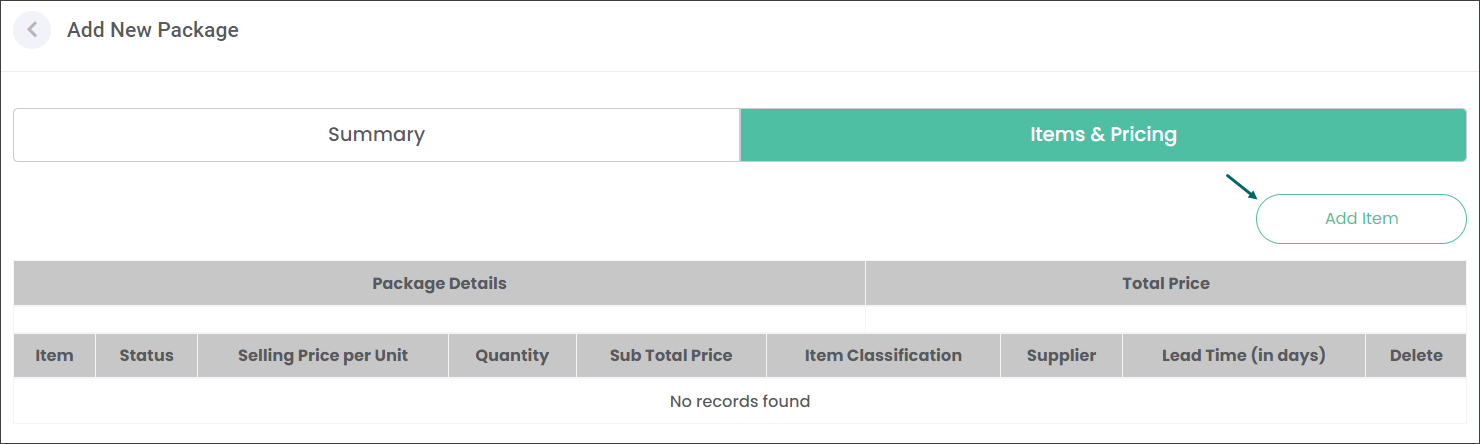
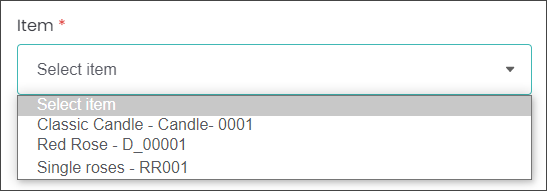
Press the Add Item button. An Add Item pop-up window will appear where you can select a product from your internal Items catalog or from your Suppliers' Items catalogs.
You selection list will depend on the Items offered at the Site selected on the Summary screen.
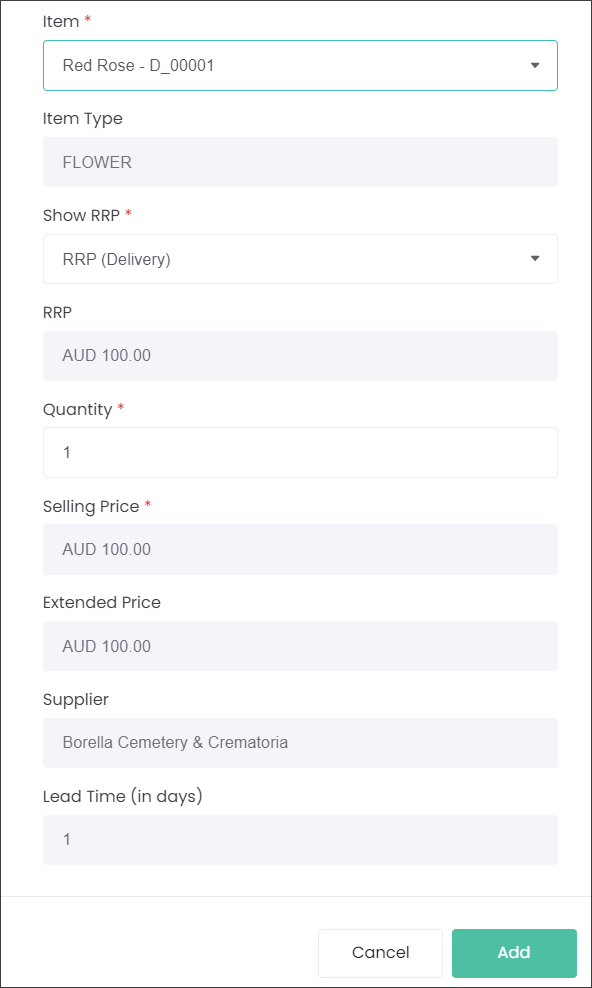
When you select the Item the details in remaining fields will auto populate as per Item's settings.
You can change the Quantity field, for example if you need two Red Rose Arrangements for a Package.
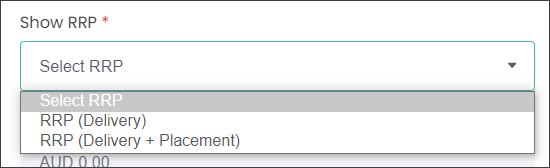
If the Item has two RRP (Recommended Retail Price) models set up, you will be able to select between the two.
Then press the Add button. Repeat the process for each Item.
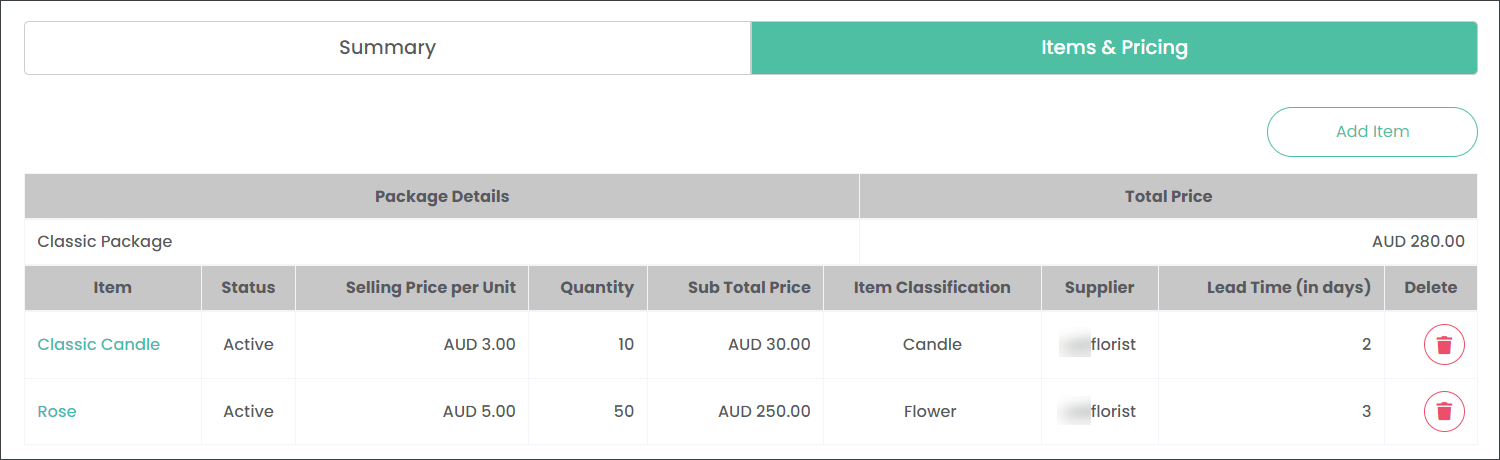
Press Save.