Add New Document Template
From the Document Templates screen, click Add New Document Template to open the document template creator.
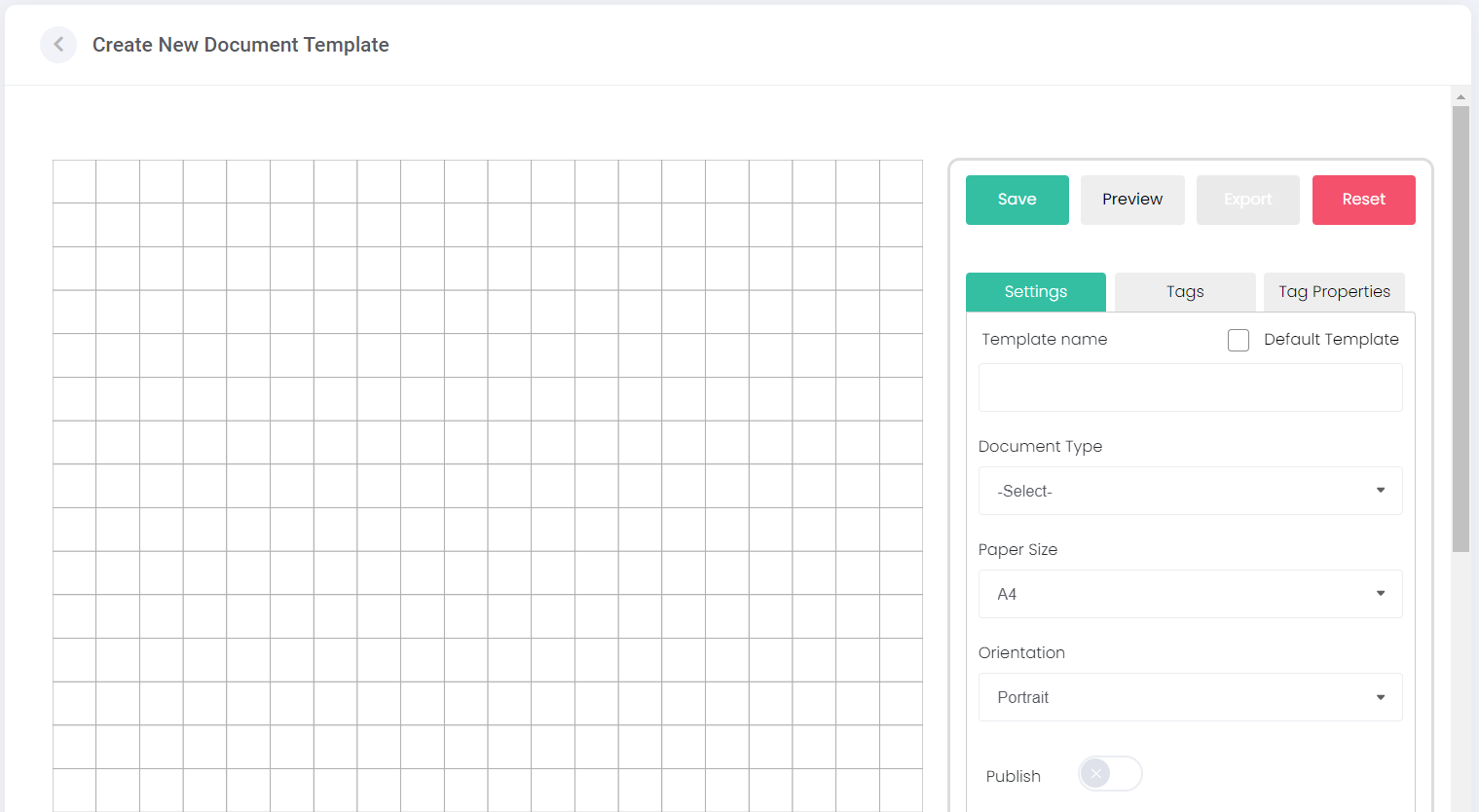
The right-hand side of the screen allows for the settings and tags of the document to be configured.
To begin, configure the Settings of the document.
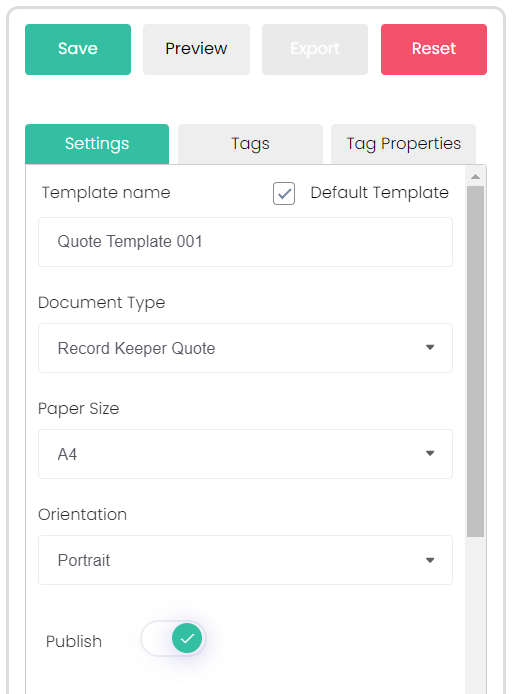
The Default Template tickbox ensures that each time a document needs to be created in RecordKeepr, this template will be the default choice. The user will still have the option to select a different template using a drop-down list.

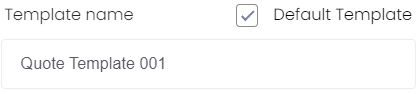
The Template Name is a free-text box used to name the template.
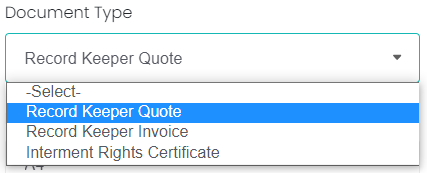
The Document Type drop-down describes what kind of document the template will generate. The selected type will dictate where this document can be generated during the invoice process. For example, a quote will be available when adding a quote in RecordKeepr.
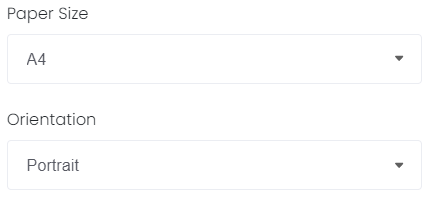
The Paper Size and Orientation can be used to change the size and layout of the finished document.
The Publish slider dictates whether the document will be published and ready for use, or unpublished and unavailable for use. If the template is still being drafted, leave it unpublished. If the document is production ready, set it to publish.

The Tags tab allows for information to be entered into the template using tags. Each tag has a different function.
A Text tag allows for a free-text box to be used to enter custom information.
Many of the tags are preconfigured to provide certain information. For example, the Quote Total will calculate and display the total price of the quoted transaction.
There are also tags to add dates, company logos, company or customer contact details, or even an items table that displays a list of quoted/invoiced items with their prices and quantities.
To add a new tag, click the plus  symbol to the right of the tag.
symbol to the right of the tag. 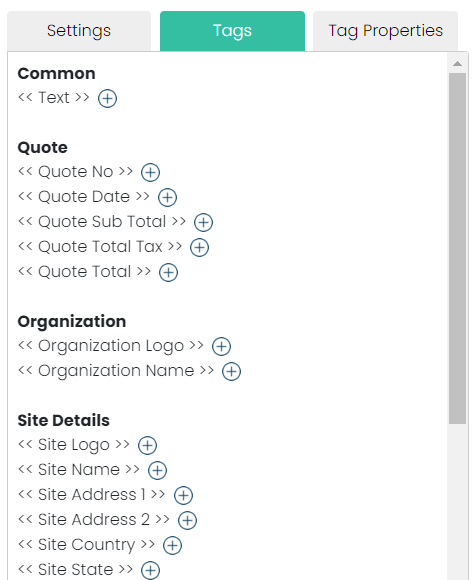
The added tag will display on the left-hand side of the screen. The tag can then be clicked-and-dragged around the screen to place it in the desired position.
The tag can be resized using the nodes on the edges and corners to click and drag it smaller or larger.
The tag can also be deleted by clicking the delete button on the top right-hand side of the tag.
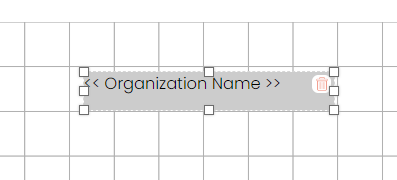
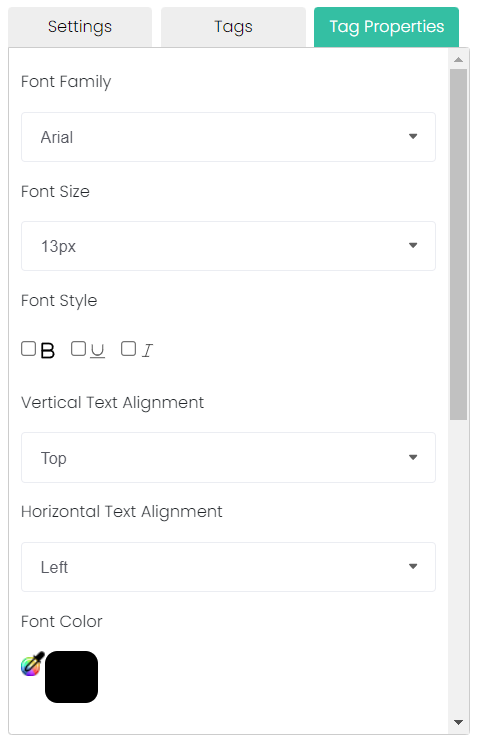
The tag can then be edited under the Tag Properties tab on the right-hand side of the screen.
The Font Family, Size, Style and Color can be changed here, as can the Vertical and Horizontal Text Alignment.
Tags continue to be added, positioned, and styled until the template has been designed in full. See an example below:
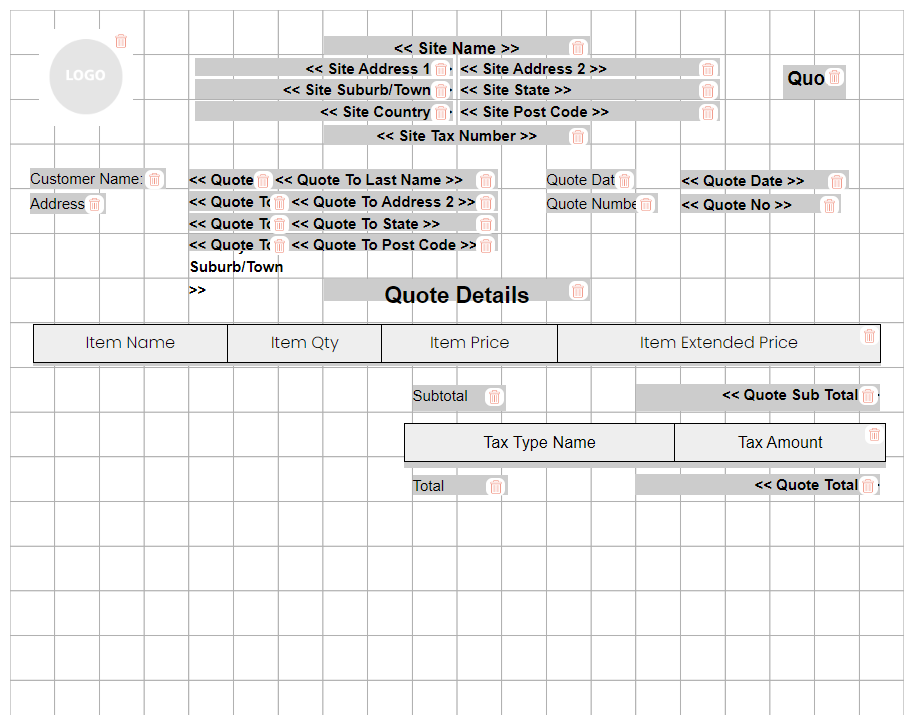
Once the design is finished, click the Save button to create the document.

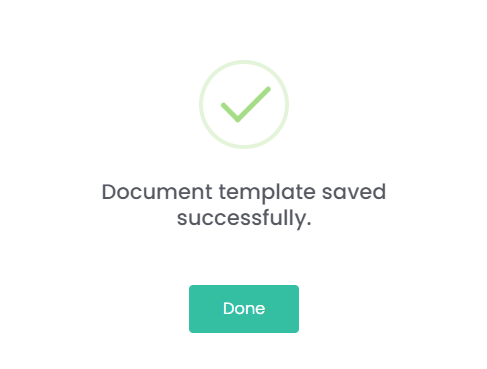
A pop-up message will display to confirm the document was saved.
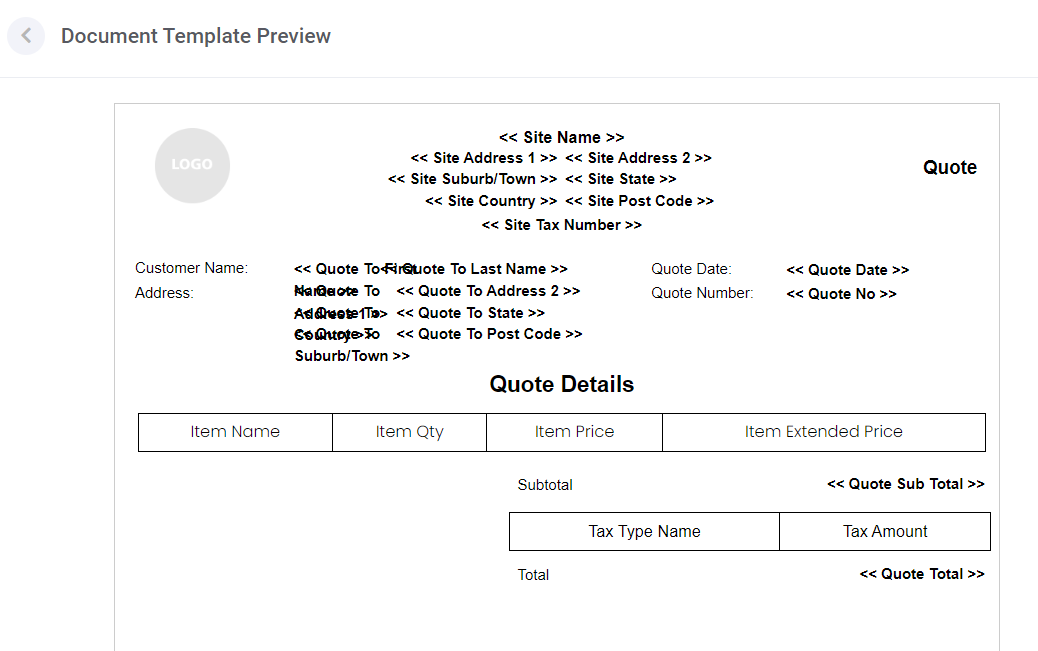
Click Preview to see how the document will look when generated.

This will open the Document Template Preview. Many of the tags will only show with their tag names, as the preview does not have the required information available to fill each tag in.
Click Export to download the template as a document that can be imported into any instance of byondcloud's document templates tool.

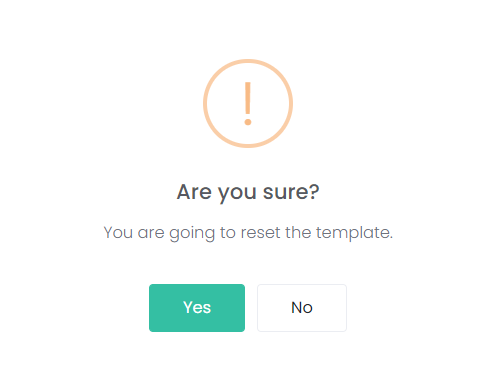
Click Reset to clear any unsaved changes to the document.
The following pop-up will display, confirming that you wish to reset the template.
Once the template has been created, you can navigate back to the Document Templates page by clicking the back arrow next to the Create New Document Template title.
